Location & availability
- Menu: > > >
- Access level: admin

Credentials are the user name and password for the admin account. This information is not needed during regular use of the meeting rooms. Barco advises to keep the credentials confidential to avoid unwanted access to critical configuration settings and accounts.
Must the admin account name be renamed?

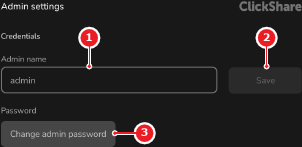
Tap (reference 2, Image 7–44).
The admin account name is changed to the entered name.
Must the password of the admin account be changed?
The change password window is shown.
Enter the current password in the input field labelled (reference 4).
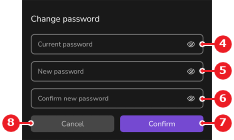
Enter the new password in the input field labelled (reference 5, Image 7–45) and (reference 6, Image 7–45).
Tap (reference 7, Image 7–45).
The password is updated to the new password and the old password is permanently deleted.
 icon in the input field to see the entered password.