7.2.4 Narrator

Location & availability
About narrator

A narrator will read any text or context clues in the user interface. This helps navigate and explain where the user is without the need to clearly see the screen.

How to configure
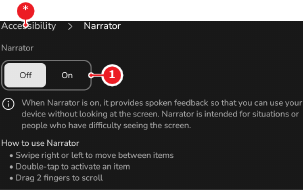
  1. Tap the On mode after Narrator (reference 1).

    Note: The narrator will start narrating every part of the user interface the moment the On is tapped.
    Tip: The first tap makes the narrator read what was pressed. The second tap confirms the action.
    Image 7–8
    1
    Narrator status
    2
    Narrator speaking speed
    3
    Narrator voice pitch
    4
    Audio test
    5
    Reset button
    *
    Return button

    The narrator tutorial is shown.

  2. Follow or skip the narrator tutorial.

    The On option has a white background and the narrator is enabled.

  3. Drag the dot across the slider after Speech rate (reference 2, Image 7–8) to change the speed of the narration. (optional)
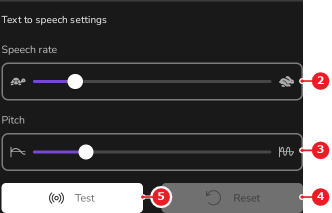
  4. Drag the dot across the slider after Pitch (reference 3, Image 7–8) to change the pitch of the narration. (optional)
  5. Tap Test (reference 4, Image 7–8) to hear the new settings of the voice. (optional)
  6. Are the modifications an improvement over the default voice? (optional)

    • If yes, go to next step.
    • If no, tap Reset (reference 5, Image 7–8) and go to step 3.
  7. Tap on any aspect of the user interface.

    The pressed section receives a green outline and the narrator reads the text.

  8. Use gestures to decide what must happen to the selected aspect.

    • Double tap on the element to select or activate the selected option.
    • Swipe right to move to the next section.
    • Swipe left to move to the previous section.