Before setting up your display, make sure to have a suitable display controller installed in the workstation.
Tip: The Nio Color 8MP operates at its full potential when used with a Barco display controller and Barco video driver. These high-performing graphics cards have the power and capabilities to optimally render images for this display. Moreover, Barco display controllers enable the use of Barco’s Intuitive Workflow Tools that are designed to increase visibility of subtle details, improve focus during reading sessions, and accelerate workflow. Please visit www.barco.com/product/intuitive-workflow-tools for more information.
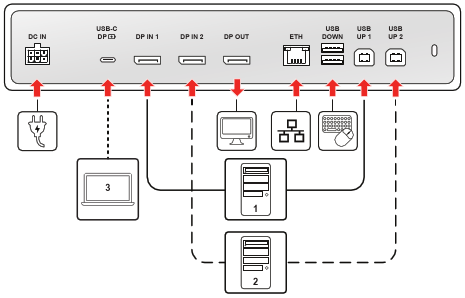
To fully utilize the display's features, including seamless switching and central hub functionality, ensure both video and data cables are securely connected. This unlocks the full potential of your display setup.
Image 2–1Example connection diagram
Video inputs, power, and network
This section focuses on the primary video, power, and the all-in-one high-power USB connection.
Port
Cable type
Function
DC IN
Power cable (from external PSU)
Connect the supplied external power supply unit (PSU) to power the display.
USB-C DP
USB-C cable (full-featured)
All-in-one solution: Connects compatible devices for DisplayPort Alt Mode video, USB-C 3.2 data, and 75W power delivery.
DP IN 1
DisplayPort cable (DP 1.4)
Primary video input connection.
DP IN 2
DisplayPort cable (DP 1.4)
Secondary video input connection.
DP OUT
DisplayPort cable (DP 1.4, MST)
Display Expansion: An output used to connect a second external display.
ETH (RJ-45)
Ethernet cable (1Gb)
Connects the display to the network. This connection is distributed to the connected workstation via the active USB upstream port or USB-C DP cable.
USB hub data and peripherals (upstream and downstream ports)
This section includes all ports used for data, KVM control, and peripheral power delivery. If connecting a workstation via DisplayPort (DP IN 1 or DP IN 2), you must connect an upstream port to enable hub features: KVM switching (keyboard/mouse control), activation of the built-in USB-A 2.0 downstream ports for peripherals, the integrated Ethernet connection, and QAWeb Enterprise registration and communication.
Note: If a workstation is connected via the USB-C DP port, its high-speed data channel automatically carries all the KVM, Ethernet, and QAWeb registration signals, eliminating the need for a separate USB upstream cable for that specific workstation.
Port
Cable type
Function
USB UP 1
USB-B to USB-A cable (USB-B 2.0)
Required to enable data features for a connected DP IN workstation.
USB UP 2
USB-B to USB-A cable (USB-B 2.0)
Required to enable data features for another connected DP IN workstation.
USB DOWN
USB-A 2.0
Downstream port for peripheral connection with 2.5W Power Delivery.
USB-C side
USB-C cable (USB-C 2.0)
Downstream port for peripheral connection with 7.5W Power Delivery.
Cable routing
For an organized and secure setup, follow these steps to route and cover the connected cables:
Route all cables through the cable clips in the connector compartment.
Re-install the connector cover by sliding the top of the cover into the available recesses, then pushing the bottom of the cover back into position.
Organize and route all cables through the routing channels in the display stand.