
- Connect to the meeting room's ClickShare using the ClickShare Button or ClickShare Desktop App.
It automatically connects your laptop to meeting room's display and peripherals (audio and video devices). - Join a Webex conference call and select meeting room audio and video devices.
Everyone in the meeting room will hear the remote participants via the meeting room audio devices and the remote participants can see and hear everything in the meeting room coming through the meeting room camera and microphone.
Note: For detailed how-to instructions on the correct audio and video settings in Webex, see KB2125. - Push the ClickShare Conferencing Button to share your call with the meeting room display.
The meeting room participants can now see and hear the remote participants. - Start sharing contents (including contents from local meeting room's participants) with the remote participants on the Webex conference call.
Note: Local meeting room participants can make their contents available for sharing with remote participants by sharing them on the meeting room display using the ClickShare Button or ClickShare Desktop App.
Sharing meeting room display during a Webex conference call
The organizer can share the contents both with the meeting room participants and remote participants using Webex.
- On the ClickShare App interface, click eye icon (new user interface) or the View room display (old user interface) to bring everything that is being displayed on the meeting room display to your laptop.
- To share your screen content in Webex, click the Share button at the bottom of the Webex dialog or press Ctrl+Shift+D. The Share content dialog will appear.

- On the Webex app, select the room display to share it with the remote participants.
Note: When you want to share content that contains audio fragments, check the Share computer audio checkbox. If you want your camera image to appear on top of the content, check the Show me in front of the presentation checkbox.

Note: To optimize the Webex performance when there are bottlenecks in the transmission, select the type of content shown.
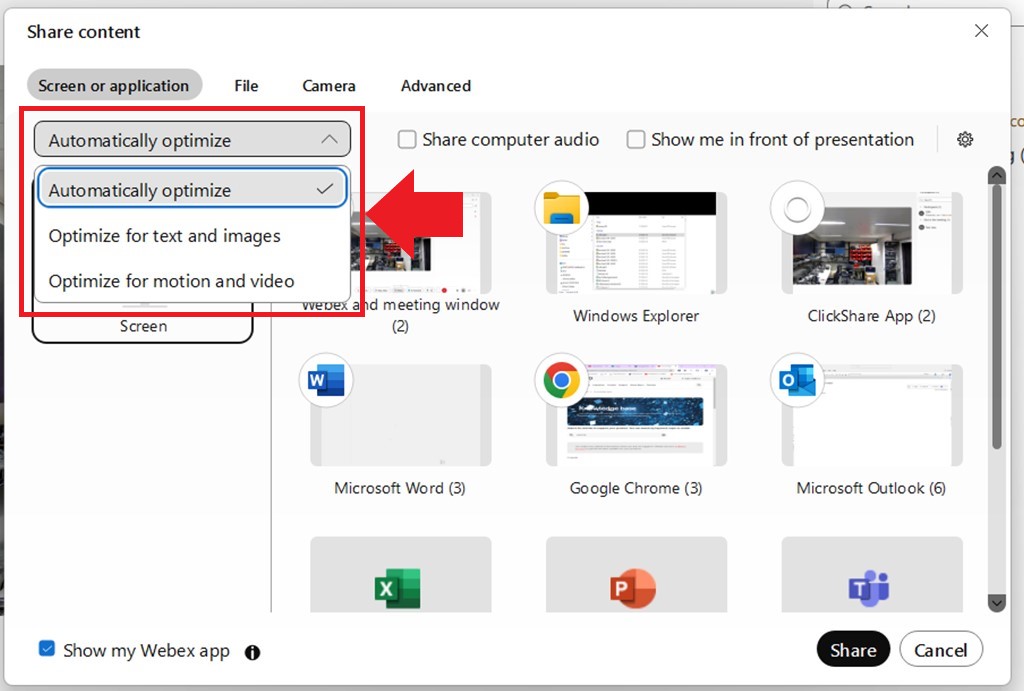
- Automatically optimize to let Webex determine how to treat the content.
- Optimize for text and images to make sure that preference is given to the preservation of content resolution versus framerate.
- Optimize for motion and video to make sure that preference is given to maintaining the framerate over content resolution.

