
A configuration profile in Teams Admin Center is essential because it centralizes and standardizes settings for multiple Teams Rooms devices, ensuring consistent user experience, security, and compliance across meeting spaces. It simplifies management by allowing administrators to apply features like Dual Display, HDMI content sharing, maintenance windows, and power-saving policies without manual configuration on each device, reducing errors and improving operational efficiency.
-
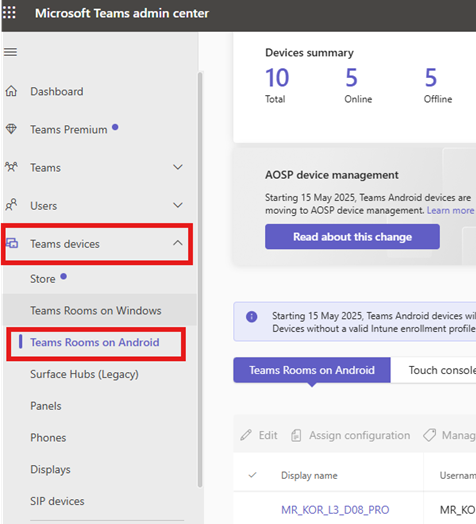
Log in to the Teams Admin Center.
-
Click Teams devices
-
Select Teams Rooms on Android from the dropdown.
-
-
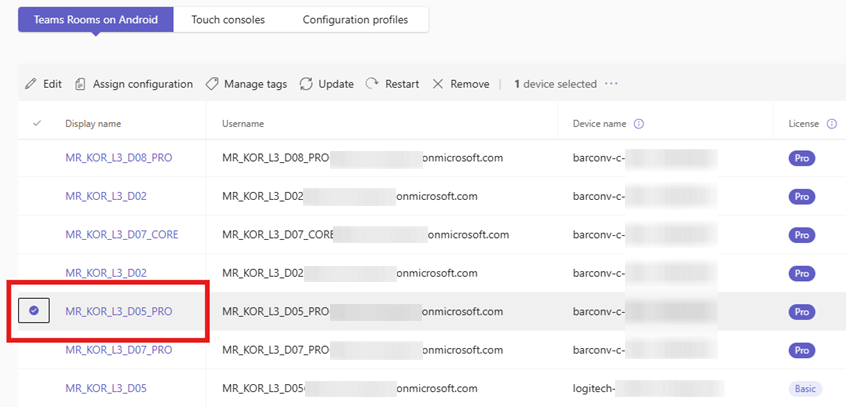
A list of Android Teams Rooms (ClickShare Hub devices assigned to the Android Teams Rooms) will appear.
-
Select the room you want to edit the configuration by activating the Dual Display feature, by checking the check sign next the room name.
-
-
Click Add to create a new profile.

-
In the new window:
-
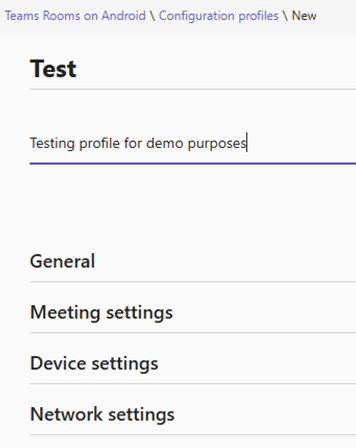
Enter a Name and Description for the profile.

-
Configure the settings under the following categories:
-
General
-
Meeting settings
-
Device settings
-
-
-
After configuring the settings, click Review changes at the bottom of the page (or click Discard if you don't want to progress with the changes you made).

-
A summary table will appear showing all modifications.
-
Click Save changes to finalize the profile (or click Cancel to discard).

After you click Save, the profile will be listed in the list of profiles.

-
Go back to the Teams Rooms on Android tab and select the room you want to apply the profile by checking the check sign in front of the room’s name.

-
Click Assign configuration.

-
In the pop-up window:
-
Type the name of the configuration profile you created.
-
Select it from the drop-down list.
-
Click Apply to assign the profile.

-
For more detailed info on the feature you can refer to Microsoft documentation https://learn.microsoft.com/en-us/microsoftteams/devices/device-management

