6.2.2 Software and terms

MDEP
Microsoft Device Ecosystem Platform (MDEP) is a security enhanced Android platform. MDEP is the operating system required for the ClickShare system to function.
About software and terms

The second part of the configuration wizard focuses on the software side of the configuration. Prompting an update, when possible, and showing the terms and agreements required to use the ClickShare system, the underlying MDEP system and the room system.
Prerequisites

The ClickShare system must be configured before the software and terms can be setup. For more information, see “ClickShare system setup”.

How to setup
  1. Has the Base Unit found a newer software version?

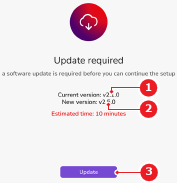
    • If yes, tap Update (reference 3, Image 6–8) and wait until the Base Unit has been updated.
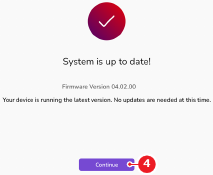
    • If no and the system is up to date, tap Continue (reference 4, Image 6–9).
    • If no and the system is not up to date, manually update the software. For more information, see “USB software update”.
    Image 6–8 Newer software version found
    1
    Installed version
    2
    Newer version found
    3
    Update button
    Image 6–9 Latest version installed
    4
    Continue button

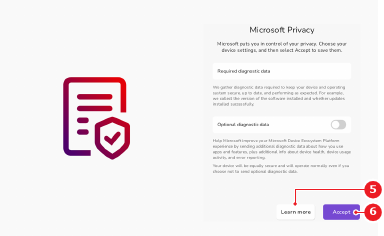
    The meeting room privacy page is shown.

  2. Adjust the privacy options as desired.

    Tip: Read more about the privacy options by tapping Learn more (reference 5).
    Image 6–10 Example of the Microsoft Teams privacy options
    5
    Learn more button
    6
    Accept button
  3. Tap Accept (reference 6, Image 6–10).

    The ClickShare terms and conditions page is shown.

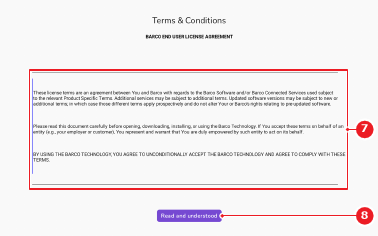
  4. Read the ClickShare Terms & Conditions (reference 7) displayed on the device.

    Note: The image Image 6–11 is for illustrative purposes only and does not contain the actual terms and conditions.
    Image 6–11
    7
    Terms and conditions text
    8
    Agreement button
  5. Tap Read and understood (reference 8, Image 6–11) to accept the terms and conditions.

    The XMS Cloud linking page is shown.

  6. Is the Base Unit linked to XMS Cloud?

    • If yes, continue the configuration. For more information, see “Accounts”.
    • If no, link the Base Unit to XMS Cloud. For more information, see “XMS Cloud linking”.