
There is no native support for ARM-based devices like the Microsoft Surface Pro X or Apple M-processors on macOS devices.
On Apple M-series macOS devices, Rosetta (available from macOS Big Sur 11.2 and higher) enables the installation and use of the ClickShare Desktop App.
Both content sharing and wireless conferencing work with the ClickShare Button.
Note: Rosetta installation is not triggered by plugging in the ClickShare Button. It only initiates when launching the ClickShare Desktop App for the first time on a device without Rosetta.
Using ClickShare Button Only (No App Installation)
-
Connect the ClickShare Button
-
Plug the Button into your MacBook.
-
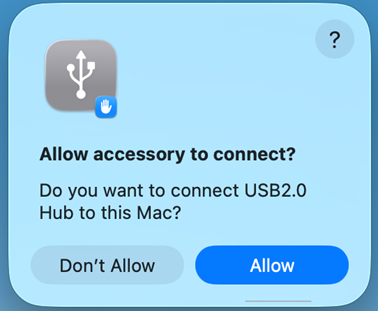
A USB access popup will appear. Click Allow.
-
-
Access the ClickShare Drive
-
The ClickShare CD-ROM icon appears on your desktop.
-
Open it to launch the ClickShare screen.
-
-
Enable Rosetta for the App
-
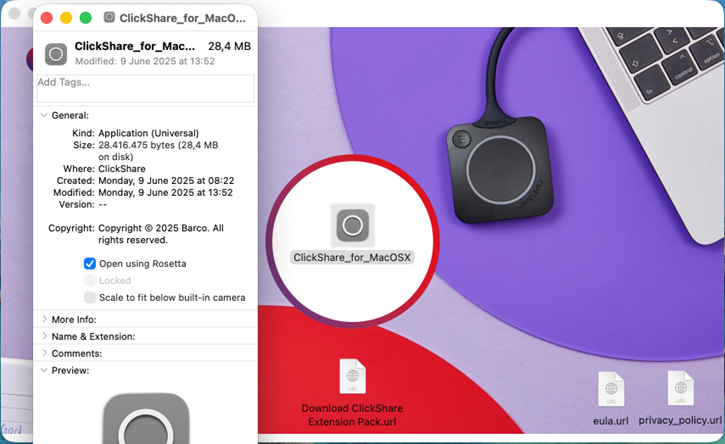
Right-click
ClickShare_for_MacOSXand select Get Info. -
Check Open using Rosetta.
-
-
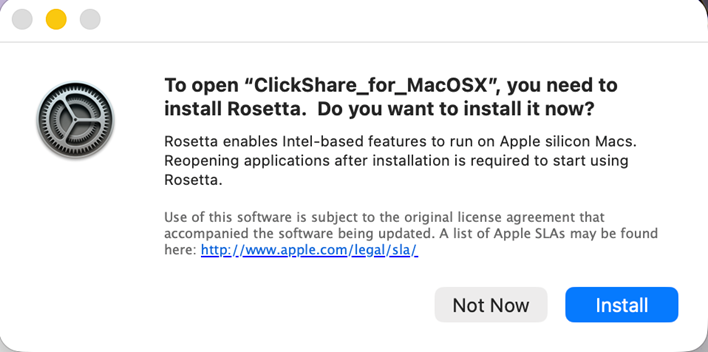
Install Rosetta (if prompted)
-
Follow the on-screen instructions to install Rosetta.
-
-
Launch the ClickShare App
-
Start the
ClickShare_for_MacOSXapplication. -
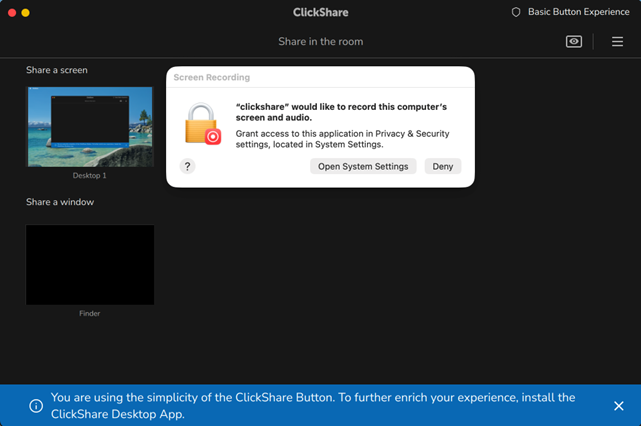
A popup will request screen and audio recording permissions.
-
Click Open System Settings, enable the slider, and close settings.
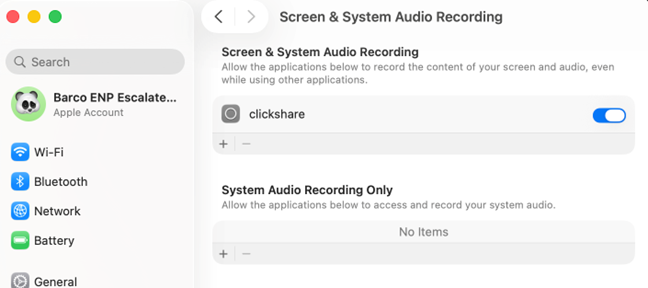
-
Another popup will request direct access to screen/audio—click Allow.
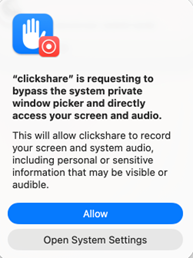
-
You can now share your Mac screen using the ClickShare Button.
Using the Installed ClickShare Desktop App
-
Download the App
-
Visit https://www.barco.com/support/software/r3307118 and download the PKG file for macOS.
-
-
Install the App
-
Open the PKG file and follow the installation steps (how-to, see KB13167).
-
Launch the ClickShare Desktop App from the Applications folder.
-
-
Install Rosetta (if prompted)
-
If a popup appears, proceed with Rosetta installation.
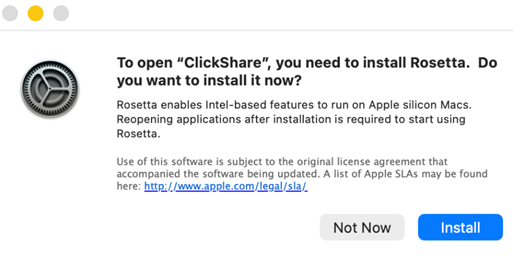
-
-
Launch the App Again
-
After Rosetta is installed, restart the ClickShare Desktop App.
-
-
Grant Required Permissions
-
Allow any popups that appear.
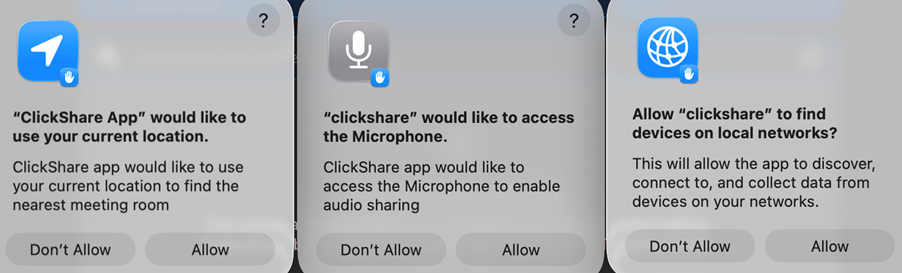
-
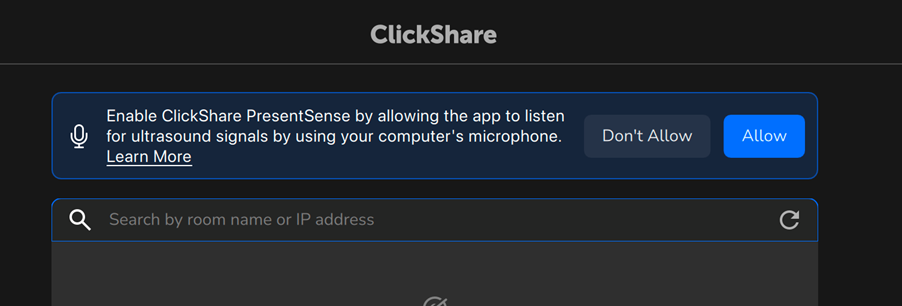
Enable ClickShare PresentSense when prompted to allow microphone access for ultrasound signal detection.
-
Click Allow and follow any additional system prompts to grant microphone access.
-
⚠️ Note (End of Rosetta Support)
The ClickShare Desktop App currently runs on Apple M‑series devices using Rosetta 2 in macOS 26 (Tahoe). Apple has announced that Rosetta will be removed in macOS 27 and later. When this happens, the Desktop App will no longer function unless updated for native Apple Silicon.
Barco is working on a native ARM version of the ClickShare App to ensure continued support. For details, see Apple end of Rosetta support and impact on the ClickShare App.

