
Overview
Content sharing from the Button and wired sharing can be enabled or disabled in the Teams Configuration Profiles.
When disabled, the Share icon on the Control Panel will not show. Additionally, sharing from a Button will not work as expected. When the user connects a Button to a device the Button may turn red to indicate that sharing is active, but it will not actively share content, because sharing is disabled.
You can enable content sharing using either of the following ways:
Method 1: Enable content sharing via Teams Admin Center
- Navigate to the Device settings in the profile applied to the room within the Teams Admin Center (how-to, see KB15691).
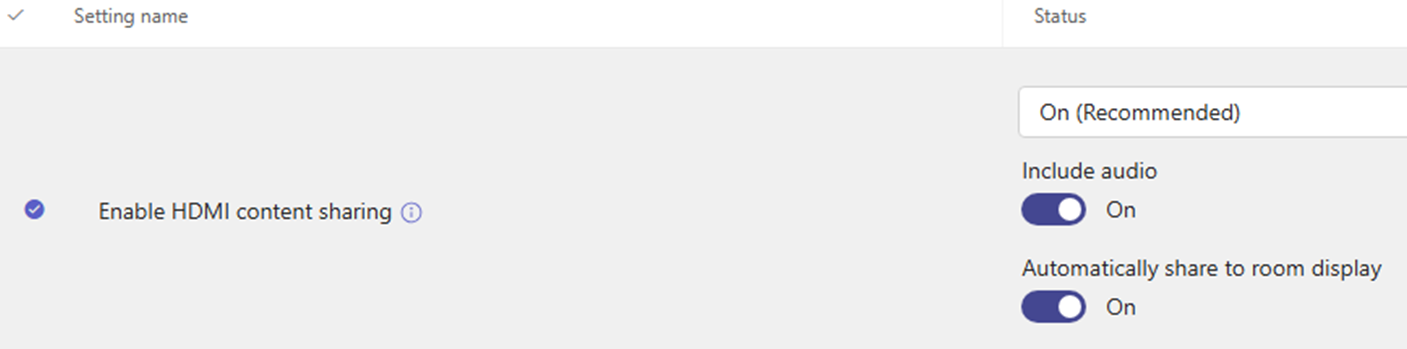
- In the General section of the profile, locate Enable HDMI content sharing and set it to Enabled (if not already enabled) and then set the associated profile to On (Recommended) and Automatically share to room display.
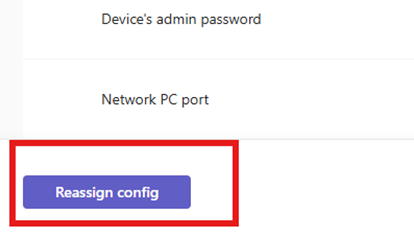
- Click Reassign config to apply the updated configuration to the room.
Method 2: Enable content sharing via Control Panel
- Log in to Teams Admin Settings using your admin credentials.
- Navigate to Meetings → Enable HDMI content sharing and toggle the setting to On.
- Navigate to Meetings → Automatically share to room display and toggle the setting to On.

🔗 External reference
For more detailed information, refer to the official Microsoft documentation: https://learn.microsoft.com/en-us/microsoftteams/rooms/mtr-home-refresh

