
Presenter mode on Windows
- Open your PowerPoint file on your laptop.
- In the ClickShare Desktop App, click on the PowerPoint application window you want to share.
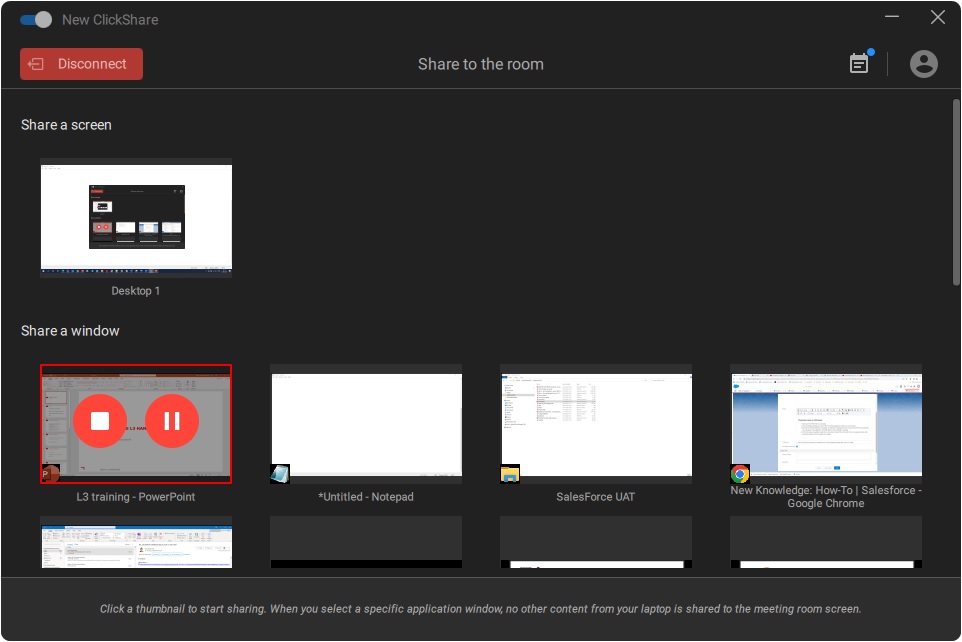
- Start the PowerPoint slideshow. The first time you share a PowerPoint presentation after installing the ClickShare Desktop App, a notification explaining how to use Presenter View will appear. This notification is shown only once. Click OK, Got it to dismiss it.
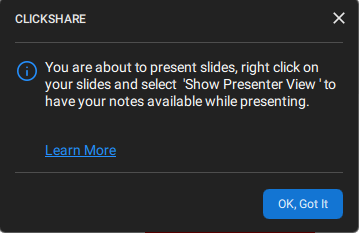
- On the full-screen presentation, right-click anywhere on the slide and select Show Presenter View to see speaker notes on your laptop screen while sharing the slideshow with the meeting room screen.
Presenter mode on macOS
On macOS the ClickShare unit needs to configure as an extended display by using AirPlay/Screen mirroring “Use As Separate Display”. So that once the PowerPoint presentation is started in the presenter mode, the presentation is pushed to the meeting room screen, and the presenter view is shown on the macOS screen
How to setup an extended display on macOS is described in KB2890
The next steps are:
- Open your PowerPoint file on your macOS.
- Start the PowerPoint slideshow.
- If the presentation does not automatically start in presenter view, right-click anywhere on the slide and select Show Presenter View to see speaker notes on your macOS screen while sharing the slideshow with the meeting room screen.