
A Privacy Preferences Policy Control (PPPC) profile is used by Mobile Device Management (MDM) solutions to manage the privacy settings of applications on macOS. For ClickShare, a wireless presentation system, this profile ensures the ClickShare Desktop App can access necessary macOS features like screen recording and accessibility. By pre-approving these permissions, IT administrators can provide a smooth user experience without requiring users to grant access themselves.
Deploying PPPC profiles in Intune might be necessary after installing the ClickShare Desktop App (PKG) file (how-to, see KB13167) to ensure the app receives the required permissions for optimal performance. This is particularly important in the following scenarios:
- When an organization uses the ClickShare Desktop App on macOS devices.
- When standard users, who do not have root permissions and cannot modify system settings, need access to screen recording. The PPPC profile can grant these users the necessary permissions to enable screen recording on their systems.
Creating and Deploying PPPC Profile within Intune:
Navigate to Microsoft Intune admin center and log in with your administrator credentials.
Once logged in, go to Devices > macOS > Configuration profiles > Create > New Policy.
macOS should already be selected for the Platform. Choose Settings Catalog for the “Profile type”. Hit the Create button at the bottom of the page.
Give your profile a name, write a description and hit next.
In the Configuration settings section, click on the Add Settings button. You will see the Settings picker section on the right side of the page. Search and pick Privacy Preference Policy Control. Now pick the permissions that you need to set. In the example below, we are picking Screen Capture.
In Screen Capture, select Authorization and Static Code.
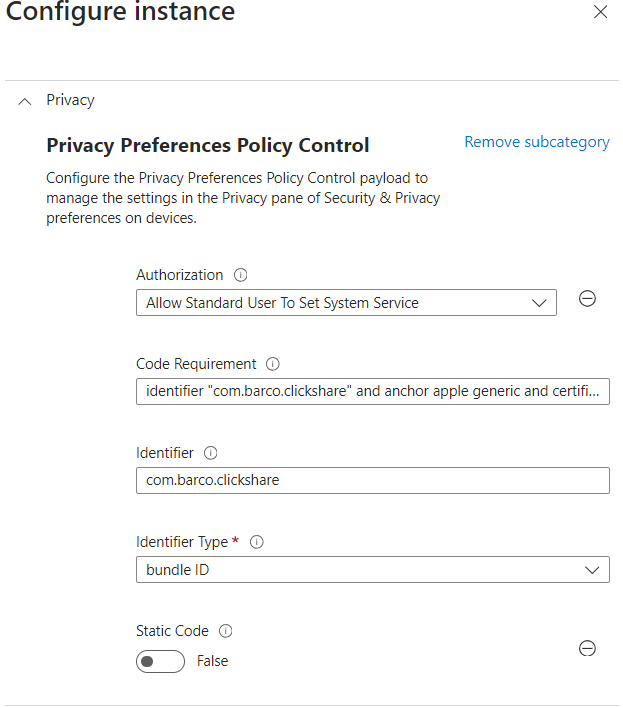
New settings will appear on the left side. Now we need to provide the Identifier, Code Requirement, and authorization info. Simply hit the Edit Instance button to get started.
There are 2 entries required.
- Authorization: Allow Standard User To Set System Service
- Code Requirement: identifier "com.barco.clickshare" and anchor apple generic and certificate 1[field.1.2.840.113635.100.6.2.6] / * exists */ and certificate leaf[field.1.2.840.113635.100.6.1.13] / * exists */ and certificate leaf[subject.OU] = P6CDJZR997
- Identifier: com.barco.clickshare
- Identifier Type: bundle ID
- Static Code: False
- Authorization: Allow Standard User To Set System Service
- Code Requirement: identifier "com.barco.updaterclickshare" and anchor apple generic and certificate 1[field.1.2.840.113635.100.6.2.6] / * exists */ and certificate leaf[field.1.2.840.113635.100.6.1.13] / * exists */ and certificate leaf[subject.OU] = P6CDJZR997
- Identifier: com.barco.clickshare.updater
- Identifier Type: bundle ID
- Static Code: False
Important Notes:
-
- Please remove “Allowed (Deprecated)” if “Allowed (Deprecated)” option is showed.
- A code signature is created when an app or binary is signed by a developer certificate. To find the designation, run the codesign command manually in the Clickshare app: codesign --display -r - ~/.clickshare/clickshare.app. The code signature is everything that appears after =>.
- Click Save.
Monitoring and Testing:
The Intune will deploy the profile to the device and the device will have a new profile added in the Profiles within System Setting.

