
How to add
Select System and click on Users to display the overview page (1).
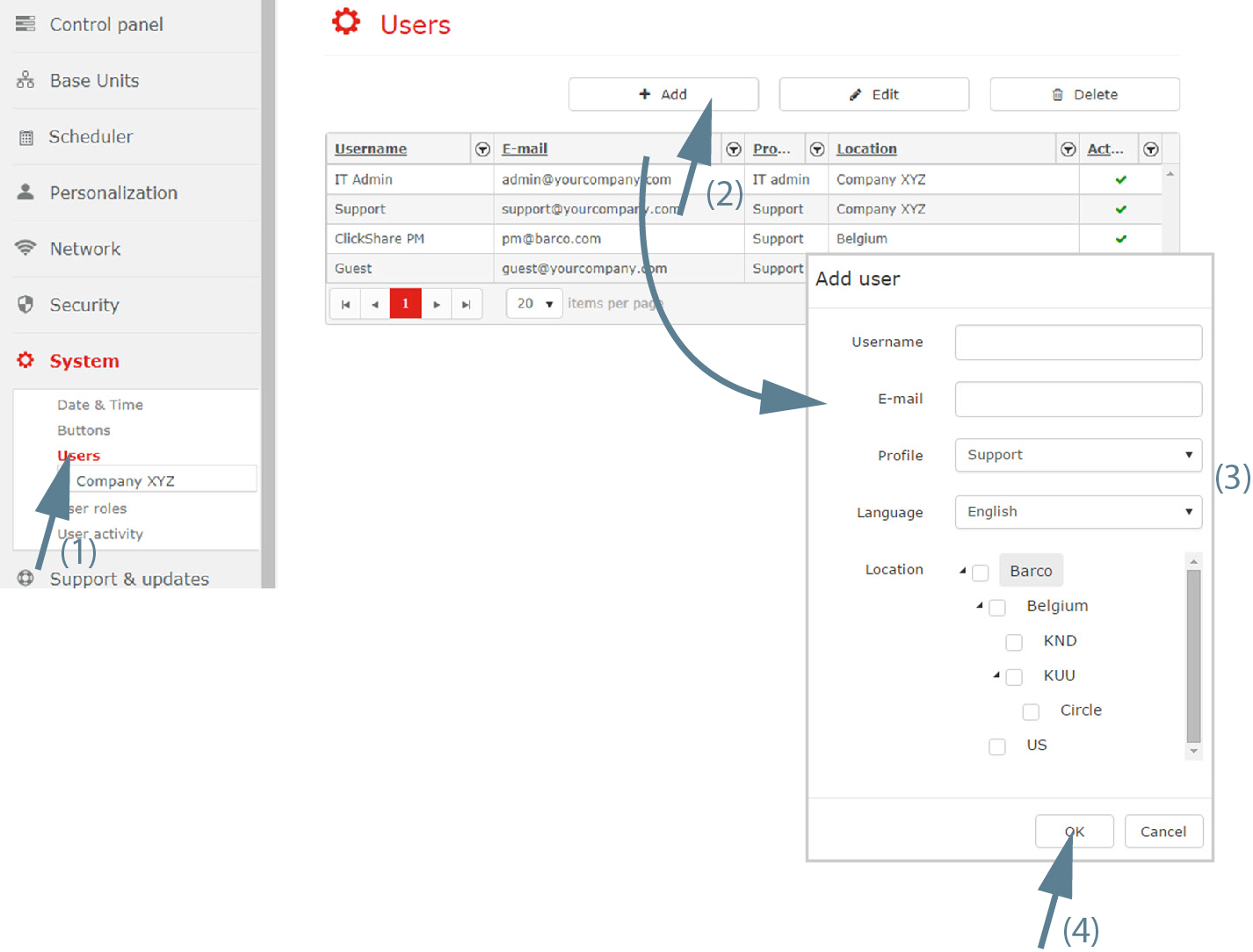
Image 3–73 Add new user Click on Add (2).
The window opens.
Fill out the user form (3).
- enter a name.
- enter an address
- select a . This can be Support or Key User.
- select a .
- select a by checking the check box in front of the location. If the location has sub locations, then these sub locations are selected at the same time.
Click on OK (4).
The user is added to the list of active users.
Users added by the IT admin using this method will receive an email with their password generated by the XMS. If the SMTP settings are not added in the System Settings page then the users will not be able to login since they will not receive emails. See also “Accept/reject a registered user” in order to be able to populate the XMS with users without having the SMTP server set up.