6.5 Personalisation, wallpaper

About wallpaper

When CSE-200 starts up, a background (wallpaper) is displayed. The display of this background wallpaper can be disabled.

By default a general ClickShare and a quick start wallpaper are available. The possibility exists to upload personal backgrounds (wallpapers). The default wallpapers cannot be removed from the system.
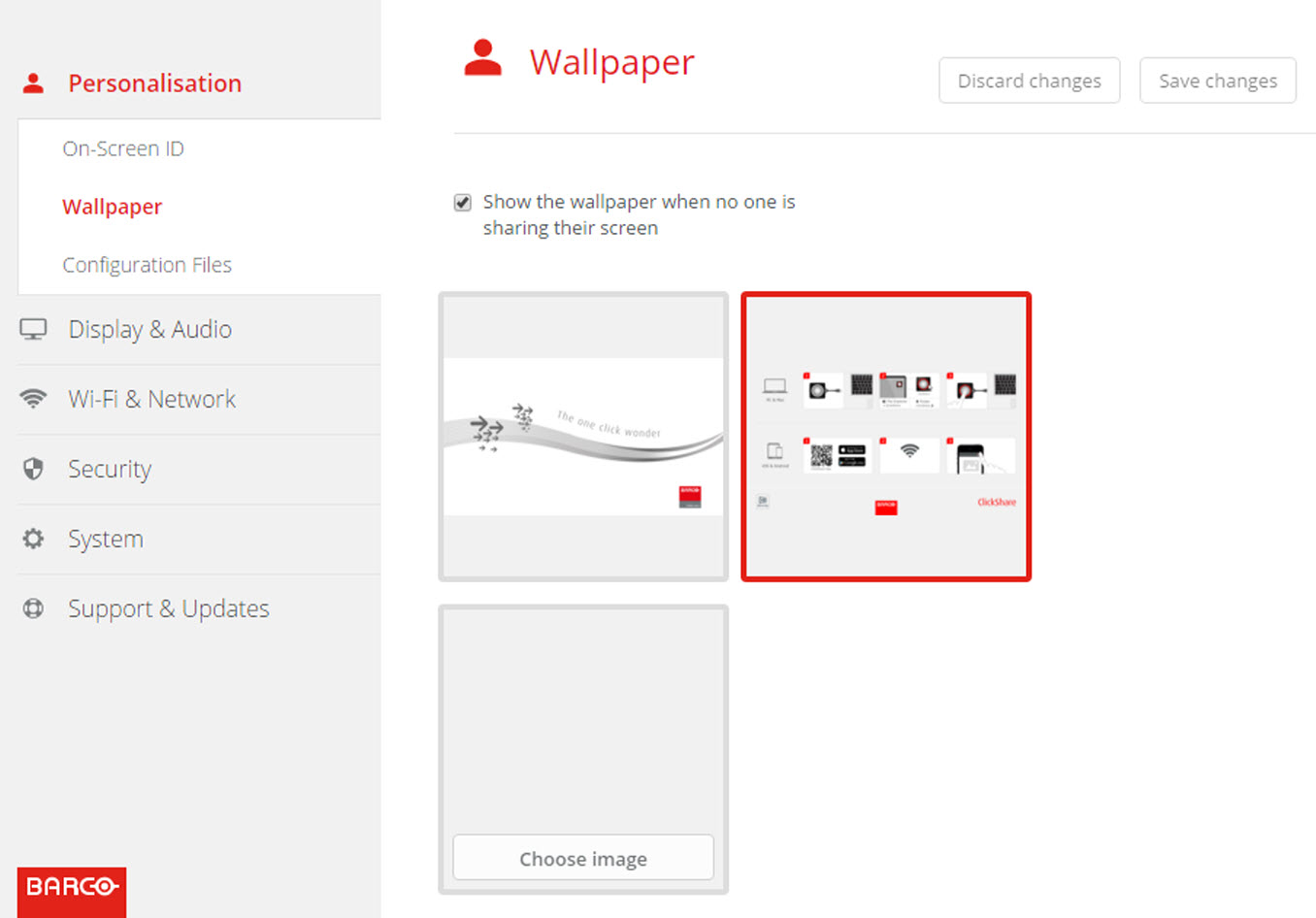
Wallpaper selection
  1. Log in to the Configurator
  2. Click PersonalisationWallpaper.

    Image 6–9 Wallpaper selection

    The Wallpaper selection pane is shown. The current selected wallpaper is shown with a red border.

  3. Select one of the available wallpapers and click on Save Changes.

    Note: By default a general Barco CSE-200 wallpaper and a CSE-200 Quick Start Guide wallpapers are available.

    They are automatically resized to fit the aspect ratio of the screen.

    The selected wallpaper is indicated with a red border.

    The message Successfully applied changes appears on top of the wallpaper selection window.

Note: You can also add a personal wallpaper, e.g. your company logo. For more information on adding a new wallpaper to the list, see “Personalisation, Personalized wallpaper”.
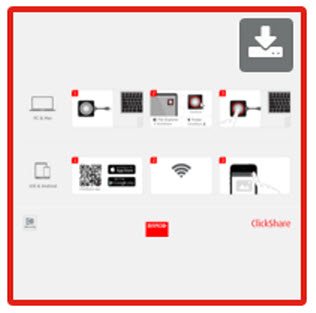
Download wallpaper
  1. Hoover with your mouse over the wallpaper to download and click on the download symbol on the upper right corner.

    Image 6–10 Download wallpaper

    The wallpaper is downloaded to your PC.

Enable - disable Wallpaper
  1. Within the Wallpaper pane, check the check box next to Show the wallpaper when no one is sharing their screen.

    Checked: wallpaper will be displayed when no one is sharing content.

    Not checked: no wallpaper will be displayed when no one is sharing content. The video output of the Base Unit is disabled when no content is shared. This feature is especially useful when the Base Unit is integrated in a larger AK system.