The Base Unit receives the wireless input from the Buttons and controls the content of the meeting room display and the sound of the meeting room's audio system.
The Base Unit can be installed in two different ways.
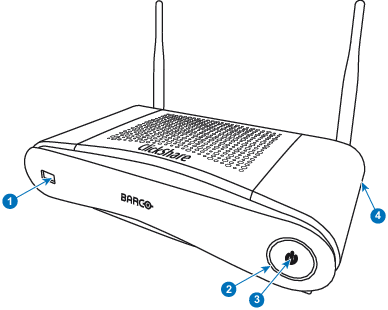
Front and Top layout of the Base Unit
At the front of the Base Unit you can find a power button and a USB Type-A port. Status LED ring is mounted around the standby button of the Base Unit.
Image 2–2Front panel Base Unit
1
USB Type-A port
2
Status LED ring
3
Standby Button
4
Kensington lock
USB port
The USB port is used to update the soft- and firmware of both the Base Unit and the Buttons. See also “Firmware update”.
When plugging in the Button into the Base Unit, the Button is paired to the Base Unit. The Base Unit checks whether the Button's software and firmware are up to date. If not, the Base Unit updates the software and/or firmware.
To update the Base Unit software, download the latest version of the software from the Barco website. Copy the file on a USB stick and plug it into the USB port of the Base Unit. Follow the progress and instructions on the display.
Status LED ring
The color of the LED at the front of the Base Unit give information on the status of the system.
LEDs behavior
Explanation
static red
receiving content from the Buttons and streaming towards the display.
pairing and software update of the Button is done. You can now unplug the Button from the Base Unit.
during the first phase of the Base Unit boot process.
blinking white
system is starting up (during the second phase)
Button pairing is in progress
software update of the Base Unit
breathing white
ECO standby mode
static white
awake and ready (i.e. showing the welcome message on the display)
pairing is done
red blinking
an error occurred
dark
deep standby/off
Standby button
The button at the front of the Base Unit has a standby function once the Base Unit is powered
When the system is in normal operational mode, a push makes the system goes to a pre-defined standby mode.
When the system is in a standby mode, a push triggers the system to start up and to go to normal operational mode.
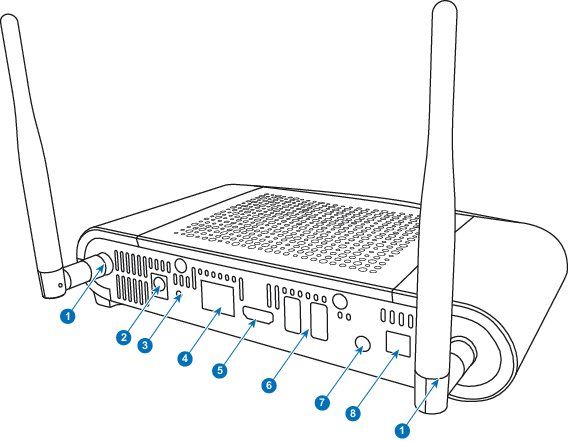
Back layout of the Base Unit
The connection panel is situated at the back of the Base Unit.
Image 2–3Backside Base Unit
1
Fixture points for the antenna
2
Power connection
3
Reset
4
LAN Ethernet connection
5
HDMI connector
6
USB Type-A port
7
Analog Audio out
8
Digital Audio out
Mechanical fixture points
The mechanical fixture points are located at the bottom of the Base Unit
Antenna
Two antennas are included in the CSE-200 box. To avoid damage during transport, they are not pre-mounted.
The antennas can rotate for a better wireless connection.
Usage of antennas other than the ones provided with the unit are allowed within the restrictions on usage of other antennas defined by local regulations. Barco does not take responsibility for damage or disturbance of other devices that may be caused by using a different antenna. The use of an active power amplifier is not allowed.
Antenna type : Dipole
Gain : Maximum 2 dBi peak gain in 2.4GHz and 5Ghz band
Bottom layout of the Base Unit
The serial number label containing the Barco part number, the revision number, production date (week-year) and the serial number.
The product label with the applicable certification logos.
The product label contains:
the Barco logo
the product name
the Barco part number
the power rating
markings for applicable standards (CE, CCC, UL, ...)
markings for waste regulation
“Made in ...”
Bluetooth
Bluetooth functionality is currently not available and Bluetooth signal is disabled.