4.8.3 Quick view

Location and availability
Quick view pop-up overview

Quick view shows additional details about a Control Panel. The information available depends on the selected Control Panel.

How to check
  1. Is the Control Panel difficult to find in the list?

    • If yes, limit the size of the list through search. For more information, see “Search”.
    • If no, go to next step.
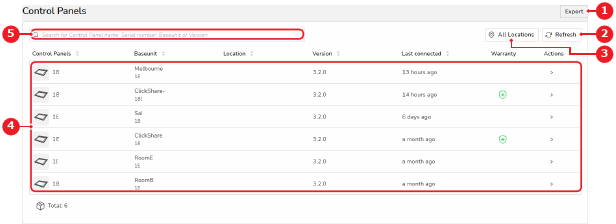
  2. Click on the Control Panel list entry (reference 4) or the Quick View icon in the Actions column.

    Image 4–59
    1
    Export button
    2
    Refresh button
    3
    Location tree overview
    4
    Control Panel list
    5
    Control Panel search box

    The quick view side panel is shown.

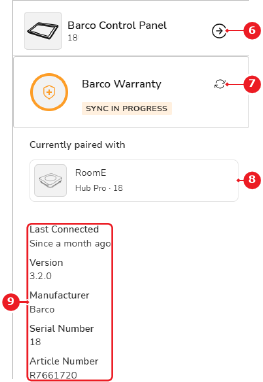
  3. Click (reference 7) to sync the warranty.

    Image 4–60
    6
    Close quick view button
    7
    Refresh warranty information button
    8
    Connected Base Unit information
    9
    Additional Control Panel information