Log in or register the desired myBarco account. (optional)
The XMS Cloud linking landing page is shown.
Select the role of the logged in account (reference 1 or 2).

Note: This option only appears the first time the account is used. Contact Barco support if the role of the account must be changed.
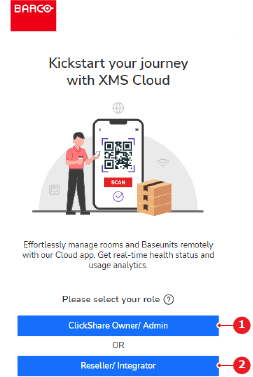 Image 4–1
 - 1
- Owner or admin button
- 2
- Reseller or integrator button
The linking page is shown.
Select the desired organisation from the drop down (reference 4).
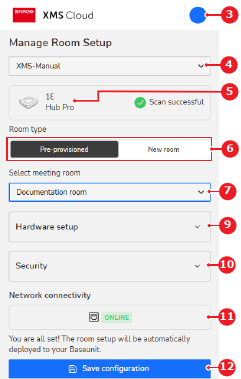 Image 4–2
 - 3
- Logged in account menu
- 4
- Organisation drop down
- 5
- Base Unit identification label
- 6
- Meeting room setup options
- 7
- Meeting room drop down
- 9
- Connected hardware information drop down
- 10
- Security recommendations drop down
- 11
- Base Unit connection status
- 12
- Save button
- Select the desired meeting room setup (reference 6, Image 4–2).
Which meeting room setup was selected?
- In case of a pre-provisioned meeting room setup, select the desired meeting room from the drop down (reference 7, Image 4–2).
- In case of a new meeting room setup, enter the desired name of the meeting room in the input field (reference 8).
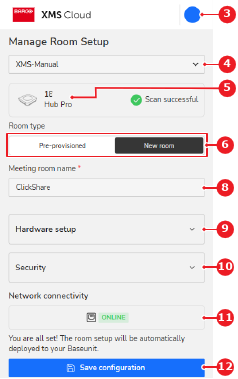 Image 4–3
 - 3
- Logged in account menu
- 4
- Organisation drop down
- 5
- Base Unit identification label
- 6
- Meeting room setup options
- 8
- Meeting room name input field
- 9
- Connected hardware information drop down
- 10
- Security recommendations drop down
- 11
- Base Unit connection status
- 12
- Save button
- Check the linked hardware (reference 9, Image 4–2 or Image 4–3) and security recommendations (reference 10, Image 4–2 or Image 4–3). (optional)
Tap (reference 12, Image 4–2 or Image 4–3).
The Base Unit is successfully linked to XMS Cloud. For more information on how to use XMS Cloud, see the XMS Cloud user guide.
Must additional Base Unit(s) be linked with XMS Cloud?
- If yes, tap (reference 14) and repeat the procedure.
- If no, no further actions required.
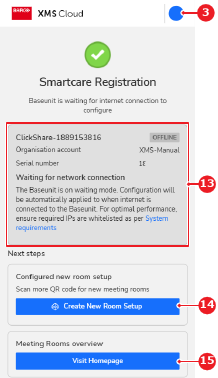 Image 4–4
 - 3
- Logged in account menu
- 13
- Linking and SmartCare registration overview
- 14
- Additional Base Unit linking button
- 15
- XMS Cloud mobile home page button
The Base Unit(s) are successfully linked to XMS Cloud. For more information on how to use XMS Cloud, see the XMS Cloud user guide.
