
Adjusting vertical and horizontal keystone
Select the 2 x 2 adjustment level. See “Setting the warping level”.
The default selected anchor point is the left top corner of the image.
Select the desired warp area.
Depending on the selected area only the points in that area will be adjusted.
- Select keystone.
Select within , or to adjust the corresponding keystone.
orpress ENTER when an item is selected and use the 4 arrow keys to adjust.
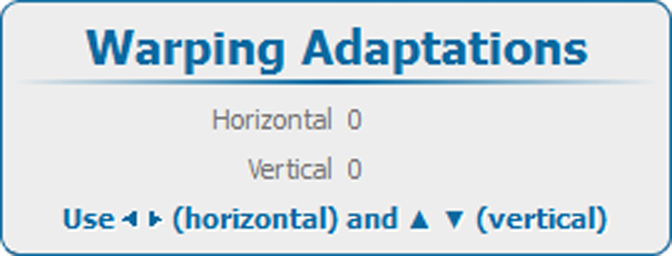
Image 13–43 Warping, keystone Move the corner points to the desired position.
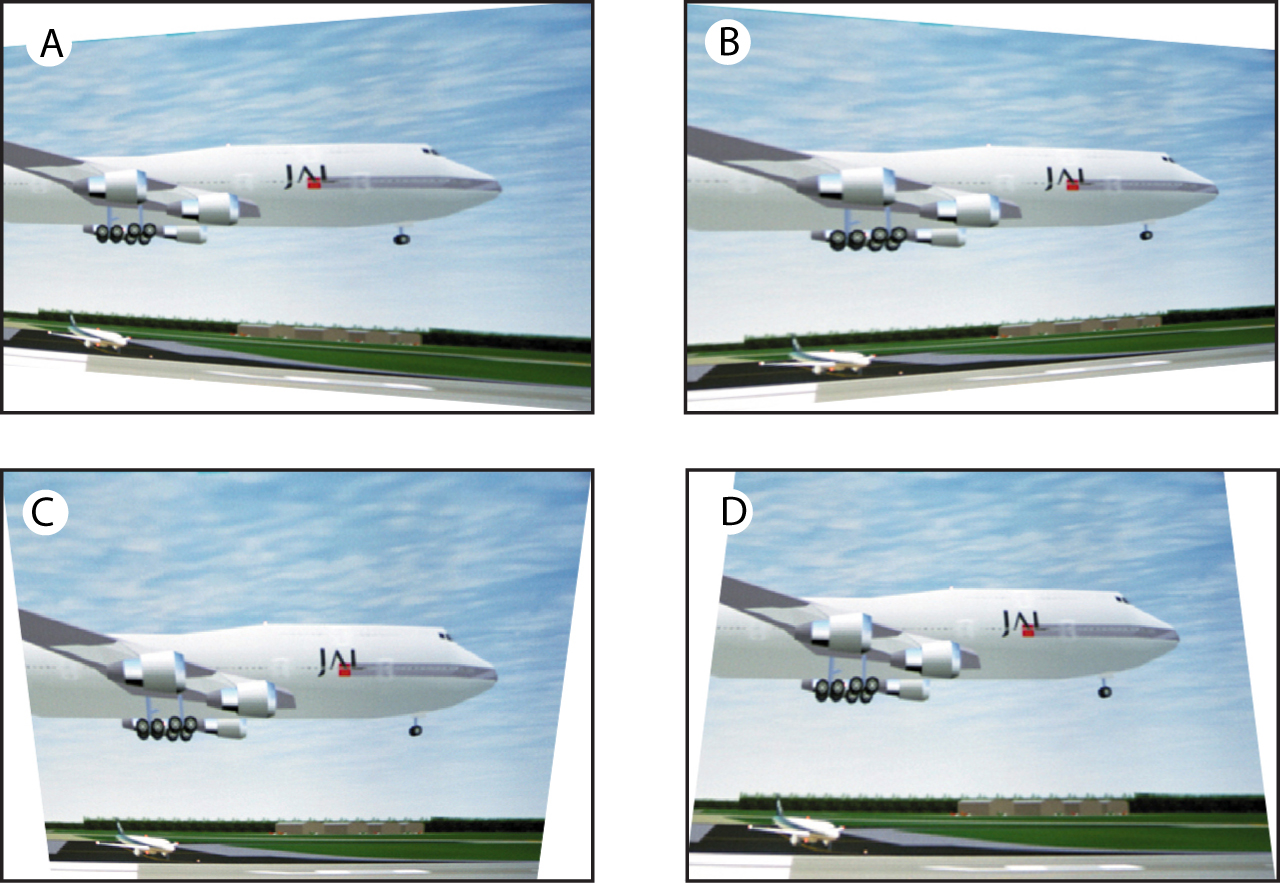
Image 13–44 Keystone adjustment