General
The Preset is a register that enables you to store destination setups, “looks,” to memory, and to recall them.

The Preset is a register that enables you to store destination setups, “looks,” to memory, and to recall them.
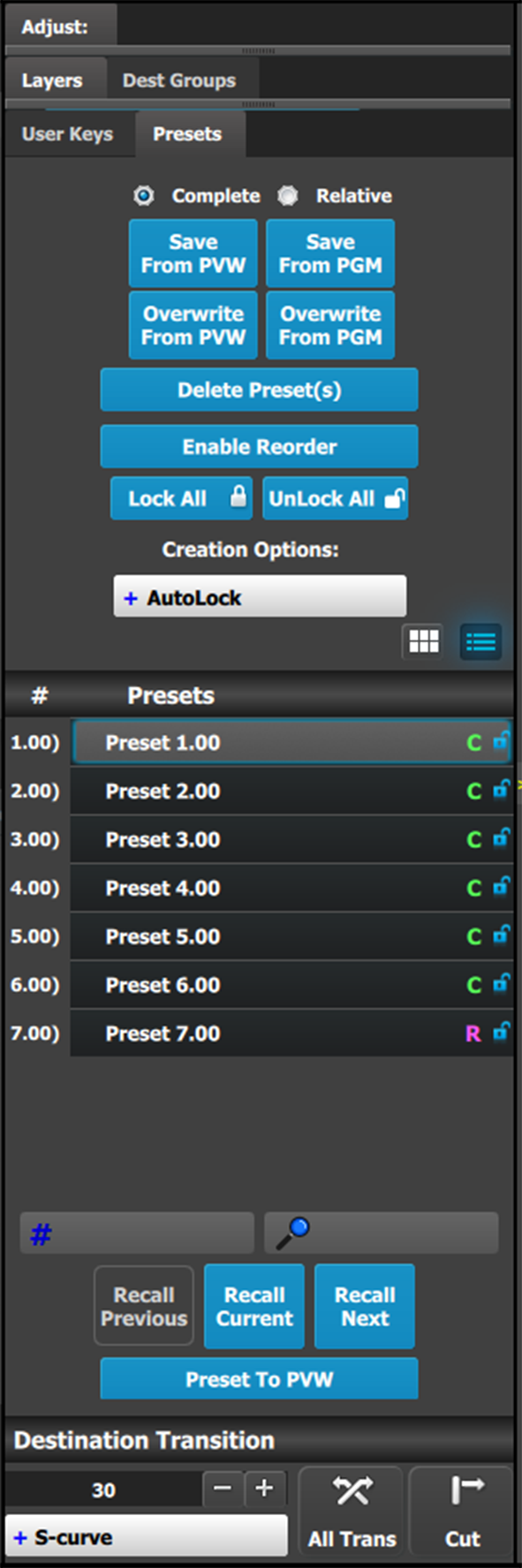 | This menu provides:
|
The “Complete” and “Relative” radio buttons do not affect the recall process; they are used only during the save process.
When a “Complete“ Preset is recalled, all Layers of the chosen Destinations are affected. When a “Relative” Preset is recalled, normal layers are affected, but hidden Layers are not affected.
To hide a Layer, select the Layer in the Programming Diagram area of the Workspace, then select Hide in the Layer Modification area of the workspace. See Image 6–96.
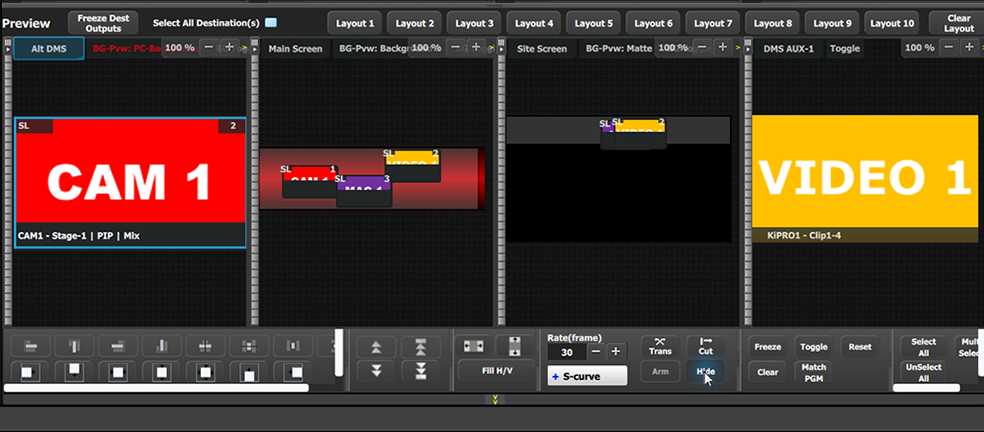
A Layer can also be hidden using the Hide icon in the Programming > Adjust > Layer configuration menu. See “Programming Menu > Adjustment area > Layer configuration”.
A hidden Layer shows a “hidden” symbol in the lower right-hand corner of the Layer. See Image 6–97.
Saves the current look on Preview into a new Preset. Only Destinations that are active or selected will be saved. For example: There are 3 Destinations. User enables Dest1 and Dest 3 and presses “Save to new Preset.” Only Dest1 and Dest3 looks are stored. Dest 2 is not part of this Preset.
Saves the current look on PROGRAM into a new Preset. Only Destinations that are active or selected will be saved. For example: There are 3 Destinations. User enables Dest1 and Dest 3 and presses “Save to new Preset.” Only Dest1 and Dest3 looks are stored. Dest 2is not part of this Preset.
This button allows the override of a selected, unlocked Preset from the Preview, if the destination is active. The name of the preset is not updated, unless the Creation Option is set to "Rename" or "Rename-Lock."
This button allows the override of a selected, unlocked Preset from the Program, if the destination is active. The name of the preset is not updated, unless the Creation Option is set to "Rename" or "Rename-Lock."
By pressing this button, the delete “x” marks will appear next to all presets. Select the presets you like to delete and then press the red “Delete Selected” button.
Search Presets by characters in names. A list of the presets will be filtered according to the search criteria. List is restored to normal once search box is cleared.
Search Preset by number, User types the number of the preset wanted and this preset will be instantly selected ready for recall.
They are not enabled unless a Preset is selected from the list.
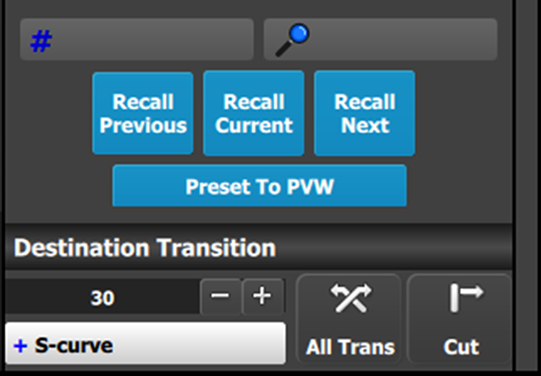
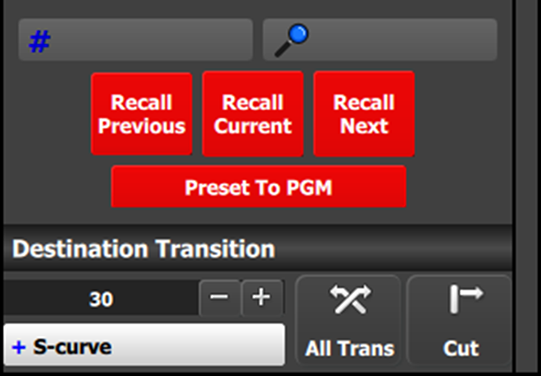
Pressing this button toggles between recalling Presets to Preview (see Image 6–98) or directly to Program (see Image 6–99). The functions of recall buttons are the same in either case, but Presets recalled to Program automatically transition to Program as soon as they are ready to go. This also applies to presets that are drag-and-dropped onto the Programming workspace.