General
This area is specifically for window adjustments on Multiviewer outputs.

This area is specifically for window adjustments on Multiviewer outputs.
The area is broken up into several sub areas. The left side is for alignment and position of the window. The right is for misc. controls.
The multiviewer alignment icons are similar to the icons in the Programming alignment panel. For more details, please refer to the chapter “Programming Menu > Layer Modifier area”.

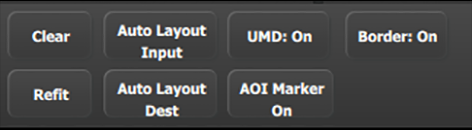
Clear
Removes the selected window from the multiviewer window.
Refit
Returns the selected window to its original size.
Auto Layout Input
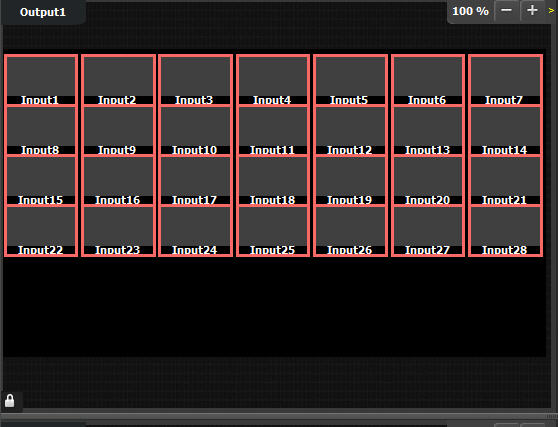
Clears the Multiviewer display and places all selected sources and the background from the list in the Multiviewer display in the following arrangement.
Auto Layout Dest
Clears the Multiviewer display and places all selected Destinations from the list in the Multiviewer display.
UMD: On/Off
Toggles the UMD (under-monitor-display) of selected windows on and off on the MVR outputs. The UMD will always be represented on the GUI so the user is aware of which resource(s) is assigned to the window(s).
AOI Marker On/Off
Toggles the AOI marker of selected windows on and off on the MVR outputs. The GUI will always show the the AOI Markers as a visual reference to the user.
Border: On/Off
Toggles the window border of selected windows on and off on the MVR outputs. The GUI will always show the window borders so the user can be aware of the window alignments.
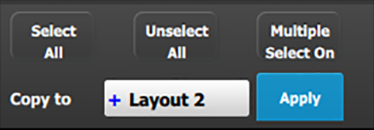
Select All
Selects all the windows from a Multiviewer display. This button is available only when the MVROut button(s) on the layout workspace are selected (outlined in blue).
Unselect All
Deselects all the windows from a Multiviewer display. This button is available only when the MVROut button(s) on the layout workspace are selected (outlined in blue).
Multiple select
Button used to enable or disable multiple window selection.
Copy to
Allows you to select another layout to which you may copy the current layout. The choices from the drop-down field are "Layout 1," "Layout 2," "Layout 3," and "Layout 4."
Apply
Copies the current layout to the layout selected in the “Copy to” field.