Note: This feature is only available for 4K models
Availability
You can order and buy a “Flex resolution” license file. This license file is linked with the projector type and projector serial number. Once you received you license file, upload this file via Projector Toolset to your projector. Once the file is uploaded, the same file has to be used to upload the Flex code. For more info on uploading a license file, see “Upload Flex license”.
Overview
With the FLEX technology the projector owners can lock the resolution to different levels. The locking can be done via 3 different ways:
Via Projector Toolset when connected via an Ethernet connection with the projector.
Via Barco Insights Management Suite when the GSM module is installed. For more information on how to set up and use the Flex license, see Projector Management Suite user guide, chapter “Projector Configuration tab” – “Flex resolution”
Via the OSD menu of the projector itself For more information on this, see the projector user manual.
To lock to a specific value a 4 digit code is necessary. These codes can be created by the projector owner using Projector Toolset or the Projector Management Suite.
Flex codes
Once your flex code is correctly uploaded, the projector creates a number of flex codes, one for each possible resolution type. These codes are used for rental activities when adapting the resolution of the projector. The available resolutions are the following:
4K-UHD: 3840 x 2400 (default resolution)
WQXGA: 2560 x 1600 (16:10)
WUXGA: 1920 x 1200 (16:10)
The created flex codes are only visible in Projector Toolset and the Projector Management Suite by the projector owner. To make these visible he will need his license for this typical projector.
Flex resolution versus EDID list
The EDID list will not be restricted through the flex resolution license. All available resolution for the 4K models will remain available through the Flex resolution license.
This means that when a Flex resolution lower then 4K is chosen (e.g. WUXGA), 4K content can still be displayed. However, this content will be displayed alongside an persistent notification box proposing to limit the source resolution or upgrade the resolution license.
This way, the user can still see enough content to go through the necessary menus (either to change resolution or update the Flex license), while enough of the screen is blocked for it to be a hindrance for the end purpose.
How to configure
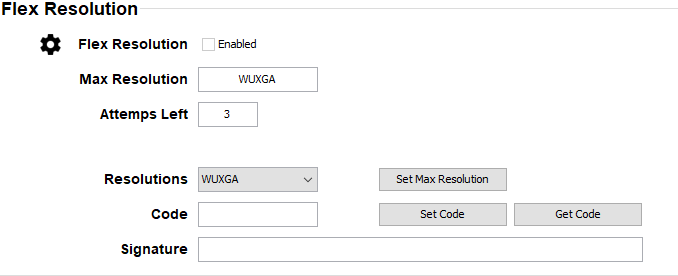
In the Flex Resolution pane, select the Enabled checkbox.
Image 15–9Example of the Flex Resolution pane
Use the drop-down list next to Resolutions to select the desired maximum Resolution.
Enter the correct Flex resolution code.
If you do not yet have a valid code, enter a valid signature and click Get Code.