4.4 Software Appearance

What can be changed ?

The following items can be changed:

Tip: Nimrod and Tiny LAF are collections of look and feels. If one of both are selected, the second line becomes available to select a typical look and file out of the collection.
How to change?

While in the Preferences menu:

  1. Click on Appearance (Image 4–2).

    The Appearance window is displayed.

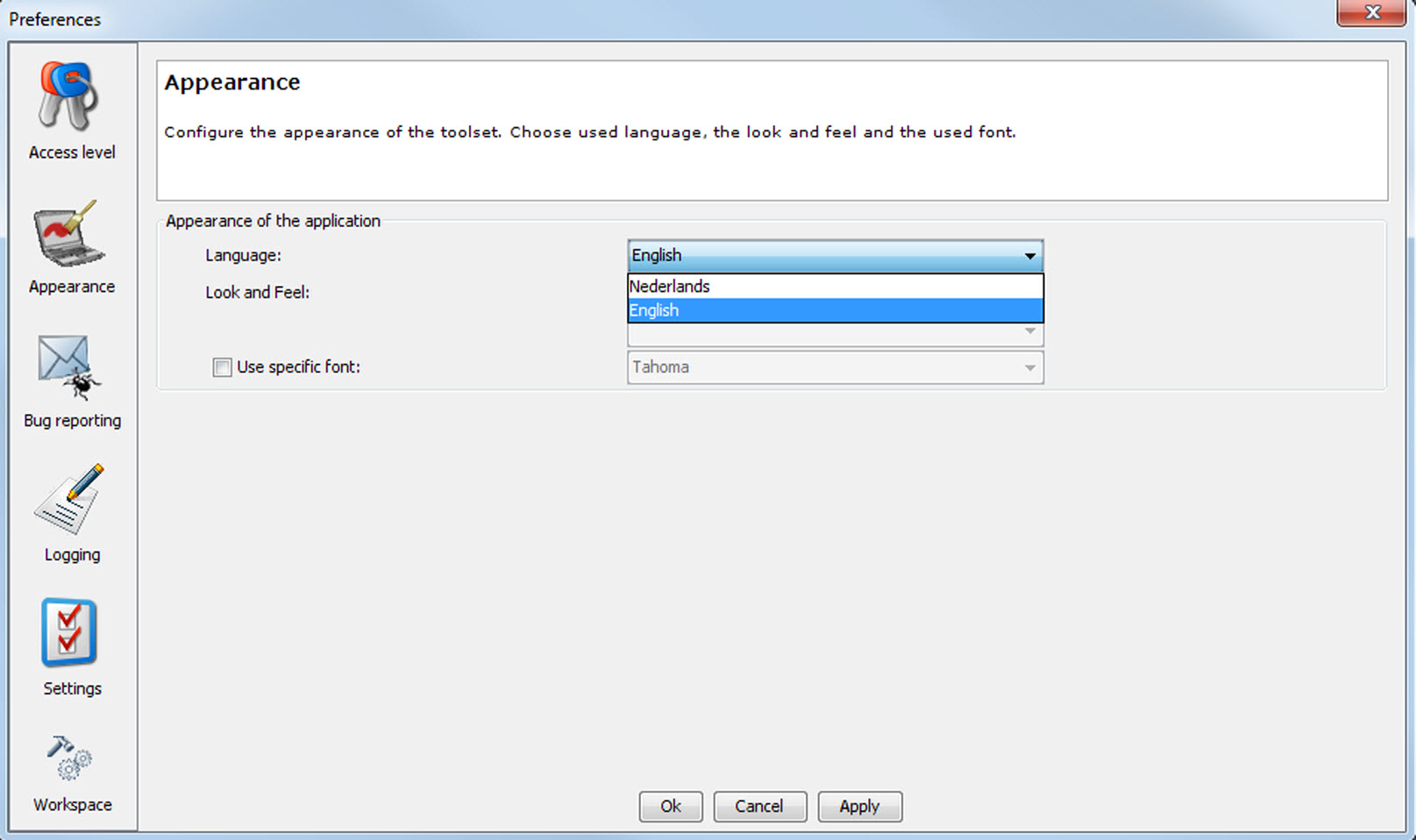
  2. To change the application language, click on the drop down box next to Language and select the desired language.

    Image 4–4 Language selection
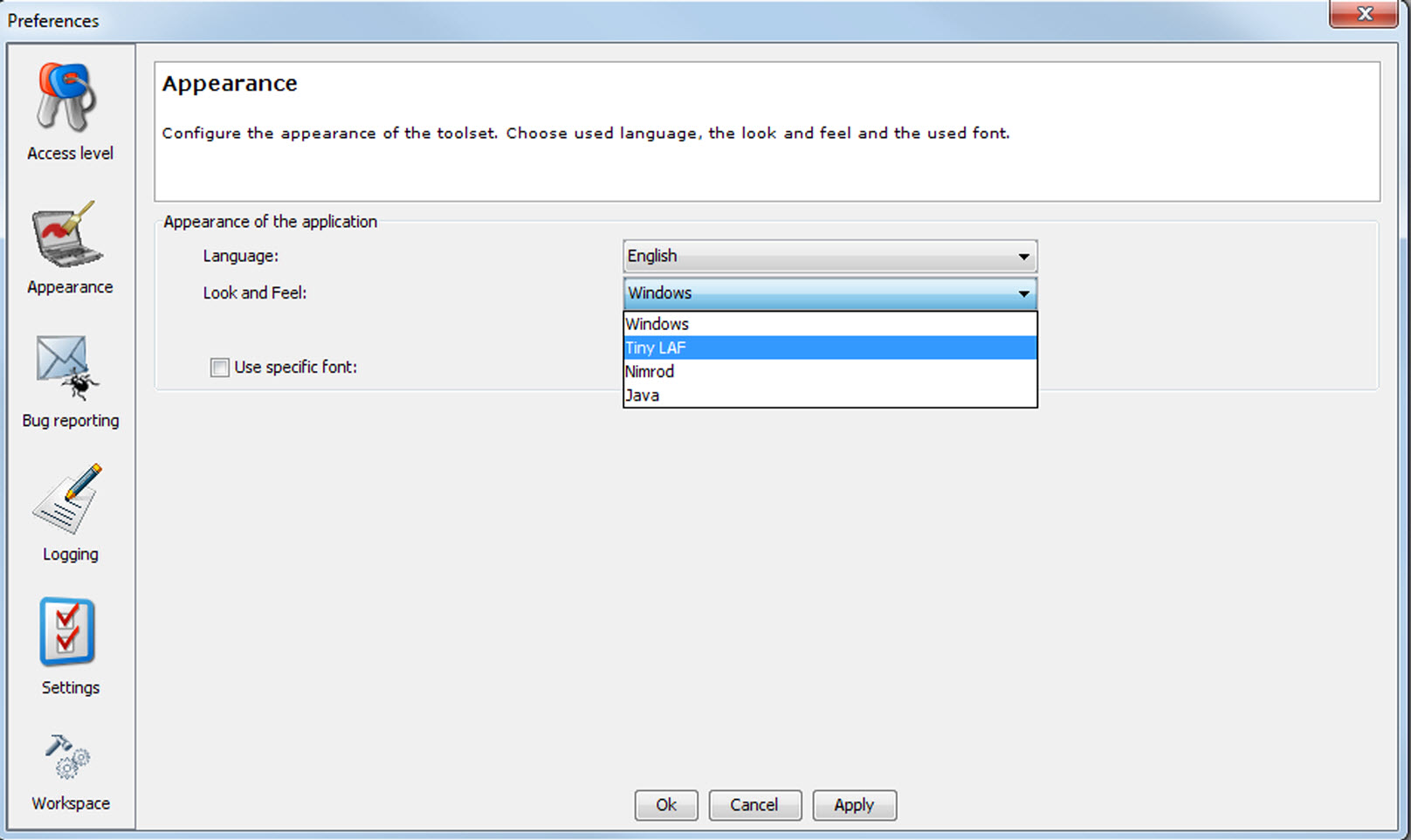
  3. To change the theme of the application, click on the drop down box next to Look and Feel and select the desired theme group.

    Image 4–5 Look and feel software
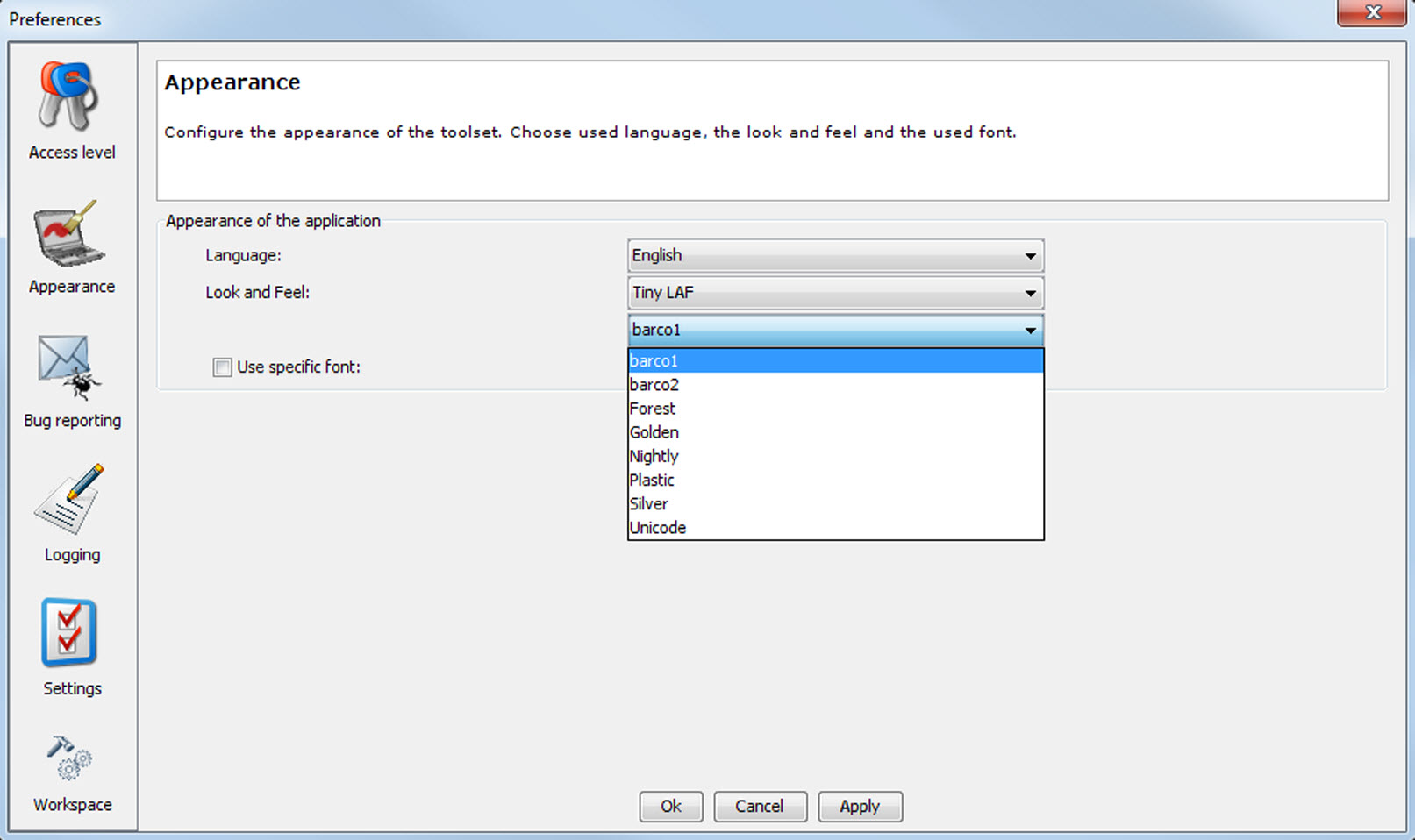
    Note: Nimrod and Tiny LAF are collections of look and feels. If either is selected, a secondary drop down box will be enabled, with a list of themes from the chosen collection. If so, select the desired theme file out of the collection.
    Image 4–6 Look and feel software for collection
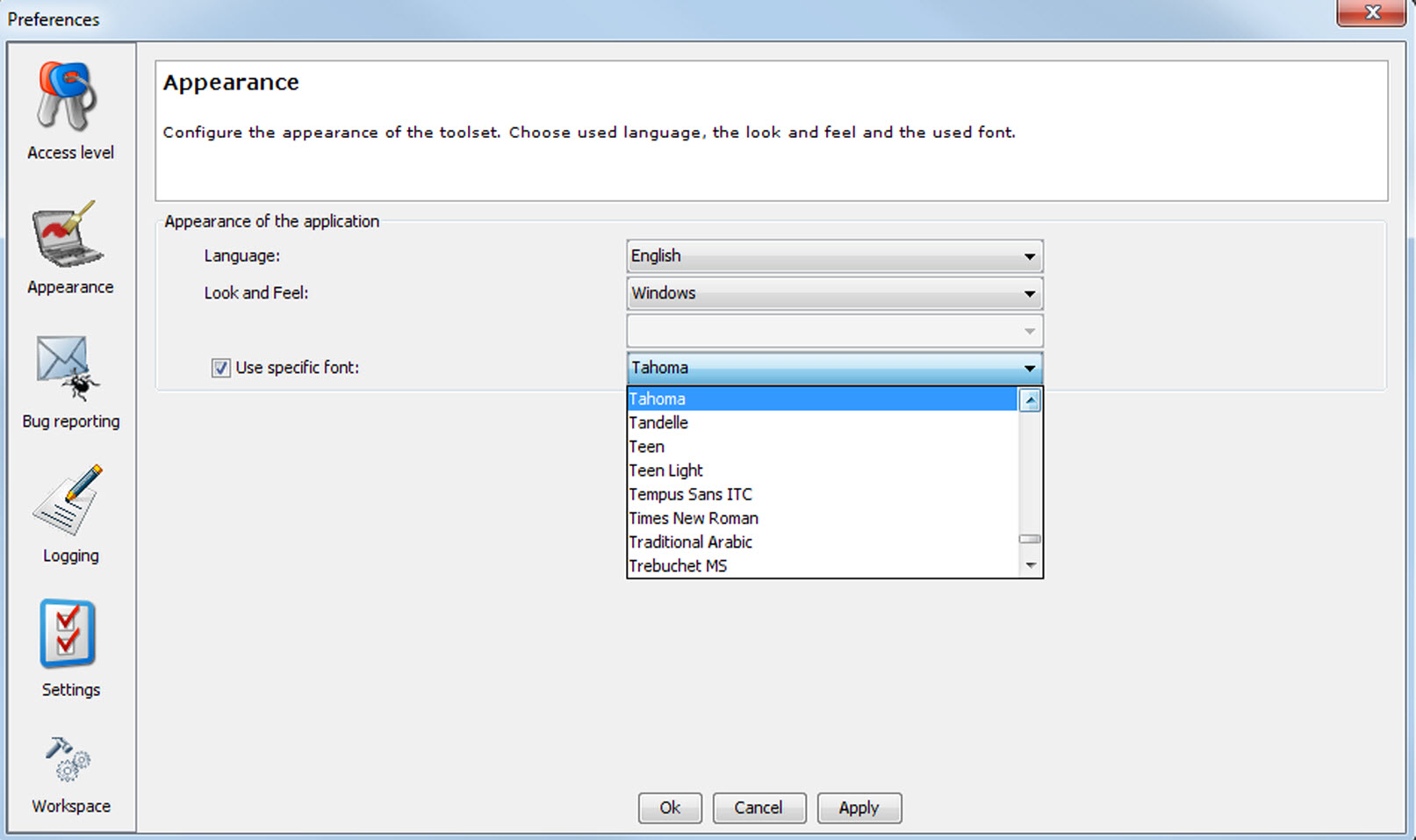
  4. To change the font, select the check box in front of Use specific font.

    Image 4–8 Use of specific font

    The font drop down menu becomes available.

  5. Click on the drop down box and select the desired font.
  6. Click on Apply to confirm all the made changes.

    An info dialog box will be prompted confirming that the look and feel change will take place after restarting the application.