This part of the System configuration page lists devices available on the local network and allows adding them to a Linked System Set up.
Expansion Link cards allow for linking multiple Event Master units. Linked units share inputs, and they expand the number of layers and outputs. Two E2 Lite units may be linked together. To link two E2 Lite units together, an Expansion Link card must be installed in Slot #1 and Slot #2 of each unit.
Just as in section “Configuration Menu > Network resource area”, the unit that is supposed to be added is available in the network resource tab. The second unit to be added must have a separate Unit ID. The default Unit ID is 0 on all Event Master presentation switchers. From the front panel, or by temporarily adding it as a separate system, change the Unit ID to 1.
A second E2 Lite unit, with very few limitations, adds fully double the capacity of one unit.
Note: After linking chassis, a few menus provide the option of changing between which unit controls you are viewing.
From the Menu bar at the top of all pages, you can select which processor’s details you are viewing, by selecting that processor from the pull down menu.
Note: There is no relationship between Unit ID and Master or Slave selection. Either unit can be Master or Slave in a linked configuration. The only real significance—but totally transparent to users—is the Event Master Toolset communicates only with the Master unit. The Master unit establishes its own connection and handles all communications with the Slave.
How to Link Two E2 Lite Units
E2 Lite video processors do not come equipped with expansion link cards or cables. Expansion link cards and cables must be purchased separately and installed in slots 1 and 2 of each E2 Lite unit that is to be linked.
Expansion Link cards are identified by a yellow stripe at the top. Make sure to use the locking mechanism and then push each cable until it locks in place.
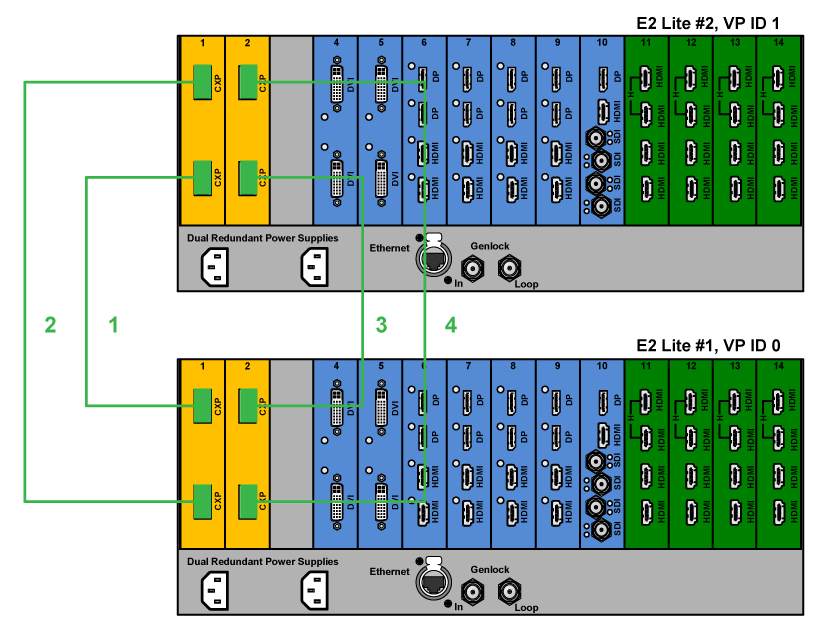
Connect the Link cables between the Expansion Link connectors on each E2 Lite unit as follows:
VP ID 0, Link Card slot 1, Link 1 >> VP ID 1, Link Card slot 1, Link 2 [1]
VP ID 0, Link Card slot 1, Link 2 >> VP ID 1, Link Card slot 1, Link 1 [2]
VP ID 0, Link Card slot 2, Link 1 >> VP ID 1, Link Card slot 2, Link 2 [3]
VP ID 0, Link Card slot 2, Link 2 >> VP ID 1, Link Card slot 2, Link 1 [4]
See Image 6–28 for an example of the cabling between two E2 Lite units.
Image 6–28Cabling between two E2 Lite units
Event Master configuration for two E2 Lite units
Start the Event Master Toolset.
Make sure that the two E2 Lite units are discovered on the network and that they have different Unit IDs.
Drop one of the two E2 Lite units in the GUI.
Then drop the second E2 Lite.
You will be presented the option to add as a new system, add as a master, or add as a slave.
Select either add as a master or add as a slave.
(Optional) At this point it is suggested that you select and name appropriately each unit so that you can identify it in your setup.
Connection Control
From the configuration page switch from the detail view to the System view and ensure that the status of all connections is good – Green. If any connections are shown red please check that the cables were connected as described in step b and they were fully seated.
Programming
Referring to the chapter “System Setup”, you may now proceed with the configuration and programming of the Event Master linked system, having full access to all resources from both E2 Lite units; a total of 56 inputs, 16 screen outputs, 8 Aux outputs, 4 multiviewer outputs and up to 32 mixer layers.
Auto Creation
If you choose to auto create your inputs, outputs and MVR outputs they will be created from Unit ID 0 first and then followed by the ones from Unit ID 1.
Configuration Order
You may proceed with defining your destinations, auxes and assign your layers. It is recommended that you setup all screen destinations and make layer assignment before you setup the Multiviewer.
Note: The Multiviewer and Web App sections of the Event Master Toolset have an additional selection. You may select whether you are viewing the Master or Slave E2 Lite Multiviewer windows or the Master or Slave E2 Lite Web App. The selection names correspond to the way you named the units in steps above.
Backup and Restore
When backing up and restoring your system you only need to backup and restore from the Master Unit.
Genlock
When genlocking your system to an external sync you only need to bring the signal into the Master unit and select lock to External from the Event Master Toolset.
A note about Multiviewer and Linked Systems
In a linked setup as you create destinations and assign layers the Event Master Toolset determines the best resource allocation for your configuration.
In order to make optimal use of expansion links, screens in linked systems must be viewed on the Multiviewer of the E2 Lite where the Event Master Toolset has allocated it.
Optimal allocation may cause a screen allocation to move from one E2 Lite unit to another as screen resources are changed.
This may result in a screen already placed in a Multiviewer to not be operative. The Event Master Toolset will change the UMD text to “Screen not viewable on this MVR”.
All you need to do is delete the screen from the Multiviewer displaying this message and place it on the other Multiviewer.
Tip: Always check for updated information that may have come out since this manual was published and for the latest version of all documents on www.barco.com.