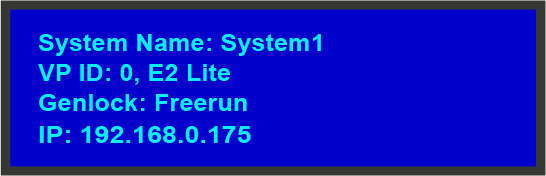
The Status Menu is the Event Master series processor’s top-level menu, which appears by default at system startup. This menu provides system name, Unit ID, Genlock status and unit IP address. The following figure illustrates a sample Status Menu. Press the ESC button when the Setup menu is displayed allows to return in the Status menu.
Image 5–6e.g. E2 Status menu
System name
Human readable name of the current system. Particularly useful in the user interface when multiple Event Master system are connected in the same network.
System1 is the default value. This name can be changed in the configuration page of the GUI. For more details please refer to the section dedicated to the system configuration in the chapter “Configuration Menu”.
Unit ID
ID required to identify different units are acting as a single system in order to expand for Inputs, Outputs or Layers.
This ID can be changed in the configuration page of the GUI. For more details please refer to the section dedicated to the System configuration in the chapter “Configuration Menu”.
Genlock
This line gives information about the Genlock connection situated at the back of the Event Master unit. For more detail on this connection please refer to the section dedicated to the Genlock Input BNC in the chapter “Rear panel”.
The user could turn Genlock OFF or ON in the configuration page of the GUI. The Event Master unit will determine what kind of Genlock is connected and will update the Status field. The status field can say “Locked”, “Lost Lock” or “Free Run”. For more details please refer to the section dedicated to the Event Master unit configuration in the chapter “System Setup”.
IP address
IP address of the Event Master unit in the local network.
If there is no internet connection, or if a DHCP server has not been found, the IP address is 000.000.000.000. The IP address is needed for running the Web Interface and for connection to an external device. For more details please refer to the section dedicated to the setting of Ethernet options in the chapter “About the System menu”.