
About
Next to the front menu, the OSD menu allows to change more advanced settings of the display. Please refer to “Advanced operation” for a detailed description of all OSD menu functions and settings.
Below is an example of the OSD menu structure:
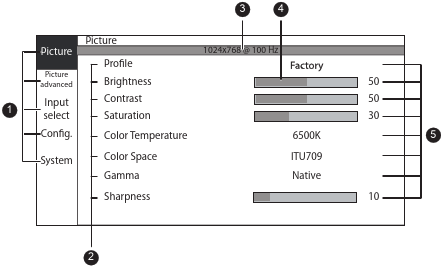
- Menu pages
- Sub-menus (menu items)
- Status bar
- Selector/Slider
- Item value/setting

 ).
). to confirm adjustments, press
  to exit the OSD menu and return to the front main menu.