Layout
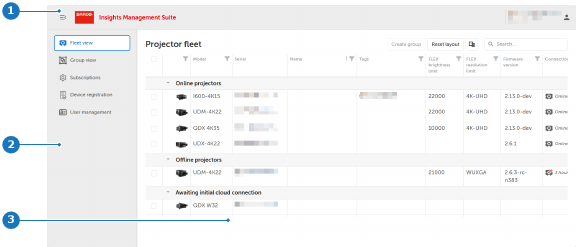
- 1
- Main header
- 2
- Main sidebar
- 3
- Content area

The main header is always visible and contains icons that correspond to the features described in the following table.
| Icon | Name | Function |
 | Collapsing the main sidebar. When the main sidebar is collapsed, its icons remain visible while the labels are hidden. This reduces the sidebar's width, allowing more space for the content area. | |
 | Expanding the main sidebar. The expand icon toggles with the collapse icon, allowing users to switch between expanded and collapsed sidebar views. | |
 | Represent the logged on user. The icon is proceeded with the email address of the user. Clicking on the icon or email address will open a drop-down menu with following functions: | |
 | Becomes visible when clicking on the user icon (see above). When clicking on the , the following sub‑menu items are displayed:
| |
 | Becomes visible when clicking on the user icon (see above). Contains software components released under an open source license. See “Open source software”. | |
 | Becomes visible when clicking on the user icon (see above). Ends your IMS session securely and prevents unauthorized access. See “Logout”. |
The main sidebar contains quick links to views or functions:
| Icon | Name | Function |
 | Shows an overview of the registered devices to your account. See “Fleet view”. | |
 | Gives access to group management, scheduling commands, and configuring network settings for multiple devices. See “Group view ”. | |
 | Allows management of device subscriptions in the IMS. See “Subscriptions”. | |
 | Provides a detailed insight into what devices a user has. See “Device registration”. | |
 | Allows users to request admin rights if none exist. See “User management”. | |
 | Only visible for Barco staff. |
The content area is the largest zone of the user interface. It shows detailed information and tools based on the selected function or view in the main sidebar.


