Menu overview
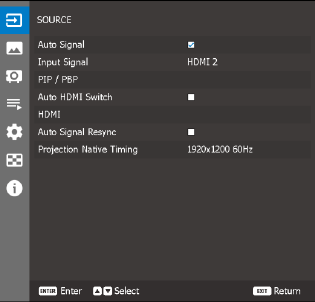

Select the checkbox to enable the feature. When is enabled, the projector automatically detects and selects the input signal.
Once an input source is selected, you can still press the Input button on the remote control or keypad to switch to other available sources.
Select an input signal from the source list. The available input sources are:
The feature to enable picture-in-picture or picture-by-picture. For more info, see “Picture-in-Picture and Picture-By-Picture”.
Select the checkbox to enable the feature. If enabled, the projector will only look at HDMI 1 and HDMI 2 as input sources.
HDMI2 has a higher priority than HDMI1. This means that in case the current input is HDMI1, the input signal will be forced to HDMI2 if a valid signal is detected on the HDMI2 input.. The input signal will automatically switch back to HDMI1 if you remove the HDMI2 signal.

This submenu helps set up the projector’s HDMI ports:
: When receiving an HDMI signal, the EDID option sets the projector’s EDID compatibility to display the signal correctly.
e.g. Select 1.4 for the input devices with HDMI 1.4. Alternatively, select 2.0 for HDMI 2.0 devices.
Select the checkbox to enable the feature.
Once enabled, the system will automatically synchronize the projector to the recent connected input source every time you switch the input source.
You can change the native timing to either: