5.2.2 Front panel

Location

System > Front Panel

About locking the front panel

A locked front panel prevents accidental touches and unwanted modifications to the Encore3. Unlocking the front panel can be done using one the following methods:

How to configure
  1. Must the front panel flash?

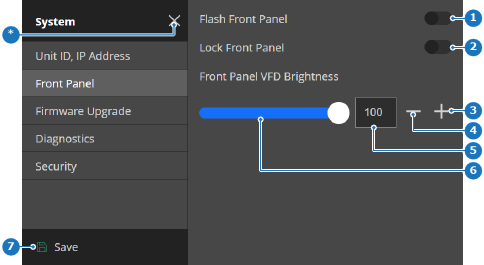
    • If yes, enable the toggle button after Flash Front Panel (reference 1).
    • If no, disable the toggle button after Flash Front Panel (reference 1).
    Image 5–5
    1
    Front panel flash toggle
    2
    Front panel lock toggle
    3
    Increase brightness button
    4
    Decrease brightness button
    5
    Brightness input field
    6
    Brightness slider
    7
    Save button
    *
    Close button
  2. Adjust the brightness of the front panel using one or more of the following methods:

    • Using the slider (reference 6, Image 5–5): drag the white ball over the slider until the desired amount is reached.
    • Entering a value (reference 5, Image 5–5): enter any desired value between ‘10’ and ‘100’ in the input field.
    • Using the + and - buttons: click on the + (reference 3, Image 5–5) to increase the value with one point and on the - (reference 4, Image 5–5) to decrease the value with one point.
  3. Must the front panel be locked?

    • If yes, enable the toggle button after Lock Front Panel (reference 2, Image 5–5).
    • If no, disable the toggle button after Lock Front Panel (reference 2, Image 5–5).
  4. Tap Save (reference 7, Image 5–5).