5.2.5 Security

About locking the front panel

A locked front panel prevents accidental touches and unwanted modifications to the Encore3. Unlocking the front panel can be done using one the following methods:

How to manage
  1. Is a password for the web page required?

    • If yes, enable the toggle button after Web Page Password (reference 5). Go to next step.
    • If no, disable the toggle button after Web Page Password (reference 5). Go to step 4.
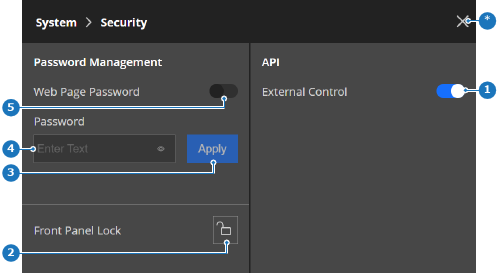
    Image 5–18
    1
    API toggle
    2
    Front panel lock button
    3
    Apply password button
    4
    Password input field
    5
    Password toggle button
    *
    Close button
  2. Enter the desired password in the input field after Password (reference 4, Image 5–18).

    Tip: To see the entered password, use the eye icon () in the input field.
  3. Tap Apply (reference 3, Image 5–18) to confirm the password.
  4. Must API commands be processed by the Encore3?

    • If yes, enable the toggle button after External Control (reference 1, Image 5–18).
    • If no, disable the toggle button after External Control (reference 1, Image 5–18).
  5. Must the front panel be locked?

    • If yes, enable the toggle button after Lock Front Panel (reference 2, Image 5–18).
    • If no, disable the toggle button after Lock Front Panel (reference 2, Image 5–18).