8.19.1 Creating a widget

Location
  1. Navigation side bar: Widget
  2. Right panel: Widget Settings
Template widgets

Event Master Toolset generates two template widgets that have standard layouts with common buttons. These templates can be used as a start point to create a custom widget, or they can be used as widgets.

How to create
  1. Must an existing widget be used?

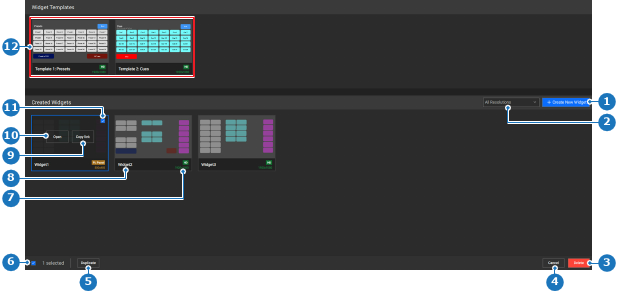
    • If yes using a template widget, click Open (reference 10) on the desired template widget (reference 12).
    • If yes using a custom widget, select the desired widget (reference 11) and click Duplicate (reference 5).
    • If no, click + Create New Widget button (reference 1).
    Tip: The Open (reference 10) button appears when hovering over the widget.
    Image 8–175
    1
    New widget button
    2
    Resolution filter drop down
    3
    Delete selected widget
    4
    Cancel selection
    5
    Duplicate selected widget
    6
    Deselect button
    7
    Widget name label
    8
    Widget resolution label
    9
    Copy link to widget button
    10
    Open selected widget button
    11
    Widget selection check box
    12
    Widget templates

    The widget detail page is shown.

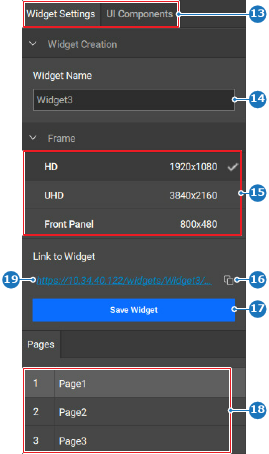
  2. Enter a name for the widget after Widget Name (reference 14) in the right panel.

    Tip: Provide clear names that reflect the intended purpose.
    Image 8–176
    13
    Category selection
    14
    Widget name input field
    15
    Widget resolution options
    16
    Copy link button
    17
    Save widget button
    18
    Widget page options
    19
    Hyperlink to the selected widget page
  3. Select the desired resolution of the widget (reference 15, Image 8–176).

    • HD (1920x1080)
    • UHD (3840x2160)
    • Front Panel (800x480)
    Note: If the widget must be used on the front panel, then the 800x480 size of the widget is required. Larger sizes cannot be displayed on the front panel.
  4. Click Save Widget (reference 17, Image 8–176).
  5. Click the save icon () in the header.
  6. Customize the created widget. For more information, see “Editing a widget”.