8.12.1.2 Removing a destination from a layout

Location
  1. Navigation side bar: Programming
  2. Bottom panel: Layout row
How to remove
  1. Click on the downwards arrow () after the layout name (reference 3) in the bottom panel.

    Image 8–90
    1
    New layout button
    2
    Layout name input field
    3
    Layout options menu

    A pop-up window opens.

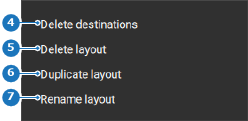
  2. Select Delete destinations (reference 4).

    Image 8–91
    4
    Delete destinations menu
    5
    Delete layout button
    6
    Duplicate layout button
    7
    Rename layout button

    A second pop-up window opens.

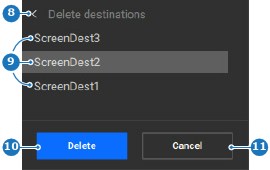
  3. Select the desired destinations from the list.

    Tip: Hold CTRL or ⌘ to select multiple entries at once. If this does not work, enable the keyboard shortcuts in the settings. For more information, see “Keyboard shortcuts”.
    Image 8–92
    8
    Back button
    9
    Destination list
    10
    Confirmation button
    11
    Cancel button
  4. Click Delete (reference 10, Image 8–92).

    The selected destinations are removed.

  5. Click the save icon () in the header.