8.12.6 Capturing stills

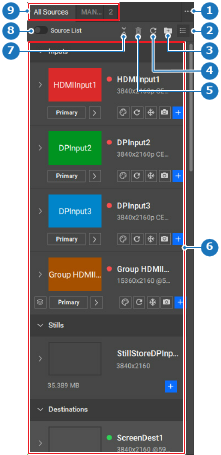
Location
  1. Navigation side bar: Programming
  2. Left panel: All Sources
About capturing

Event Master Toolset can capture a frame directly from a live input and store it as a still. The captured still will then be added as a source and stored on the video processor. For more information on how to download the still, see “Export stills”.

How to capture
  1. Is the Source List toggle button (reference 8) enabled?

    • If yes, disable the Source List toggle button (reference 8) and go to next step.
    • If no, go to next step.
    Image 8–104
    1
    Folder menu
    2
    Source view options
    3
    Source organise menu
    4
    Refresh input thumbnail button
    5
    Delete button
    6
    Available sources
    7
    Collapse or expand all sources
    8
    Toggle source list view
    9
    Source folders
  2. Click the Freeze input icon () of the desired input (reference 18) to lock the frame. (optional)
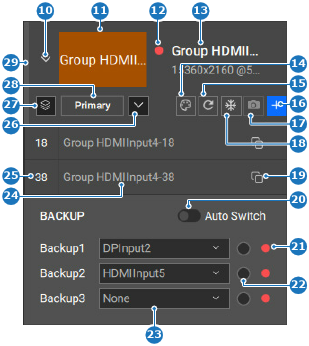
    Image 8–105
    10
    Show or hide sources
    11
    Input thumbnail
    12
    Signal validity icon
    13
    Input name input field
    14
    Thumbnail background color menu
    15
    Refresh thumbnail button
    16
    Add source button
    17
    Capture still button
    18
    Freeze input button
    19
    Copy source button
    20
    Toggle auto backup signal
    21
    Backup signal validity icon
    22
    Manual backup source radio button
    23
    Backup source drop down
    24
    Source name input field
    25
    Source ID input field
    26
    Show or hide backup section
    27
    Show or hide group sources
    28
    Backup or primary source button
    29
    Input usage indicator
  3. Click the Capture still icon () of the desired input (reference 17, Image 8–105) to capture the current frame as a still.

    The still is added to the source list under Stills.

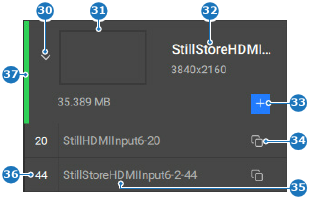
  4. Double click on the name of the still (reference 32) to enter a name.

    Tip: Provide clear names that reflect the intended purpose.
    Image 8–106
    30
    Show or hide sources
    31
    Still thumbnail
    32
    Still name input field
    33
    Add source button
    34
    Copy source button
    35
    Source name input field
    36
    Source ID input field
    37
    Still usage indicator
  5. Click the Freeze input icon () of the desired input (reference 18, Image 8–105) to stop locking the frame. (optional)
  6. Click the save icon () in the header.