7.10.8.1 Firmware updates

Location and availability
Updated way of updating software
Caution: Do not power off or unplug the projector while the software update is ongoing. Similarly, do not remove the USB flash drive while the software update is ongoing.

Up until Pulse 2.6, you could enter a USB flash drive with the latest firmware, and let the projector automatically update.

From Pulse 2.7 onward a dedicated menu has been created which requires you to have logged into the projector as power user or higher.

Prerequisites

Make sure to prepare the USB flash drive, by creating the following folder structure:

/Barco/Firmware
Note: Make sure the flash drive is formatted in FAT32. If the folder structure does not exist, the Software update menu tile will remain disabled.
Required tools

USB flash drive

How to update the software using Pulse OSD
  1. Download the latest projector software package from the Barco's website, using the following link: https://www.barco.com/support.
  2. Place the correct projector update file (format .fw) in the Firmware folder.
  3. Plug the flash drive in the USB port on the Communication Panel of the projector.

    The USB Menu will be prompted.
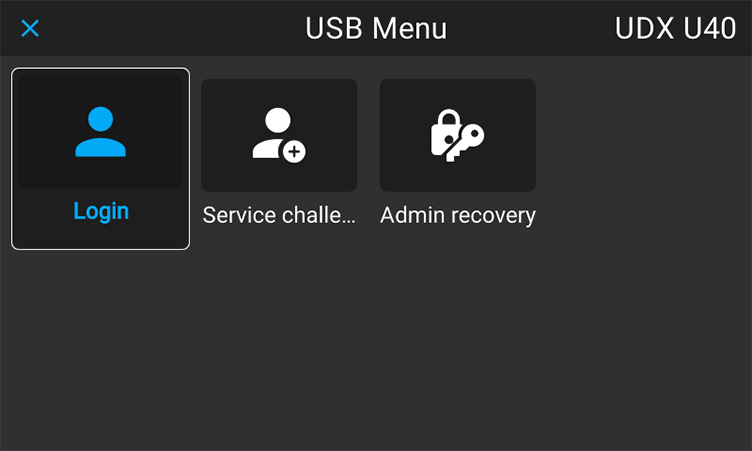
    Image 7–140 Example of the prompted USB menu
  4. Log in as power user or higher. For more info, see “User authentication”.

    Hidden tiles (e.g. Update, Diagnostics) are displayed.

  5. In the USB menu, click Firmware update.
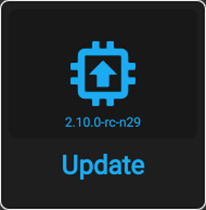
    Image 7–141 USB menu, Filmware update

    The Firmware update menu will be displayed. All packages on the USB flash drive will be listed.
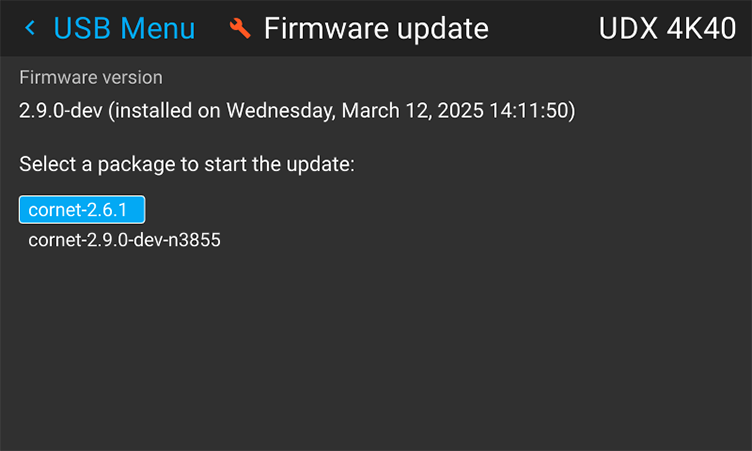
    Image 7–142 Example of the Firmware update menu, here with two update packages
  6. Select the desired package and confirm.

    A software update dialog will be prompted, requesting confirmation.
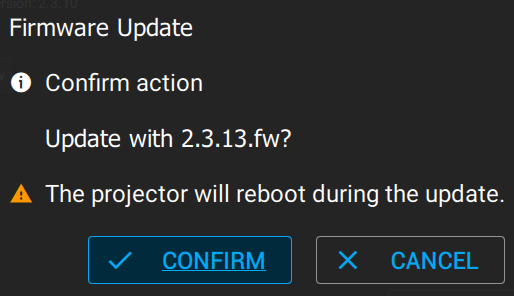
    Image 7–143 Example of a Software update dialog prompt
  7. Select Confirm to start the software update process.

    Note: Once initiated, the update procedure can take up to 20 minutes to complete. During this process the projector will reboot at least once.

    The LCD display will show the current status of the update during the update process.

  8. Once the LCD display shows that the update process has been completed, it is safe to remove the USB flash drive.
Caution: While it is technically possible to “downgrade” the software to an older version using this method, it is NOT recommended and should be avoided as much as possible. Certain features will no longer be supported, projectors can display unwanted behavior during the downgrade and in some rare cases, this may even bring damage to the device. Always contact Barco if you want to make sure a downgrade will not hurt your device.