Device registration provides a detailed insight into what devices a customer has. The devices model, built year, serial numbers and more will be made visible in a central place. This takes away the administrative hurdles when calling for support. It also minimizes possible mistakes when providing service with information or details about the device.
Registered devices are visible on Barco’s IoT platform: Insights Management Suite. This platform enables complete fleet management through remote monitoring of the device parameters. For more information, see the Insights Management Suite user guide.
Registration concept
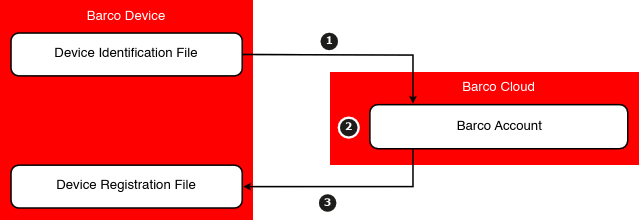
The device registration concept relies on a device identification file installed during production, which is used to register the device in the cloud and retrieve the device registration file needed to complete the setup.
The registration process goes as follows:
Obtain the unique device identification file from the device.
Upload the device identification file to the cloud, using one of the software tools Barco provides.
Install the received device registration file on the device, either automatically or manually.
For more information on how to register the device with the desired method, see the following chapters.
Image 7–1
Registration methods
There are several methods to register the desired device. Which method to use depends on:
the available software tools,
the version of the available software (tools),
the type of device,
the model family of the device, and
the connection status of the device.
The following methods are available:
Method
Requirements
Reference
Pulse Mobile (recommended)
Mobile device with the Pulse Mobile app
Access to either the LCD or OSD of the projector or Pulse Prospector.
Computer with network access to both the projector, as well as Insights Management Suite.
Software Pulse 2.5 or earlier
Projector Toolset version 1.20 or later.
See the Projector Toolset user guide.
Preferred registration method
If the device to be registered is directly connected to the internet, using the Pulse Mobile app will be the easiest and preferred method for registering devices.
However, if the device to be registered is set up in a secured local network separated from the internet, it is advised to use manual registration instead. For more info, see “Manual device registration using Pulse OSD”.
Tip: It is technically possible to start the manual registration process using the Pulse Mobile app. However, it will be required to switch to Insights Management Suite and the manual registration method halfway through regardless, as it is not possible to push the device registration file directly from the app to the projector. For this reason, if the device to be registered is separated from the internet, it is advised to perform the manual registration using Pulse OSD, Pulse Prospector or Pulse Toolset instead.