7.1.3.1 Obtaining the device identification file

Location and availability
Required tools

USB flash drive

How to obtain the device identification file
  1. Insert a USB flash drive in the USB port of the projector.

    Note: The storage device must be formatted as FAT32.
  2. Click Manual Registration.

    The Manual Registration window will be displayed.
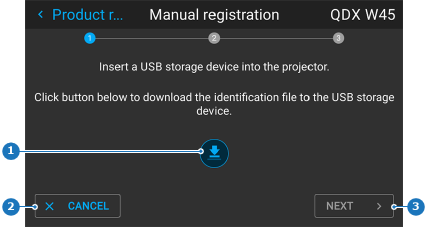
    Image 7–3 Example of the first page of manual device registration
    1
    Download icon
    2
    Cancel button
    3
    Next button
  3. Click on the download icon.

    The identification file will be downloaded. If successful, the Next button will be enabled.

  4. Click Next.

    The second page will be displayed. It is now safe to remove the USB flash drive.
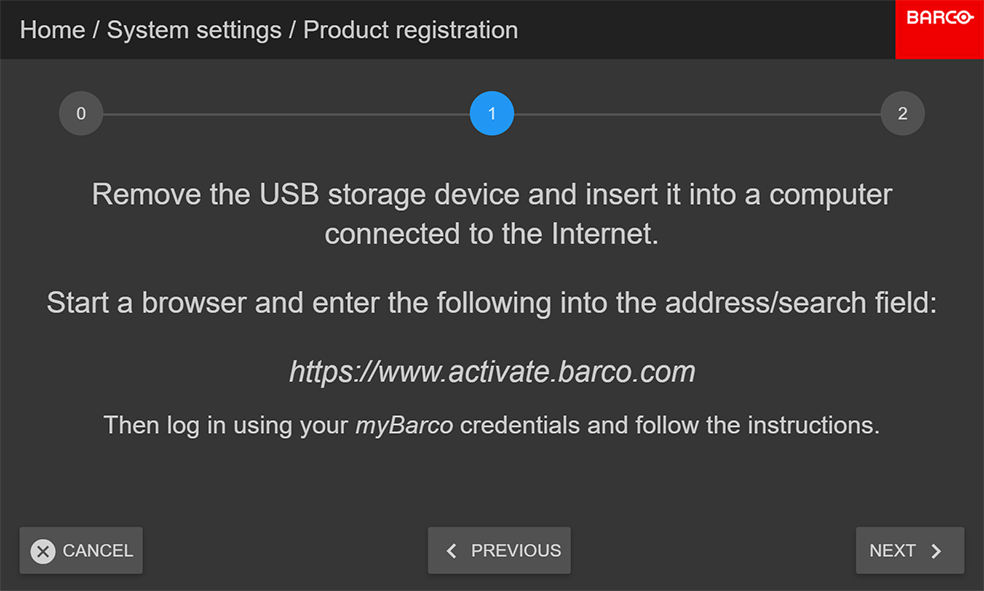
    Image 7–4 An example of the second page
  5. Remove the USB flash drive from the projector and insert it into a device connected to the internet (laptop, PC, tablet, etc).

    Tip: Keep this menu page open on the projector. It will be required later on in the registration process.
  6. Navigate to https://insights.proj.barco.com using a browser of choice.
  7. Log in using myBarco credentials if prompted.
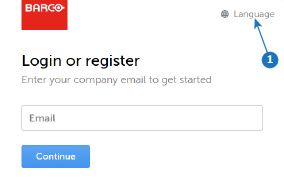
    Image 7–5

    Insights Management Suite will be displayed.

  8. Upload the device identification file to Insights Management Suite. For more information, see “Uploading device identification files”.