About wireless connection
Wireless connection makes use of the wireless capabilities of the user device to setup the connection with the Base Unit. Depending on the user device, this connection prevents access to the internet.

Wireless connection makes use of the wireless capabilities of the user device to setup the connection with the Base Unit. Depending on the user device, this connection prevents access to the internet.
PresentSense uses the microphone of the user device to detect an ultrasonic sound coming from the Base Unit. This ultrasonic sound is used to show the meeting room name in the meeting room list of the software. The Base Unit must be configured to send out this ultrasonic sound. For more information on how to configure PresentSense for the Base Unit, see the installation manual of the Base Unit.

The Mobile App must installed with location permissions. For more information, see “Installing the Mobile App”.

Is the connection assistance turned on?

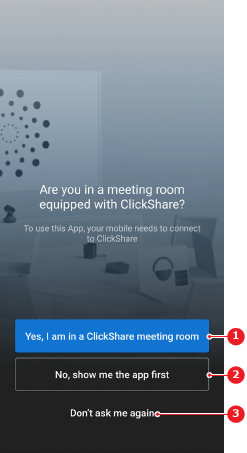
Tap (reference 4) to see the Base Unit network.
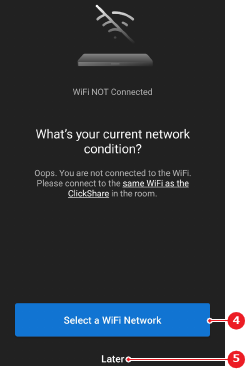
The Wi-Fi settings of the user device are opened.
Connect to the room Wi-Fi or the Wi-Fi of the Base Unit.
A passcode is shown on the meeting room display. Go to step 8.
Is the meeting room listed on the Mobile App home screen (reference 4)?
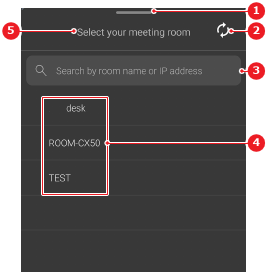
Is the meeting room display or touch panel showing the meeting room name or Base Unit IP address?
enter the name or IP address of the meeting room in the search meeting room input field (reference 3, Image 6–8).
Tap on the meeting room in the list (reference 4, Image 6–8).
A passcode is shown on the meeting room display.
Enter the displayed passcode in the input field (reference 6) using the numpad (reference 7).
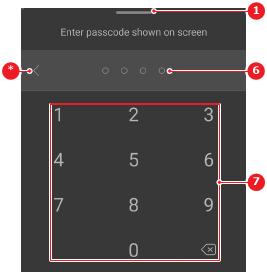
The connection between the Base Unit and the user device is made and a silent ClickShare notification is added.