Location & availability
- Menu: > > > >
- Access level: admin

The software page will check if the current version is the latest available version. When a newer software version is available there are several methods to install:
Each software version can be downgraded to a minimum version. This minimum version includes some dependencies that are not allowed to be overwritten or removed by an earlier software version. For more information to see the minimum version of the software, see the release notes of the version.
Must the Base Unit be kept up-to-date?
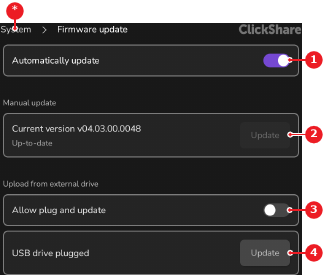
Is a newer software detected online?
Must the Base Unit automatically update whenever a USB stick with software is connected?
Is a USB stick with software connected?
A confirmation or error text is shown.
Pair all Button devices again to update them to the same software as the Base Unit. For more information, see “Pairing the Button”. (optional)
