9.4 Updating USB-C Extension over CAT devices

About software update

The USB-C Extension over CAT devices have a software version that is independent from the Base Unit and must be updated manually. An update tool is required to update the USB-C Extension over CAT devices.

Log location

The update tool creates debug logs that are available for up to 5 days. Older logs are automatically removed.

The logs are located in the folder: C:\Program Files (x86)\Barco\ClickShare\Logs.

Prerequisites

Connect the USB-C Extension over CAT receiver to a Base Unit, the USB-C Extension over CAT transmitter to the laptop and connect the USB-C Extension over CAT receiver to the USB-C Extension over CAT transmitter with an RJ-45 cable. Ensure the Base Unit is powered on and ready. For more information, see:

RJ-45 cable
An RJ-45 cable is a network cable that ends in a RJ-45 connector. Many different cables are compatible with an RJ-45 connector. For this reason, the cables are divided in categories based on maximum speed and cable design. These differences have a big impact on the quality of the RJ-45 cable.
How to update
  1. Double click the .msi file in the software folder.

    An installer window is shown.

  2. Is the update tool already installed?

    • If yes, go to next step.
    • If no, go to step 6.
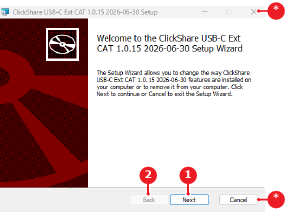
  3. Click Next (reference 1).

    Image 9–6
    1
    Next step button
    2
    Previous step button (disabled)
    *
    Close button
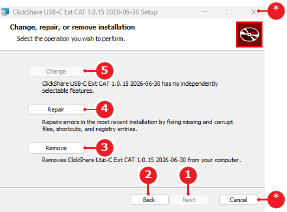
  4. Click on the desired option.

    • Change (reference 5), sets the update tool to the new software version.
    • Repair (reference 4), restores the update tool installation.
    • Remove (reference 3), uninstalls the update tool.
    Image 9–7
    1
    Next step button
    2
    Previous step button
    3
    Uninstall button
    4
    Repair installation button
    5
    Update tool button
    *
    Close button
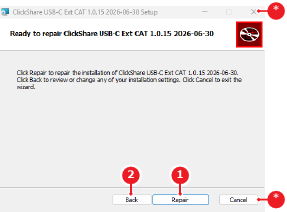
  5. Click on the next step button (reference 1) to continue.

    Tip: The text in the next step button (reference 1) reflects the choice made in 4.
    Image 9–8
    1
    Next step button
    2
    Previous step button
    *
    Close button

    The selected option is applied to the update tool. Go to step 9.

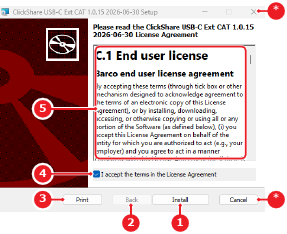
  6. Read (reference 5) and click I accept the terms in the License Agreement (reference 4) the end user license agreement.

    Note: It is not possible to install the update tool without agreeing to the terms.
    Tip: The license agreement can be printed using the Print button (reference 3).
    Image 9–9
    1
    Next step button
    2
    Previous step button (disabled)
    3
    Print license button
    4
    Terms agreement check box
    5
    Barco end user license agreement
    *
    Close button

    The Install button (reference 1, Image 9–9) becomes enabled.

  7. Click Install (reference 1, Image 9–9).

    The software tool installation starts. This may take several minutes.

  8. Click Finish (reference 1) and launch the update tool.
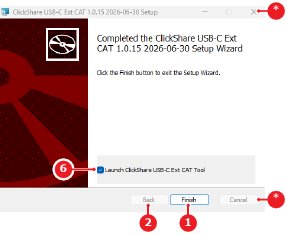
    Note: Checking the check box in front of Launch ClickShare USB-C Ext CAT Tool automatically open the update tool. (only visible during the initial installation)
    Image 9–10 Example of the initial install finish screen.
    1
    Next step button
    2
    Previous step button (disabled)
    6
    Auto launch option
    *
    Close button
  9. Connect the USB-C Extension over CAT transmitter to the laptop. use a ‘USB-C’ cable.

    All detected devices are shown in the update tool.

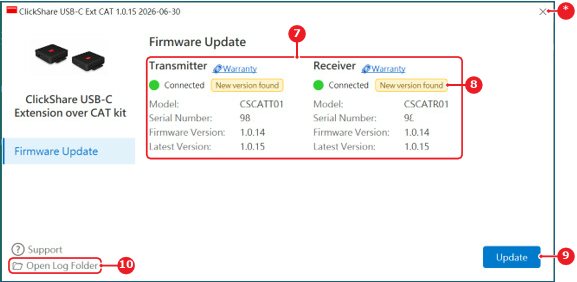
  10. Click Update (reference 9).

    Note: The device that will be updated have a label New version found (reference 8).
    Image 9–11
    7
    Detected devices list
    8
    New available software label
    9
    Update button
    10
    Log folder shortcut button
    *
    Close button

    The devices are updated and a progress bar is shown. This may take several minutes.