2.4 Shortcut bar operation (Standby, OSD, Presets, PbP)
The OSD shortcut bar is the primary user interface for selecting your input and managing the display state. It allows one-touch switching for presets, PbP single cable, access to the full OSD menu and standby switching.
Image 2–3
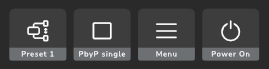
The shortcut bar, by default, displays the following four buttons (from left to right):
Button
Function
Default state
Preset Selection
Cycles through configured presets (1-5) to change the video input, linked KVM, and MST setting simultaneously.
Tip: If your application windows rearrange or do not return to their previous locations when you switch between presets, ensure to enable “Remember window locations based on monitor connection” in Windows Settings > System > Display.
Note: By factory default, only Presets 1 through 3 are enabled for cycling via the shortcut bar. To configure which presets are available in this cycle list, see the List in Shortcut Bar setting in “Preset configuration”.
Note: Activating PbP Single Cable may override the MST setting of the active preset and cause a reboot, or screen connected to the DP OUT port to lose its image.
Operation
Press or turn the jog dial to activate the shortcut bar.
Turn the jog dial to select the desired button (Preset Selection, PbP Single Cable, Menu, or Standby).
Press the jog dial to activate the selected button. If the Preset Selection button is chosen, press the jog dial repeatedly to scroll through the numbered presets.