Product overview
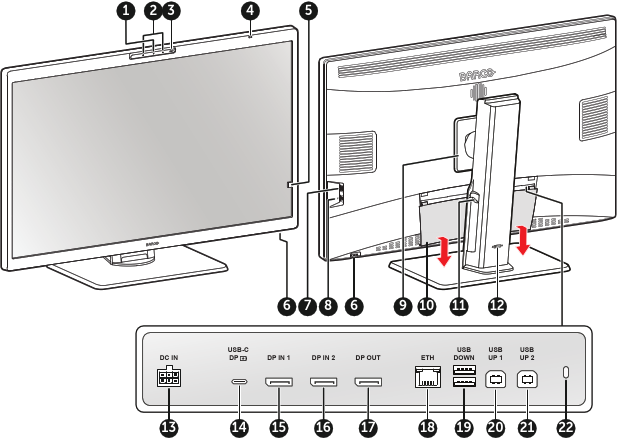
Camera and status LED
- Off: Not active
- Blinking: Starting up
- Steady: Active
- Microphones
Presence sensor
This sensor detects if someone is within about 90 cm of the display. If no one is detected after a configurable timeout (set in the OSD menu), the backlight dims to a minimum. The display returns to normal brightness as soon as a person is detected again. For more details, see “Presence sensor”.
Ambient light sensor and power status LED
- Off: Display not powered (mains cable unplugged), or display is in normal operation
- Fast blinking: Display is in suspend mode
- Slow blinking: Display is in standby mode
- Steady: Display is in hibernate mode (see “Hibernate” )
- Heartbeat: Display manually switched off via the jog dial
Front sensor
CAUTION: To avoid permanent damage to the product, never use the front sensor to hold a paper, radiological film or any other object.
Jog dial
- Press: Switch on the display, activate shortcut bar, go into (sub)menus, confirm adjustments and selections
- Turn left or right: Switch on the display, activate shortcut bar, scroll through (sub)menus, change values, make selections
- Press and hold for approximately 3 seconds: Switch off the display while no OSD menu is on the screen
- USB DOWN (USB-A 2.0 downstream)
- USB-C (USB-C 2.0, 7.5W Power Delivery)
- VESA mount cover
- Connector cover
- Cable routing channels
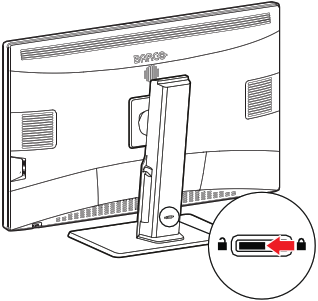
- Stand locking mechanism
- DC power input
- USB-C DP (DisplayPort Alt Mode, USB-C 3.2, 75W Power Delivery)
- DP IN 1 (DisplayPort 1.4)
- DP IN 2 (DisplayPort 1.4)
- DP OUT (DisplayPort 1.4, MST)
- ETH (RJ-45 1Gb Ethernet)
- USB DOWN (USB-A 2.0 downstream)
- USB UP 1 (USB-B 2.0 upstream)
- USB UP 2 (USB-B 2.0 upstream)
- Kensington security lock