Pesquisa na Barco

Notificações myBarco

Não lidos

Lidos

Você não tem nenhuma notificação.

ClickShare autumn release: macOS improvements, XMS meeting room overview, and Hub accessories

7 minutos de leitura

Turn over a new leaf this autumn and improve collaboration in your workplace with these brand-new features!

What's new?

Did you miss our webinar? Watch the recording! 

Enhanced end-user experience

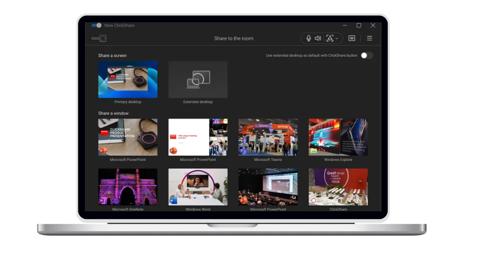
A smoother meeting experience for macOS users

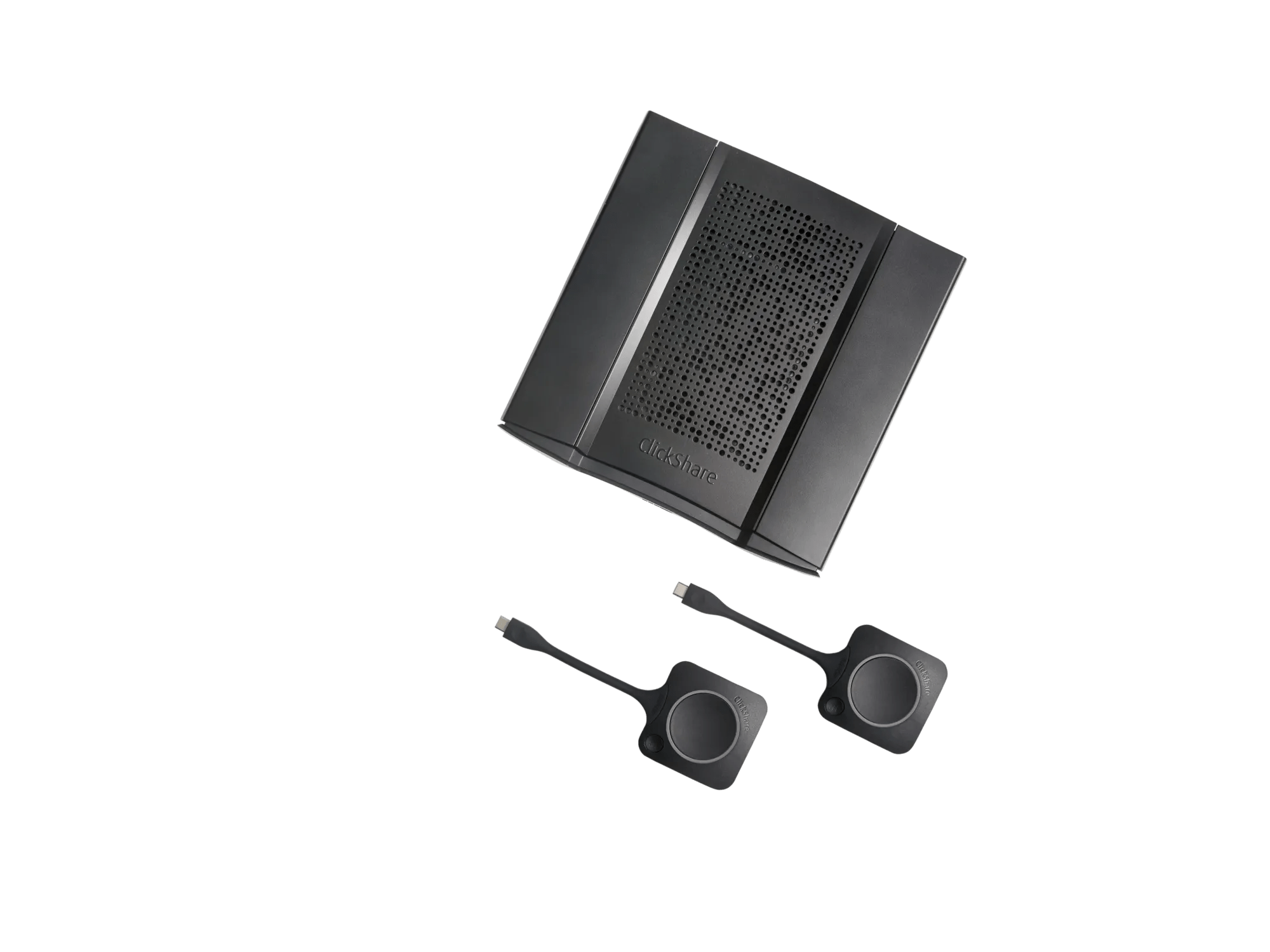
We're committed to delivering a consistent, standardized experience across operating systems and bring to Mac users the same seamless workflow Windows users enjoy today.  

Starting this autumn, macOS users will benefit from a smoother meeting experience! 

Previously, ClickShare didn’t launch automatically when plugging in the Button on macOS. Meeting participants had to manually open ClickShare, adding an extra step to their workflow.  

With this update, when the Button is plugged in, ClickShare will launch automatically in the background just like it does on Windows. 

This update brings a more consistent and intuitive experience across operating systems, helping users get into their meetings faster with fewer manual steps.

How to deploy the macOS launcher?

Download the software package and install it:

  • Manually – end-users can install it independently OR as
  • Mass deployment – IT can deploy it company-wide using an IT deployment tool

After the Mac launcher is deployed, the user will get a notification where they will need to allow the auto-launch the first time they plug in the Button. This only needs to be done once.
IT admin experience

Meeting room overview in XMS Cloud

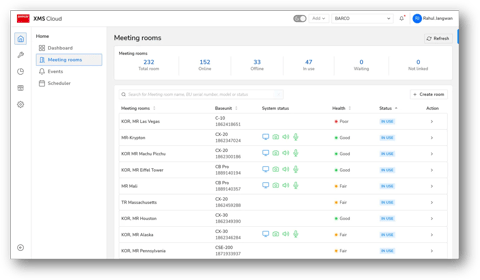
With this release, we’re excited to bring you a smarter way to manage your workplace: the new Meeting Room Overview in XMS Cloud.

Thanks to this overview, you can now create virtual meeting rooms that mirror your physical spaces and assign your ClickShare devices to them. It’s a simple yet powerful way to bring structure and clarity to your device fleet. You get to:

  • Add your existing devices and get a centralized view per meeting room
  • Quickly check the status and health of all devices per room.
  • Troubleshoot issues faster with a better overview of your entire setup.
  • Onboard new devices to the right rooms
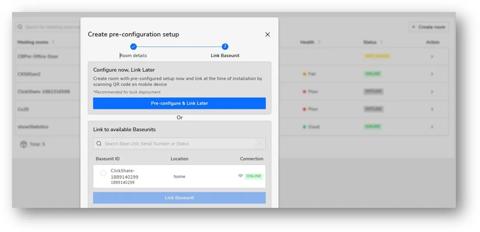
How to create your meeting rooms
  1. Go to Home > Meeting rooms 
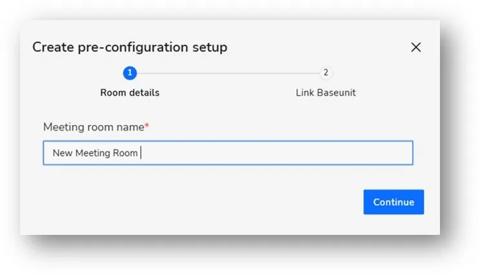
  2. Click Create Room and name it
  3. Assign your ClickShare device to the room 
  4. View room status and details from your dashboard

Improved onboarding: Assign devices right from the start

As mentioned earlier, when onboarding new devices, you’ll now have access to the Meeting Room Overview—making it easier to assign devices to the correct spaces right from the start.

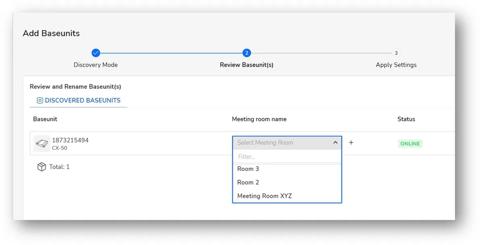
If you choose the web onboarding via XMS Cloud, you can:

  • Select an existing meeting room from a dropdown list

OR

  • Create a new room on the spot using the "+" icon.

This ensures your devices are placed exactly where they belong, with full visibility in the Meeting Room Overview.

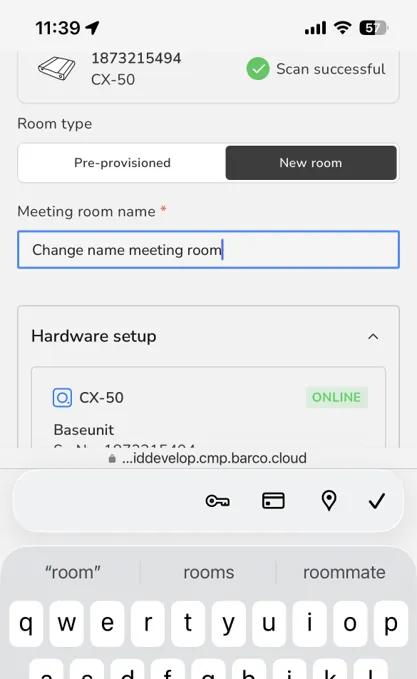
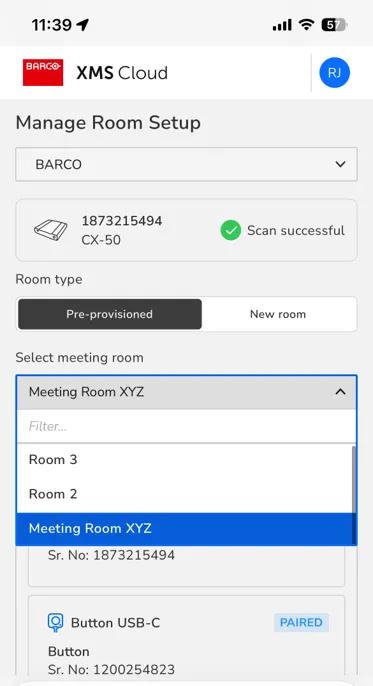
If you choose to onboard your devices via mobile, you have to:

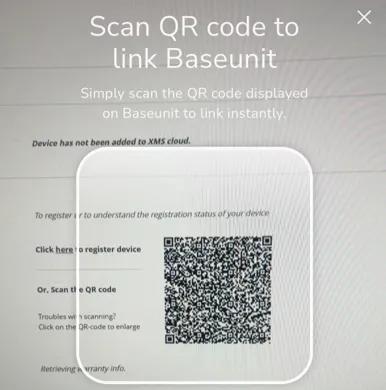
  1. Scan the QR code of your device
  2. Create a new room or assign your new device to a meeting room already created.

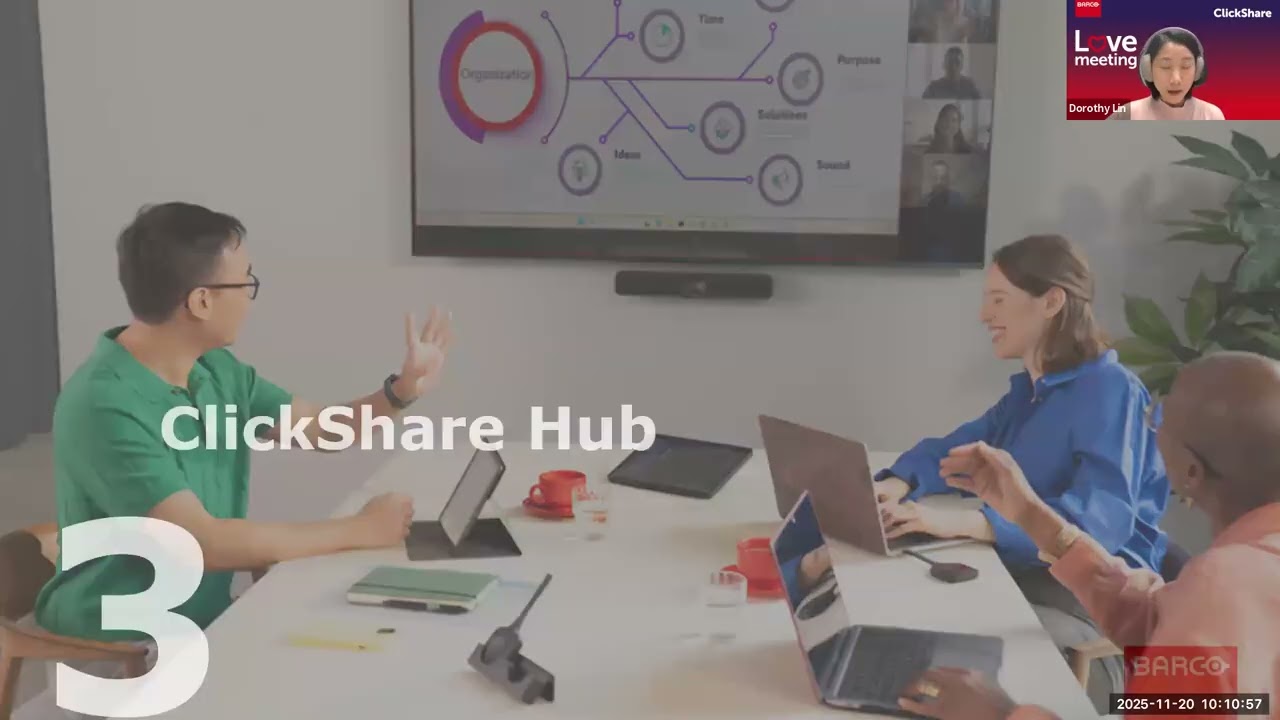
ClickShare Hub accessories

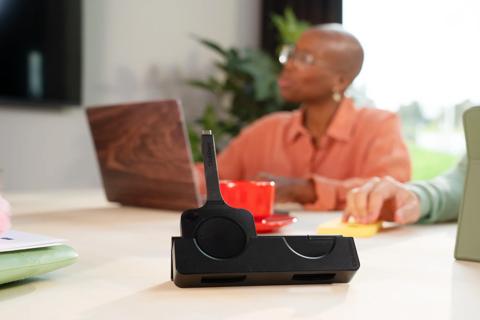
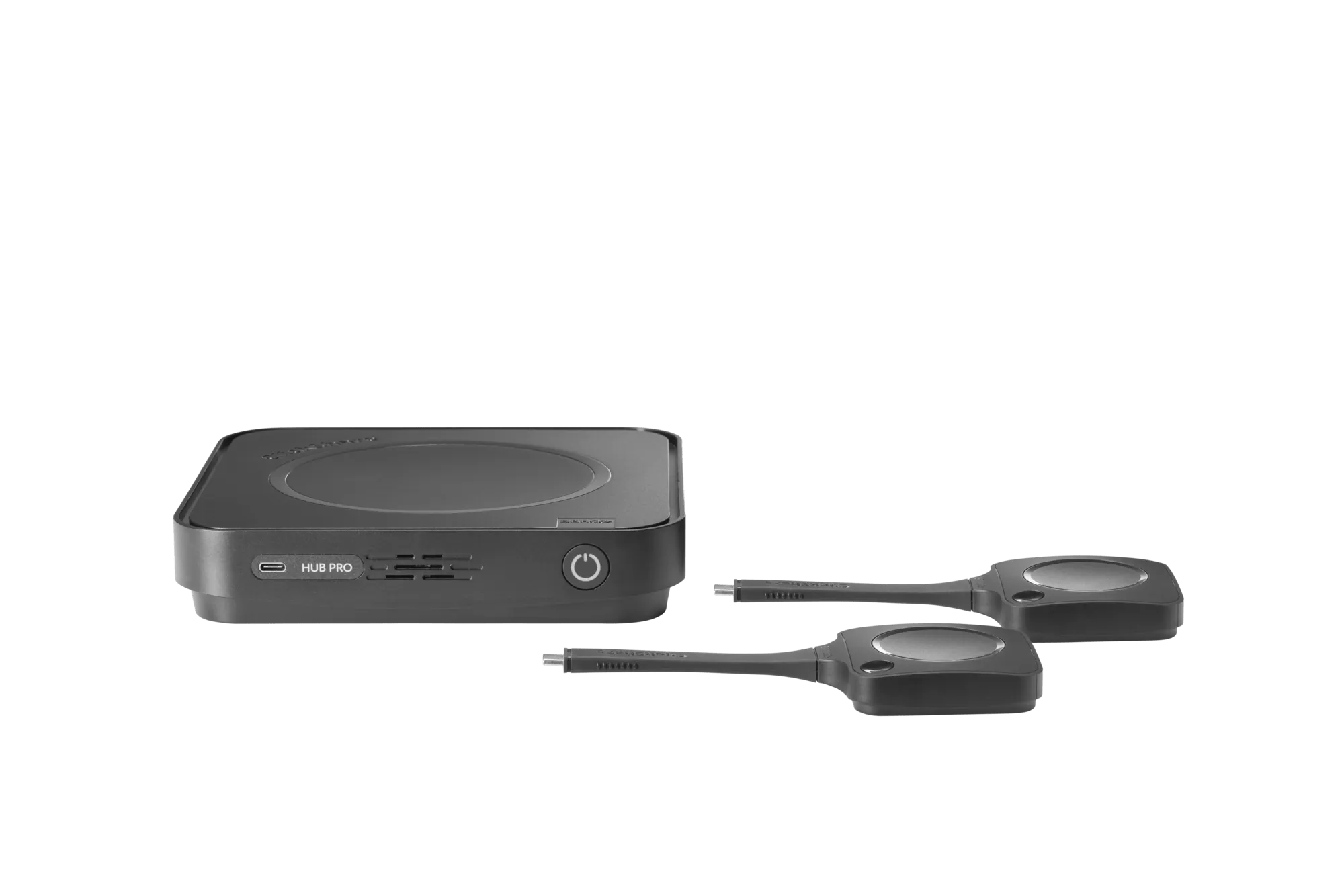
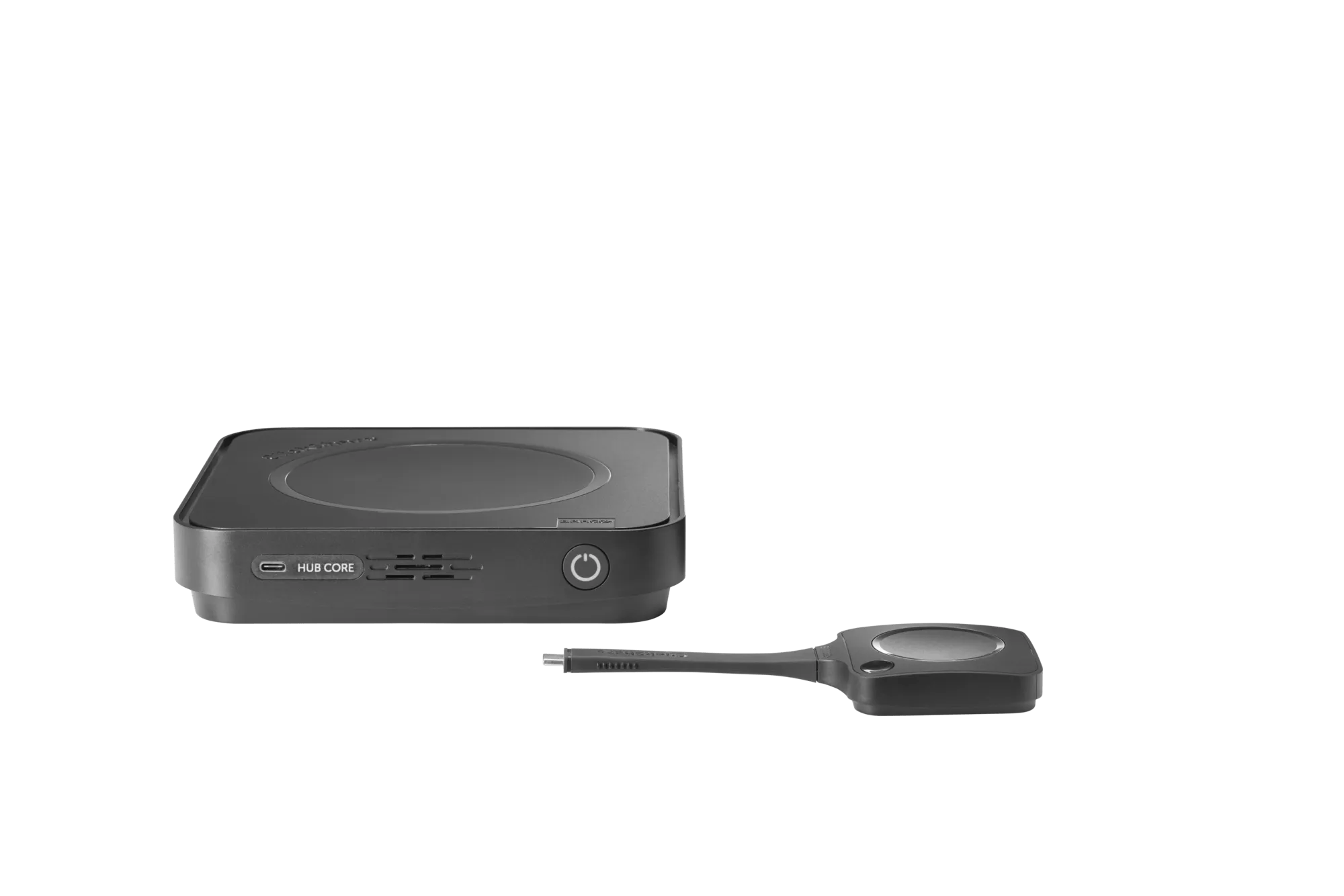
In June, we introduced ClickShare Hub, our modular video conferencing room system built for enhanced, effortless hybrid meetings.

We're now thrilled to announce a suite of accessories launching soon! These additions make it easier than ever to create a professional, clutter-free environment that supports truly seamless video conferencing. 

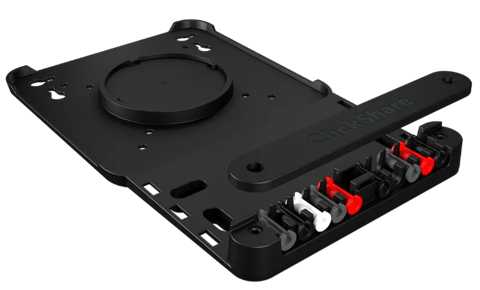
2. Wall mount plate

Achieve a clean and professional installation! The ClickShare Hub wall mount plate supports both horizontal and vertical installation, allowing you to place the Hub optimally behind a display.

Additional holes allow use of zip-ties for cable management or fixing the plate without drilling.

It accommodates various cable sizes with all cabling secured at the back of the device, ensuring a truly clutter-free setup and reducing trip hazards.

What's more, it's also compatible with other ClickShare Base Units such as the C-5, C-10, CX-20, and CX-30 models – giving you the freedom to standardize installation across various rooms and simplify your hardware strategy.

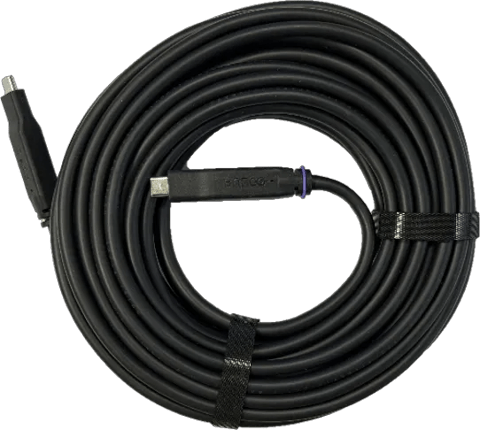
3. 10m 20W USB-C cable

Perfect for larger meeting rooms, this 10-meter, directional, optical fiber cable extends your connection reach without compromising quality.

It provides a robust, reliable connection to guarantee a stable, wired fallback video experience during demanding meetings.

Bear in mind this cable is designed for wired fallback connectivity only and does not support device charging.

Additionally, it´s also compatible with ClickShare CX-50 2nd gen and ClickShare Bar Pro. That means you can standardize cabling across different ClickShare setups and ensure consistent performance in every large meeting room.

Lastly, it’s plenum-rated (VW-1), meeting strict fire safety standards—essential for installations in the ceiling or under the floor. This rating minimizes smoke and fire spread, making it a must-have for enterprise-grade environments. 

Features in the spotlight

Some incredibly useful ClickShare features deserve a second look. We're bringing them back into focus to ensure both IT admins and end users can make the most of their ClickShare experience. 

How it works:
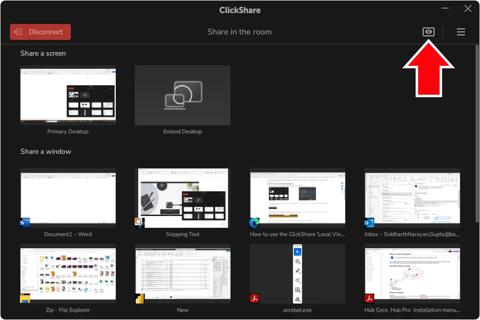
  1. Connect to your ClickShare device via the Desktop App or Button
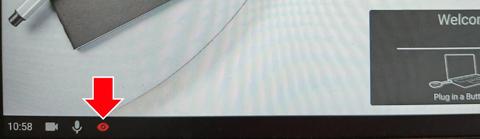
  2. Click the eye icon, and a Local View window opens on your laptop
  3. Now you should be able to see what’s on the main display.

How to update your devices?

ClickShare consists of different components: Base Units, Buttons, Apps and the XMS Cloud management platform. Make sure each component is updated to guarantee the best experience.

  • Base Unit firmware can be installed via the auto-update functionality or it can be manually updated via the ClickShare Configurator.  
  • Buttons update automatically via Wi-Fi. 
  • ClickShare Desktop App. We recommended manually downloading and installing the latest version to ensure the App automatically updates to future releases. Once installed, an auto-update function will keep the App up to date. Do you want to enable wireless conferencing via the App? Be sure to download the MSI installer.  
  • iOS and Android App are updated according to your mobile device settings. 
  • XMS Cloud updates run automatically while XMS Virtual Edge can be updated manually. 

Other articles by this author

Anterior
de ... Próxima