
Overview
The ClickShare 5th Gen Buttons (used with the ClickShare Hub Core and Hub Pro) have an LED ring that shows their current status using different colors and animations. This article helps users understand what each LED signal means, making it easier to identify the Button’s condition quickly.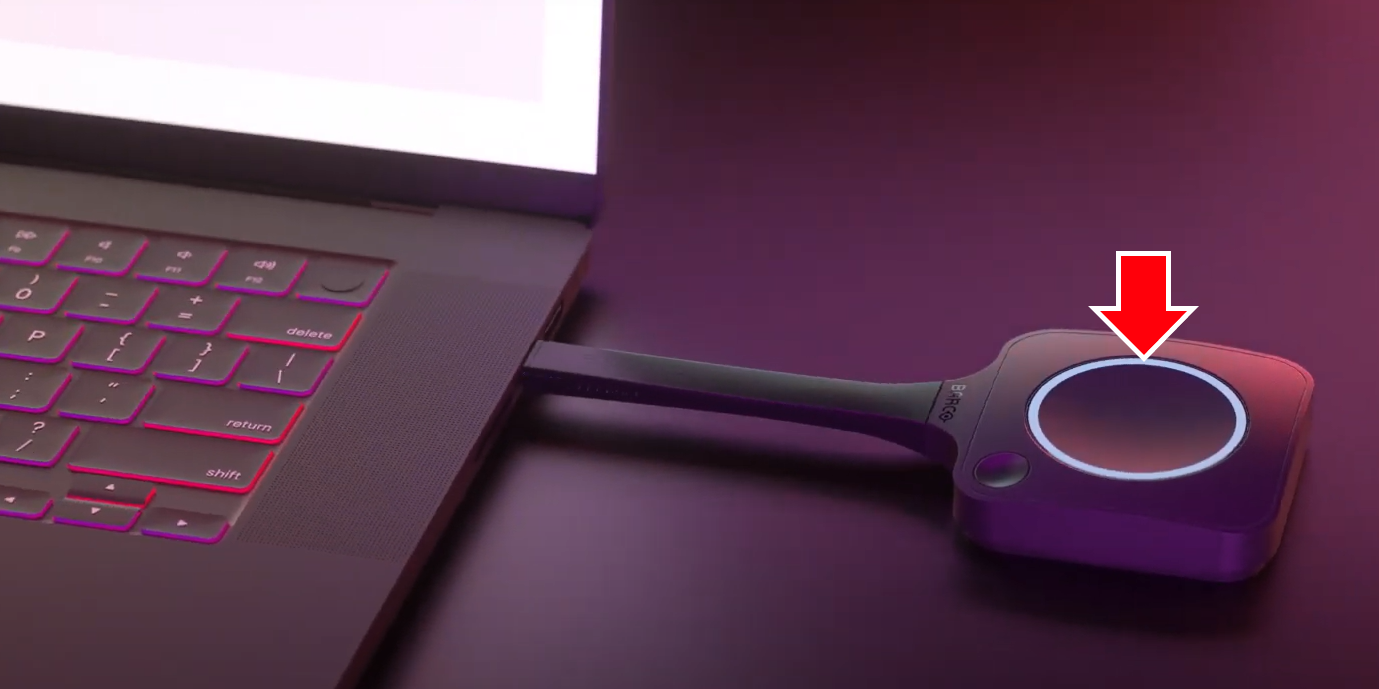
Example: Button plugged into a laptop and initializing the connection
| Button Connection | Scenario | LED Status | Description |
|---|---|---|---|
| Connected to Laptop/PC | Initializing connection | White fill | Button is setting up the connection |
| Connection successfully established | Steady white | Connected and ready for use (content sharing) | |
| Connection failed | Blinking white | Unable to establish connection | |
| Connection in progress | Fast spinning white | Device busy | |
| Device processing | |||
| Content sharing in progress | Steady red | Active sharing session | |
| Error state | Blinking red | Operational error | |
| Connected to Base Unit | Button pairing successful | Steady green | Button paired with Base Unit |
| Button pairing failed1 | Blinking red | Error during pairing process |
1 Button pairing failed: The Base Unit LED will also indicate the error by blinking red.
Related Articles
- LED Behaviour and Explanation of the ClickShare Hub Core and Hub Pro
- LED Ring Behavior and Explanation for ClickShare Buttons (Gen 4.1, Gen 4, Gen 3 and Gen 2)
- ClickShare (C-, CX-, CS- & CSE-series) Base Unit Power Button LED Ring Behaviour and Explanation
- ClickShare Bar (Core and Pro) Camera Module LED Ring Status and Explanation

