
This guide explains how to manually update the firmware locally for the ClickShare Hub Core and Hub Pro. You can update the firmware in two ways:
- Using a USB stick
- Manually downloading and updating from the Barco server
A. Update via USB Stick
You can configure the ClickShare Hub firmware update via USB in two modes:
- Automatically start the firmware update when a USB stick with the firmware is inserted (Allow plug and update enabled)
- Require manual confirmation to start the update (Allow plug and update disabled).
Downloading Hub firmware (required before updating)
Before updating manually, you must download the correct .CLSH firmware package for your ClickShare Hub.
- General ClickShare firmware download page
https://www.barco.com/en/products/clickshare-conferencing-collaboration/firmware-update - Direct download
https://www.barco.com/en/support/software/R3307581
Step 1: Check the “Allow plug and update” setting
- Open the ClickShare Control Panel.
- Navigate to: Settings → Device Settings → Admin Settings.
- Log in using Admin Credentials.
- Select System, then go to Firmware (right-hand side).
- Tap the arrow next to the current version.
- Under Upload from external drive, toggle Allow plug and update:
- Enabled: Firmware update starts automatically when a USB stick with the update is detected.
- Disabled: You must manually press Update in the Admin settings to start the update.
Step 2: Prepare the USB stick
Requirements:
- A USB stick (formatted as FAT32)
- A Windows computer (for formatting)
- The OTA firmware update package (
.CLSHfile)
Procedure:
- Use Windows Disk Management to format the USB stick:
- Ensure the stick has one full partition.
- Format using FAT32.
- Copy the firmware package:
- Locate the
.CLSHfile on your computer. - Copy it directly to the root directory of the USB stick (not inside any folder).
- Remove any older
clickshare_**.clshfiles from the root directory.
- Locate the
Step 3: Launch the firmware update
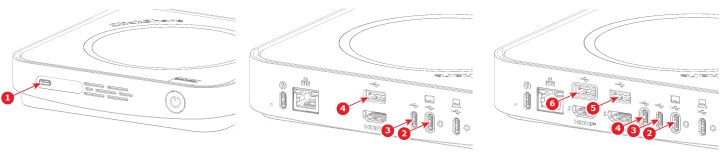
- Insert the USB stick into any free USB port on the Hub:
Hub Core/Pro: Front or rear port
- Depending on the Allow plug and update setting:
- Enabled: Update starts automatically when the Firmware is detected on the USB stick (5min).
- Disabled: Requires a press Update from the Admin settings page to start the update from the USB stick.
- The LED will blink during the update process.
- Devices will restart after the update is completed and might interrupting any active meetings.
B. Manually start the download of the firmware from the Barco server and update
- Open the ClickShare Control Panel.
- Navigate to: Settings → Device Settings → Admin Settings.
- Log in using Admin Credentials.
-
Select System, then go to Firmware (right-hand side).
-
Tap the arrow next to the current version.
-
In the Manual Update section, the current firmware version is displayed.
- If a new version is available tap Update to start the firmware update.
- Devices will restart, interrupting any active meetings to complete the update.

