
Introduction:
When a hardware or software problem occurs on a Barco medical system which needs to be further evaluated by the Barco engineers, it's important to collect all hardware and software technical information from that system (Workstation + Display controller + Monitor)
By following this step by step guide, you will be able to perform a BarcoMed SelfExam (hereafter: BMSE) report and send the report together with your error description to the Barco customer service team.
How to obtain the BMSE tool
You have a Barco MXRT display controller installed in your system
In case you have an MXRT display controller installed in the system along with the Barco drivers, additional Barco software programs are installed as well. One of them is the BarcoMed SelfExam program (Search for a BMSE logo on the Desktop or search for "Barco" in the Windows Search Tool)
 or
or 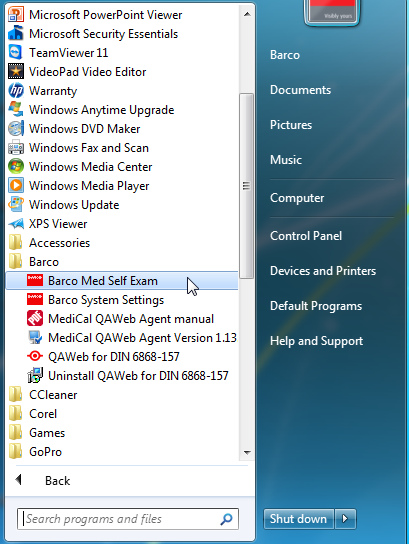
You do not have a Barco MXRT display controller installed in your system
In this case, a standalone version of this tool is available for download. You can find a download link below this article (see BMSE.zip).
How to create a BMSE report
1) Start BMSE Tool
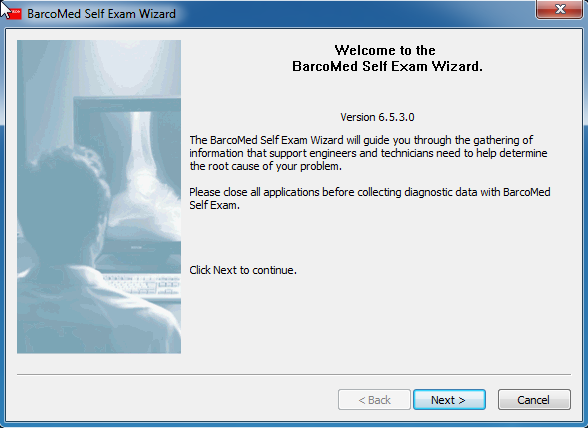
2) Once, the BMSE tool opened, customer information can be filled in the blanks (N.B: these fields are NOT mandatory)
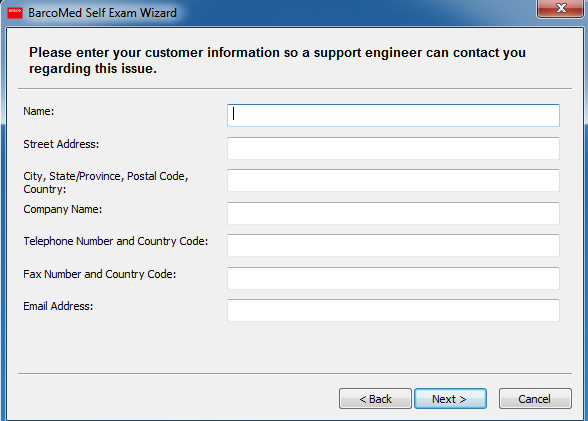
Fill out the following fields as detailed as possible. Each piece of information is useful for the Barco engineer who investigates your problem:
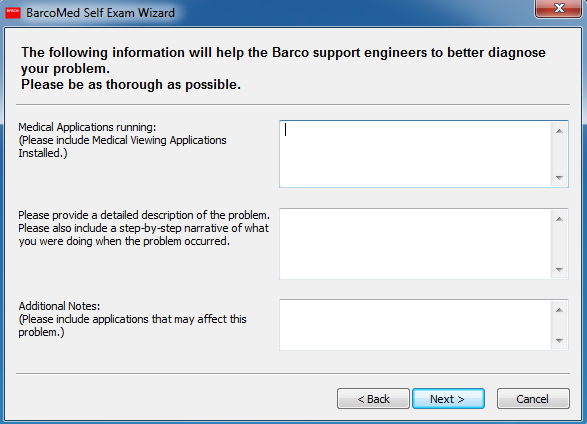
Click Next to continue.
3) The tool will from now on be ready to gather diagnostic data from the workstation.
Please make sure to check all the available boxes.
When ready, click on Start Diagnostic as shown below.
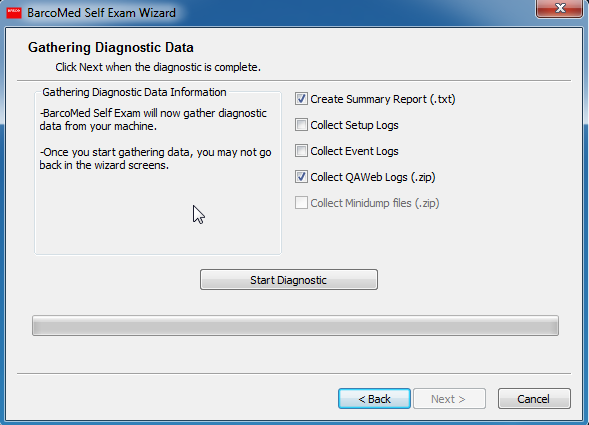
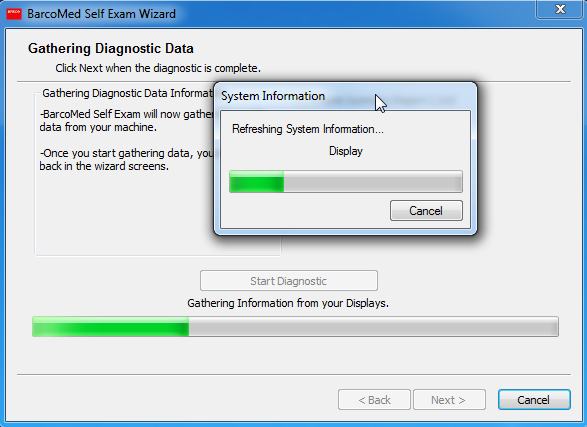
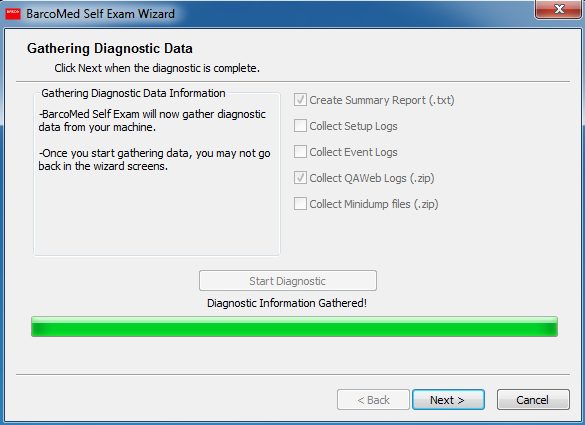
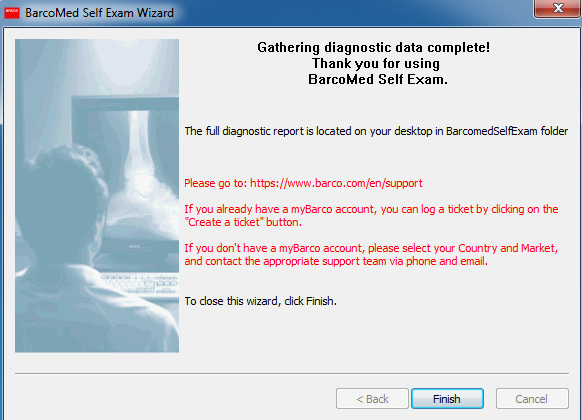
4) Once the BMSE tool finishes collecting all data, click Finish. A HTML summary report opens in your web browser.
5) A folder with the collected data is also automatically created on the desktop of the workstation.

6) This folder has to be zipped in order to be sent to the Barco Customer Service Team

BarcoMedSelfExam.zip

7) The zipped BarcoMed SelfExam Report can now be attached to a Barco eSupport Service Ticket (KB6024 ) or in an attachment of an e-mail to our customer service e-mail address (www.barco.com/en/support).

