
The ClickShare Desktop App crash dump file is essential for troubleshooting when you encounter issues like the app not starting, crashing on start, or other related problems. See the sections below for instructions on generating a crash dump file for both Windows and macOS.
For Windows
The crash dump file will be auto generated in a specific directory, this needs to be done by a System administrator.
- Open Registry Editor as administrator.
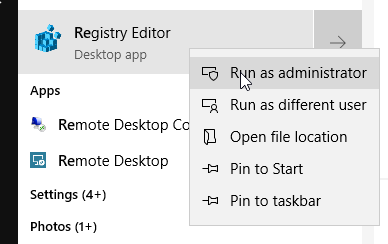
- Go to Computer\HKEY_LOCAL_MACHINE\SOFTWARE\Microsoft\Windows\Windows Error Reporting\LocalDumps and check if there are already LocalDumps under Windows Error Reporting containing ClickShare.
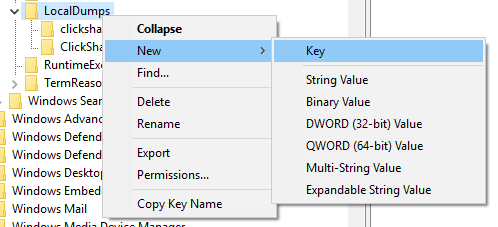
- If you cannot find LocalDumps in Windows Error Reporting, create one first, you can do this by right clicking the root directory -> New -> Key in Computer\HKEY_LOCAL_MACHINE\SOFTWARE\Microsoft\Windows\Windows Error Reporting\LocalDumps.
- Create clickshare.exe in LocalDumps (which is for the Desktop app)
- Create clickshare_native.exe in "LocalDumps" (which is for desktop app)
- Create ClickShare_for_Windows.exe in LocalDumps (which is for the Button app)

- Create a REG_DWORD file in the folders.
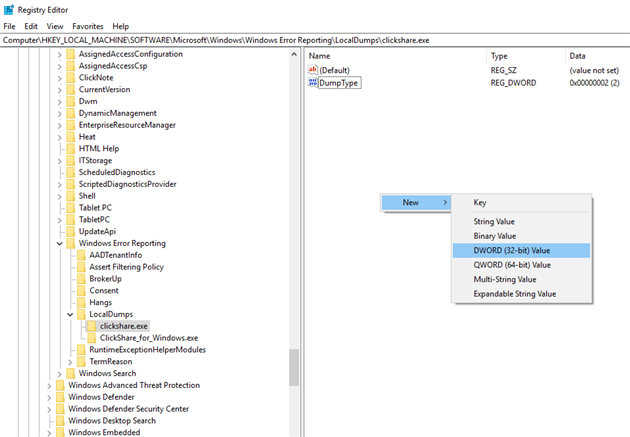
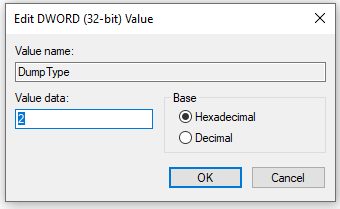
- Rename the name by right-clicking: DumpType
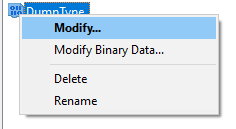
- Modify the value by right-clicking
- Mini dump: 1
- Full dump: 2 (which we recommend)
- You should be able to find the crash files in:
- %localappdata%\CrashDumps
- C:\Users\{user_name}\AppData\Local\CrashDumps
For macOS
- Download and extract the zip file (R3306192_xx_ApplicationSw.zip).
xx is the version number. - Launch Terminal and execute 'clickshare.uncompressed'.
- When the app is crashed, the stack of crash can be found in /Users/[account]/Library/Logs/DiagnosticReports/.

