
This article addresses the 2 common error notifications received on the client PC when the ClickShare Button cannot connect to the meeting room's ClickShare device:
1. Unable to connect to meeting room “ABC"
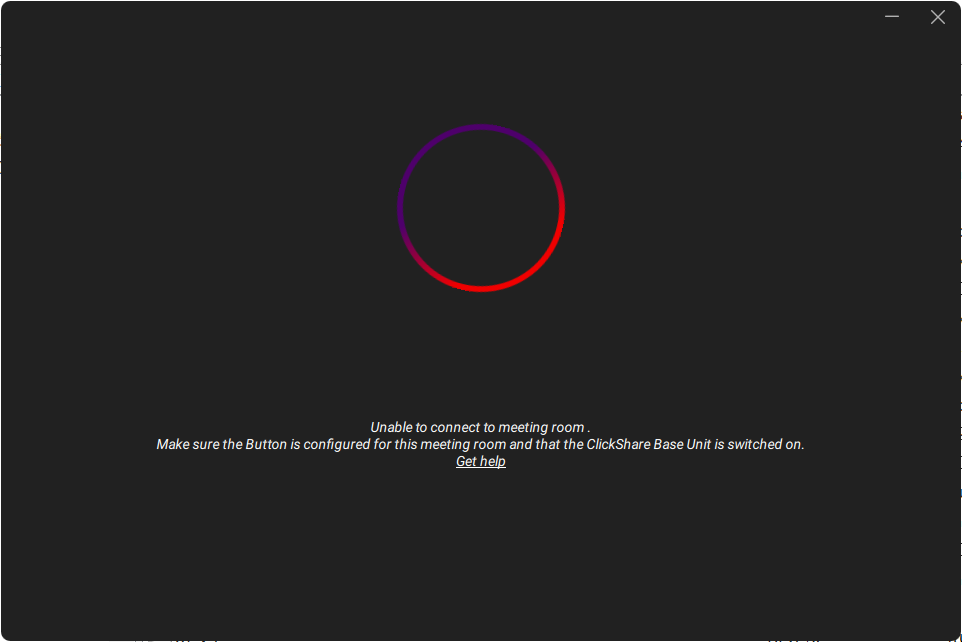
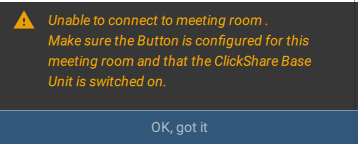
Possible causes and solutions
-
Button not configured:
- Verify that the Button is configured for this meeting room and that the ClickShare Base Unit is switched on.
- Pair the Button with the Base Unit, physically access the Base Unit and plug the Button into its USB port until the message 'Paired and updated' appears at the bottom of the connected meeting room screen (how-to, see KB5924).
- Base Unit is shutdown: The Base Unit may have been shut down, preventing the Wi-Fi beacon with the correct SSID from being broadcasted. Restart the Base Unit to resolve or refer to KB5454 for troubleshooting ClickShare SSID issues.
Additional troubleshooting steps
As a ClickShare Administrator, you can take the following steps to further troubleshoot this issue:
- Base Unit Wi-Fi mode is disabled: The Base Unit’s Wi-Fi (aka Operation) mode is currently disabled in its web interface (ClickShare Configurator). To enable it, go to Wi-Fi Settings → Operation Mode and switch the mode to Access Point. or Wireless Client.
After changing the mode, re-pair the Button.
- Out of Wi-Fi range: The Button may have been moved to another meeting room outside the Base Unit’s Wi-Fi network range. To resolve, pair the Button with the Base Unit by plugging it into the USB port of the Base Unit (how-to, see KB5924).
- Incorrect SSID configuration: There may be a typo in the SSID configured on the “Button connect to” web page in the ClickShare Configurator. To resolve, please correct the SSID configuration.
- Factory reset Base Unit: As a final attempt, try a hardware factory reset on your ClickShare device to ensure that the cause is not a corruption in the configuration (how-to, see KB2327).
2. Something went wrong connecting to meeting room “ABC”
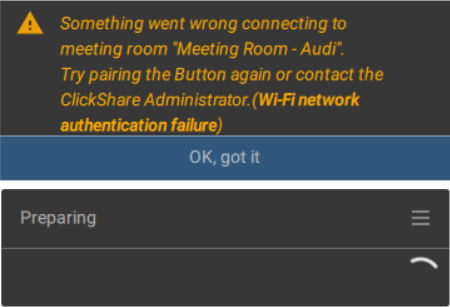
Possible causes and solutions
-
Button not configured:
- Verify that the Button is configured for this meeting room and that the ClickShare Base Unit is switched on.
- Pair the Button with the Base Unit, physically access the Base Unit and plug the Button into its USB port until the message 'Paired and updated' appears at the bottom of the connected meeting room screen (how-to, see KB5924). If re-pairing fails, contact the ClickShare Administrator and provide the full error message for further troubleshooting.
Additional troubleshooting steps
When you are a ClickShare Administrator, you can utilize the full error message to further troubleshoot this issue. The following points are part of the full error message:
- Sharing TCP sockets not open: Ensure that the required port is open (how-to, see KB4130).
- Wi-Fi noise threshold: This means we detect too much Wi-Fi noise which impact the connection of the Button. For tips, see KB4370.
- Wi-Fi network authentication failure: This indicates a correct network configuration but a failure in Wi-Fi authentication (e.g., mistyped passphrase). To resolve, you'll need to update the Base Unit configuration.
- Wi-Fi network configuration mismatch: The SSID matches, but the configuration settings are incorrect (e.g., wrong authentication method). To resolve, you'll need to update the Base Unit configuration.
Note: See KB15023, which discusses and troubleshoot a similar error message caused by issues related to the OUI MAC address information of the Access Point.
Other issues
- For any other issues not mentioned here regarding the Button not connecting to the meeting room's ClickShare device, please see KB4349 for additional troubleshooting tips.
- You can also contact the Barco Helpdesk by creating a service ticket (how-to, see KB6024). If possible, include the logs of the Base Unit and Button with your service ticket (how-to, see KB4112).
Contact Clickshare Administrator
If you're a meeting room participant and encounter difficulties with the troubleshooting tips provided above, please contact your ClickShare Administrator with details of the issue, including reference to KB5996, for further assistance!
Related Articles
- ClickShare Button Gen 4.1 Fails to Connect on External Access Points (Resolved in Firmware 02.23)
- ClickShare Button connection issues
- ClickShare Button disconnects because of Windows Power Option settings
- ClickShare Button disconnects or does not connect when the USB touchscreen is connected
- ClickShare Button disconnects when plugging the HDMI™ cable to the display or rebooting the display
- Tips to troubleshoot error message "Unable to share No display detected"

