
To access your ClickShare Base Unit’s web interface (ClickShare Configurator), you’ll need its wired IP address.
You can find this in two simple ways, as long as the Base Unit is powered on and connected to the network via LAN.
Option 1: On Splash screen of the ClickShare
For C-series, CX-series, Bar Core/Pro
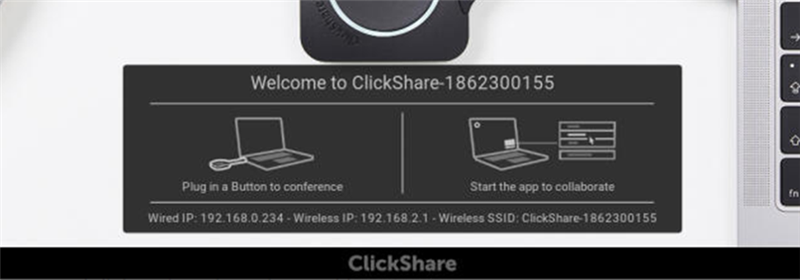
- Network information, including the wired IP address, will be found on the splash screen as long as no one is currently sharing.
- By default, this information is disabled in the ClickShare Configurator.
- To enable it:
- Update the setting in: XMS or ClickShare Configurator → Personalisation → On‑Screen ID → Show network info.
- Once enabled, the wired IP address appears underneath the on‑screen instructions when no one is sharing.
Tip: If you don’t see network details even after enabling them, use Option 2 via the ClickShare app.
For CS(E)-series
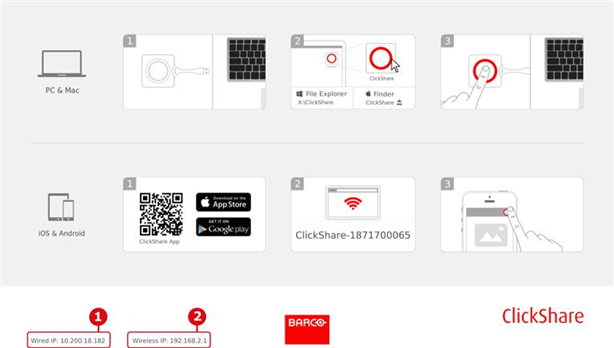
If not turned Off in the ClickShare Configurator, the wired IP address of the Base Unit can be found:
- At the bottom of the splash screen (default wallpaper).
See item #1 for the wired interface and #2 for the wireless interface in case of wireless Client mode on the CSE-200+. - In the top‑left corner in case a custom wallpaper has been configured.
Showing or removing this information on the splash screen of the Base Unit can be configured in: XMS or Configurator → Personalisation → On‑Screen ID → Show network info.
Option 2: In the About menu on the ClickShare app
- Connect to your Base Unit using either:
- A ClickShare Button plugged into your laptop, or
- The ClickShare Desktop App (how to: see KB2607).
- Open the About menu in the app.
- Your Base Unit’s Wired IP Address will be displayed there.
For example, the wired IP address of CX-30 as shown in the images below:
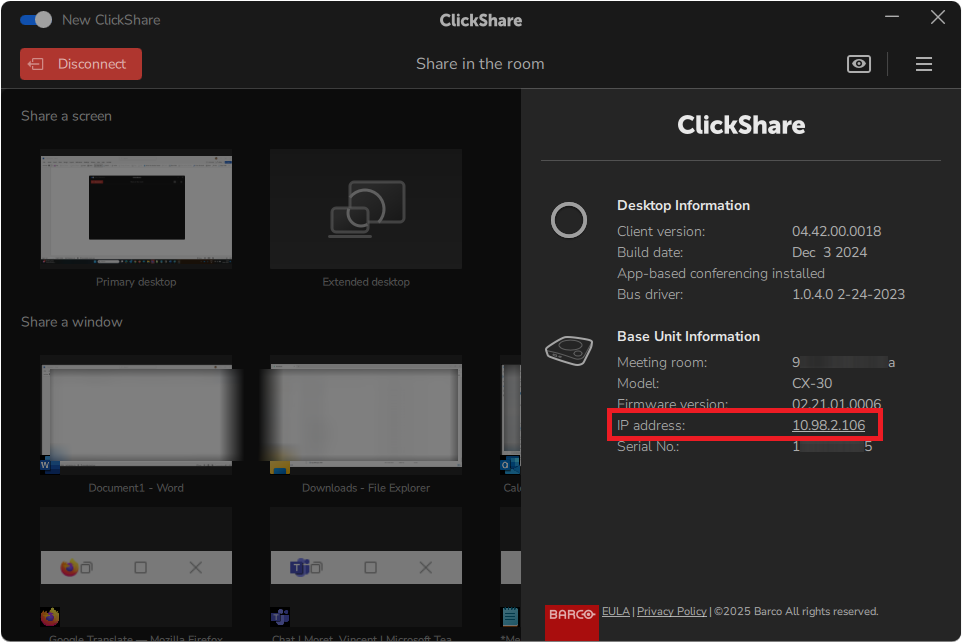
Current (New) user interface
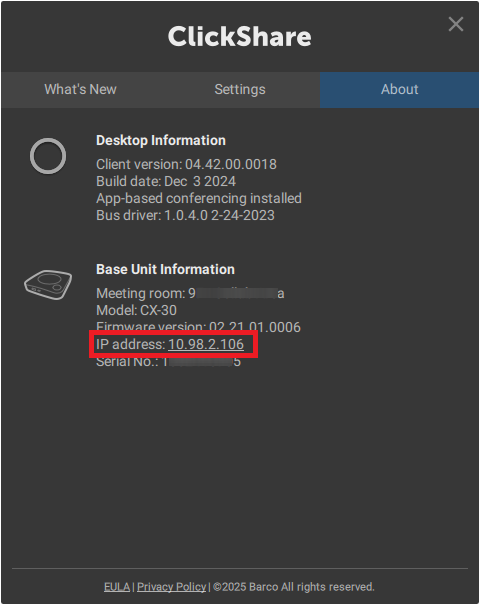
Old user interface

