
Overview
Button logs are particularly useful for investigating:
- USB connectivity issues
- Network connection problems
- Button detection and communication etc
Prerequisites
Before enabling debug logging, ensure the following conditions are met:
- The ClickShare Button is disconnected from the computer
- The ClickShare Desktop App is completely closed/quit
Important notes
- Logging mode cannot be activated while the Button is connected or while the ClickShare Desktop App is running
- If DisplayPort Alt Mode (DP Alt) is in use, no logs will be generated
- If computer USB port is blocked, no logs will be generated
Enable debug logging
- Connect the ClickShare Button to the laptop while holding the SHIFT key on the keyboard.
If ClickShare Launcher is not installed
Connect the ClickShare Button to the laptop while holding the SHIFT key on the keyboard and then launch the ClickShare executable on the Button.A confirmation dialog will appear indicating that logging has been enabled.
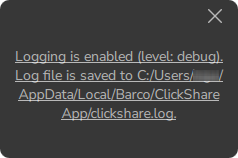
- Reproduce the reported issue.
- Navigate to the following folder location on your laptop to obtain the log files:
- Windows:
%LOCALAPPDATA%\Barco\ClickShare App\clickshare.log - macOS:
~/Library/Application Support/Barco/ClickShare App/clickshare.log
- Windows:
- Additional capture logs: The following files may also be generated and can assist in troubleshooting capture-related issues.
DLCap.logDXCap.log
Additional information
For detailed instructions on enabling debug logging and collecting ClickShare Button logs, click here.

