
After logging into your XMS Cloud account, the next step in registering your ClickShare device is to create an organisation account, either if one isn't available or if you wish to create a new one. Follow the steps below to create and add an organisation to your XMS Cloud account opened on a computer or mobile device.
Note:
- If you don't have an XMS Cloud account, please refer to the KB15250 for detailed instructions on how to create one.
- If you have an XMS Cloud account with the role type Reseller / Integrator, you can create multiple organisation accounts. To view your role type, tap on your profile icon in the XMS Cloud opened on your mobile device.

Method 1: Using a computer
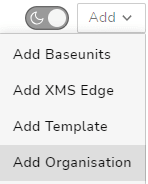
- Click on the Add dropdown and select Add Organisation.
- Enter the following details:
- Organisation account name
- Country
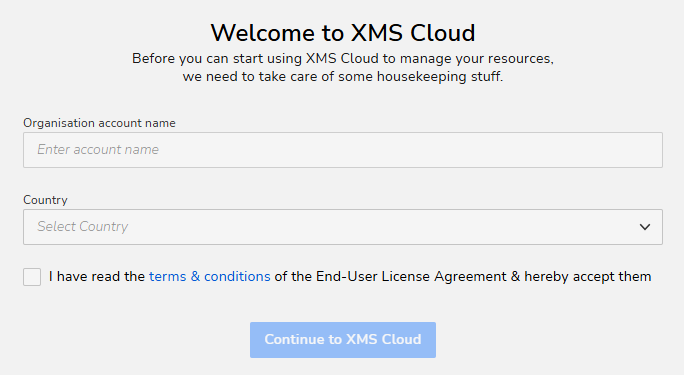
- Accept the terms and conditions and click Continue to XMS Cloud.
- New organisation name is created and successfully registered in your XMS Cloud account.
An Add Baseunits window opens within the System Dashboard window.
If you have the ID list of your Base Unit at hand, or if you are migrating from XMS Edge, you can continue with the Add Base Unit procedure.
If not, you can press the close icon in the top right and browse the XMS Cloud environment instead.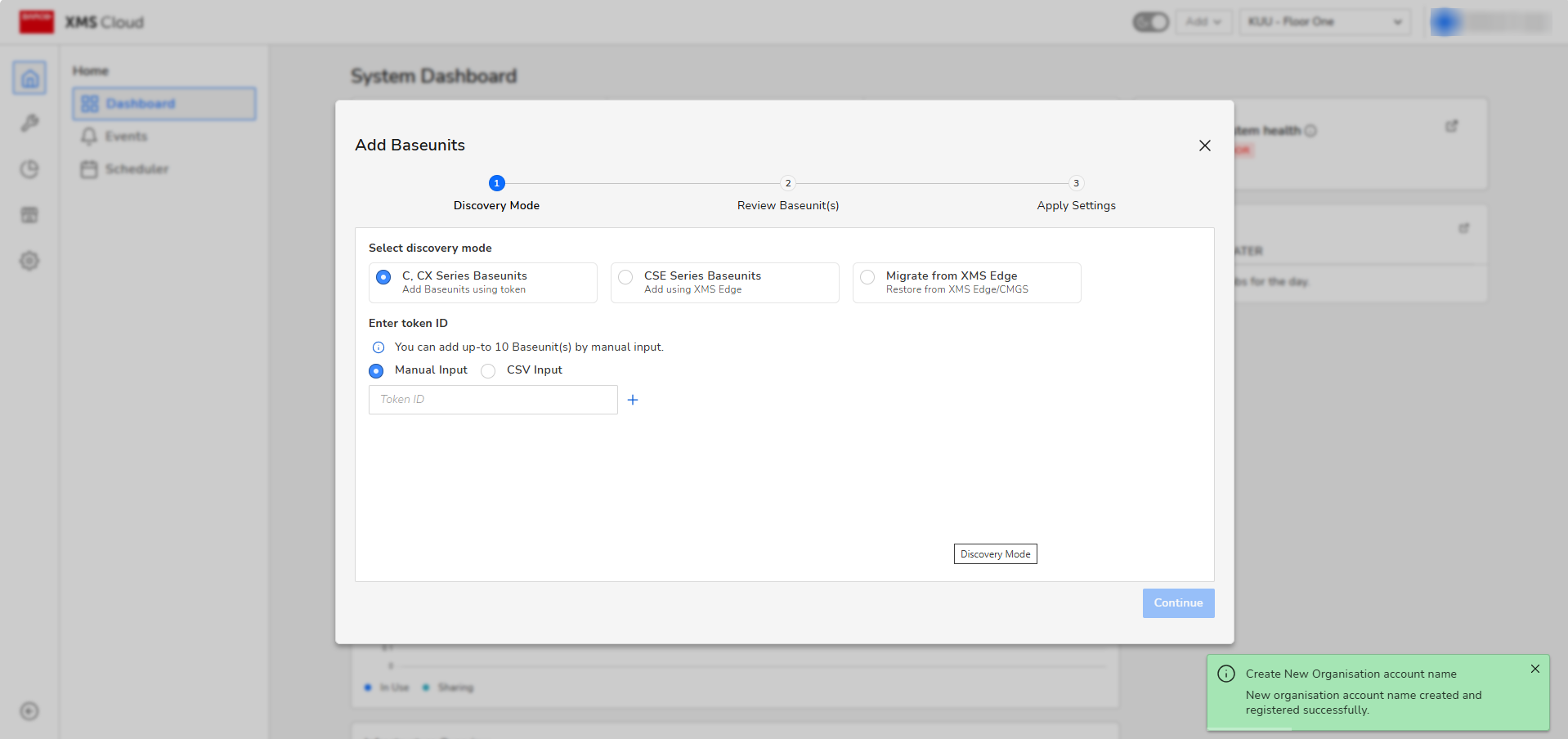
Method 2: Using a mobile device
- Tap + Add.

-
Enter the following details:
- Organisation account name
- Country

Tap + Invite admin users to send an email invitation to the specified users for the admin role. This option is useful for adding users with admin roles immediately after an organization account has been set up.

- Tap Create account to add a newly created organisation into your XMS Cloud account.


