
The ClickShare Desktop App is designed to be installed on the computer by the user through the EXE release of the installer. As this installation does not require administrator privileges and the App will update itself, this is the advised, low maintenance deployment option.
If a more controlled deployment is required, organizations using Microsoft System Center Configuration Manager (SCCM), can deploy the MSI version of the installer.
This article describes how to deploy and remove the ClickShare Desktop App MSI with Microsoft SCCM from an organization's Windows computers.
Downloading the ClickShare Desktop App MSI package
The MSI package of the ClickShare App installer can be downloaded from the www.clickshare.app.
It fully supports msiexec.exe commands and can as such be used by SCCM.
Creating the ClickShare Desktop App deployment package in SCCM
You can use the Create Application function to create a package based on the ClickShare_Installer.msi file which SCCM can deploy to a group of computers to install or remove the ClickShare Desktop App.
Create Application flow for installation
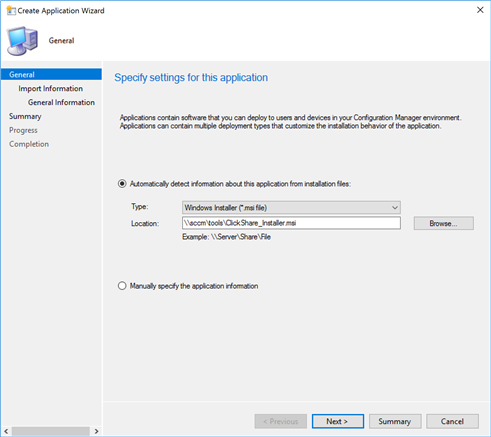
- Browse to the ClickShare_Installer.msi which should be on a shared folder that can be accessed by the SCCM server and click Next.
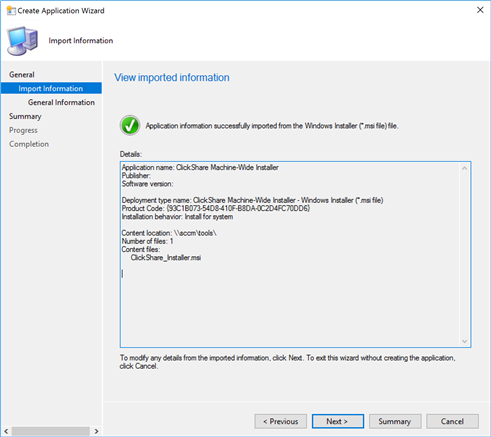
- Review the imported information and click Next.
- Specify the information about this application:
Name: ClickShare Machine-Wide Installer
Publisher: Barco N.V.
Software version: x.x.x.x (ClickShare firmware version)
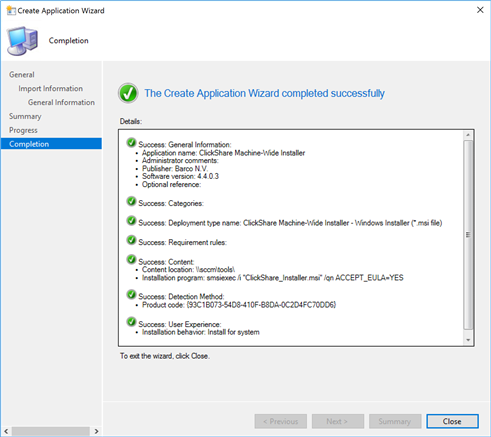
Installation program:msiexec.exe /i "ClickShare_Installer.msi" /qn ACCEPT_EULA=YES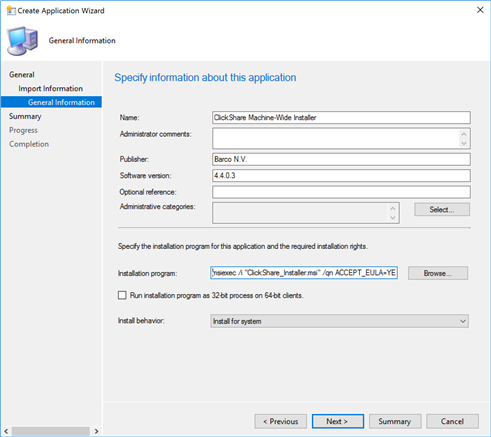
- Click Next.
[Optional] Click Summary to review the entered information.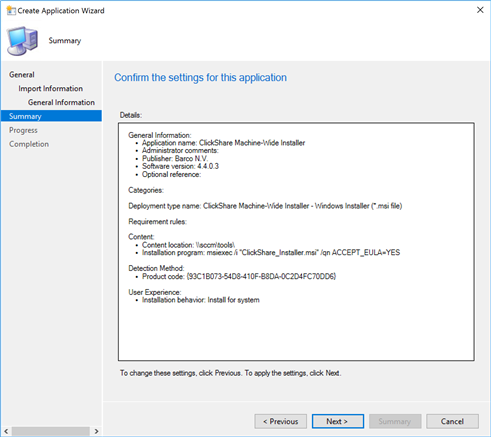
- Create Application wizard completed successfully.
Create Application flow for uninstallation
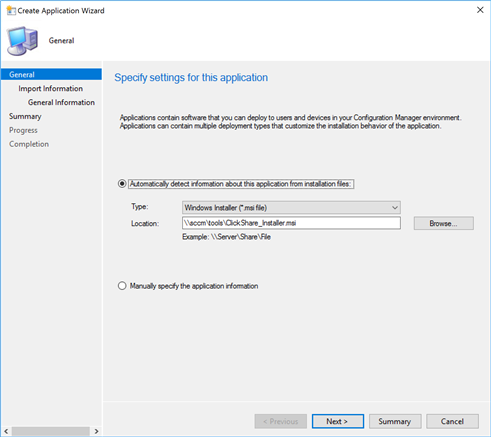
- Browse to the ClickShare_Installer.msi which should be on a shared folder that can be accessed by the SCCM server and click Next.
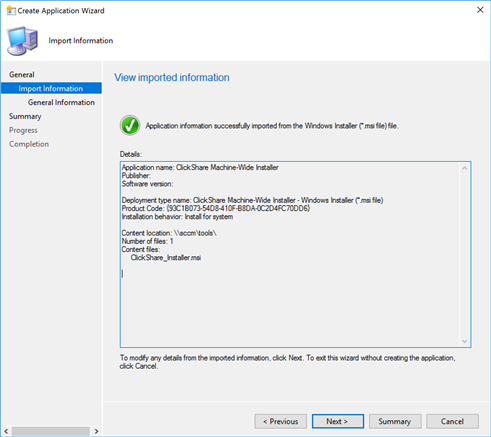
- Review the imported information and click Next.
- Specify information about this application:
Name: ClickShare Machine-Wide Installer
Publisher: Barco N.V.
Software version: x.x.x.x (ClickShare firmware version)
Installation program:msiexec.exe /x "ClickShare_Installer.msi" /qn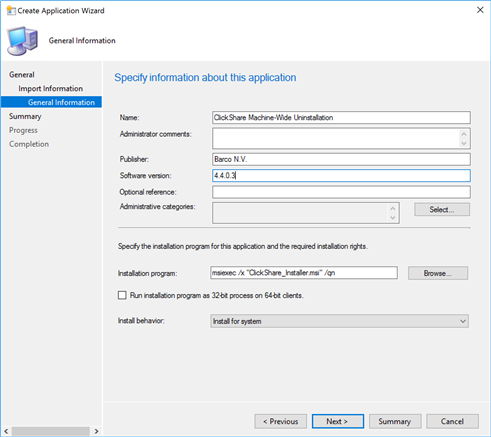
- Click Next.
[Optional] Click Summary to review the entered information.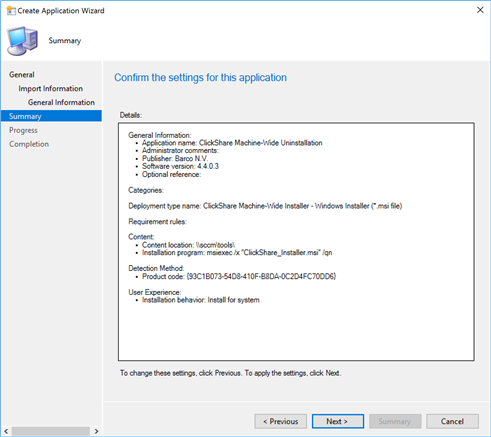
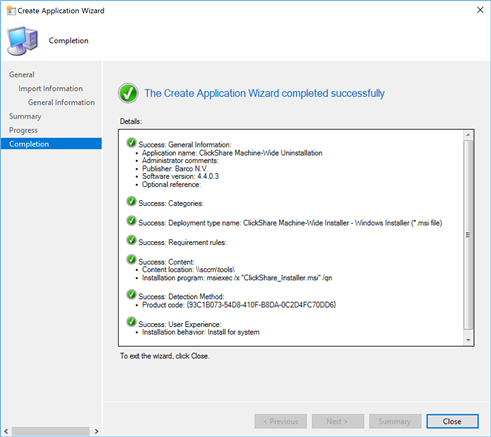
- Create Application wizard completed successfully.
Info!
Once deployed, the ClickShare Desktop App will update itself automatically. It is not advised to use SCCM to deploy upgrades.
If auto-updating is not an option within your organization, you should uninstall the deployed version before installing the newer version.
Additionally, it is advised to disable the auto-updating by blocking access to the ClickShare update-server at
https://assets.cloud.barco.com/clickshare/release/RELEASES
By blocking this URL on the network or client firewall, the ClickShare Desktop App will not be able to auto-update anymore.

