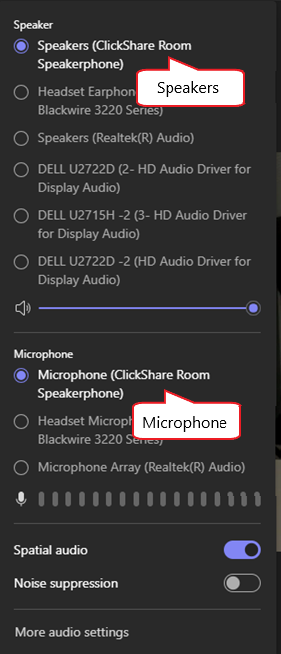
For best content sharing experience, we advise to use the "ClickShare Room Camera/Speakerphone" in your Microsoft Teams Audio and Video settings.
You can configure this when you're starting or joining a new Microsoft Teams conference meeting (Method 1) or while you already are in a Microsoft Teams conference meeting (Method 2).
Info! Make sure that you are connected to the ClickShare device using either a ClickShare Button or the ClickShare Desktop App.
Method 1: You're starting or joining a new Microsoft Teams conference meeting
- Start or join Microsoft Teams conference meeting.
- Select Computer audio to enable the "ClickShare Room speakerphone".
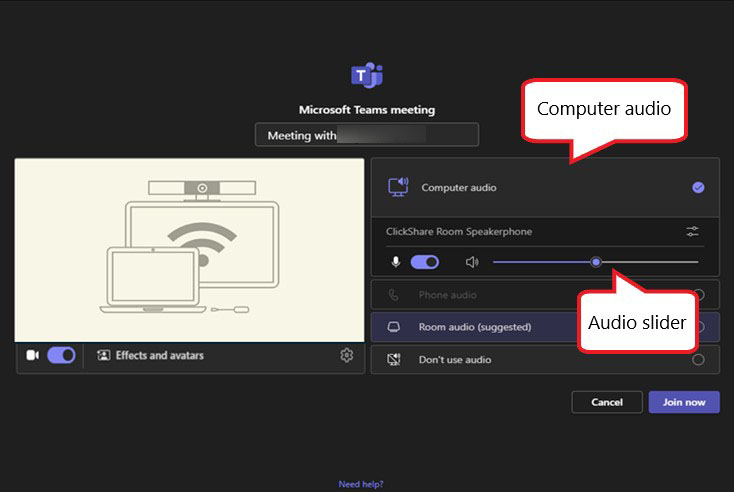
- Open the Audio settings (the vertical slider icon below the Computer Audio in the Microsoft Teams section)
- Ensure that selected Speaker and Microphone are the "ClickShare Room Speakerphone".
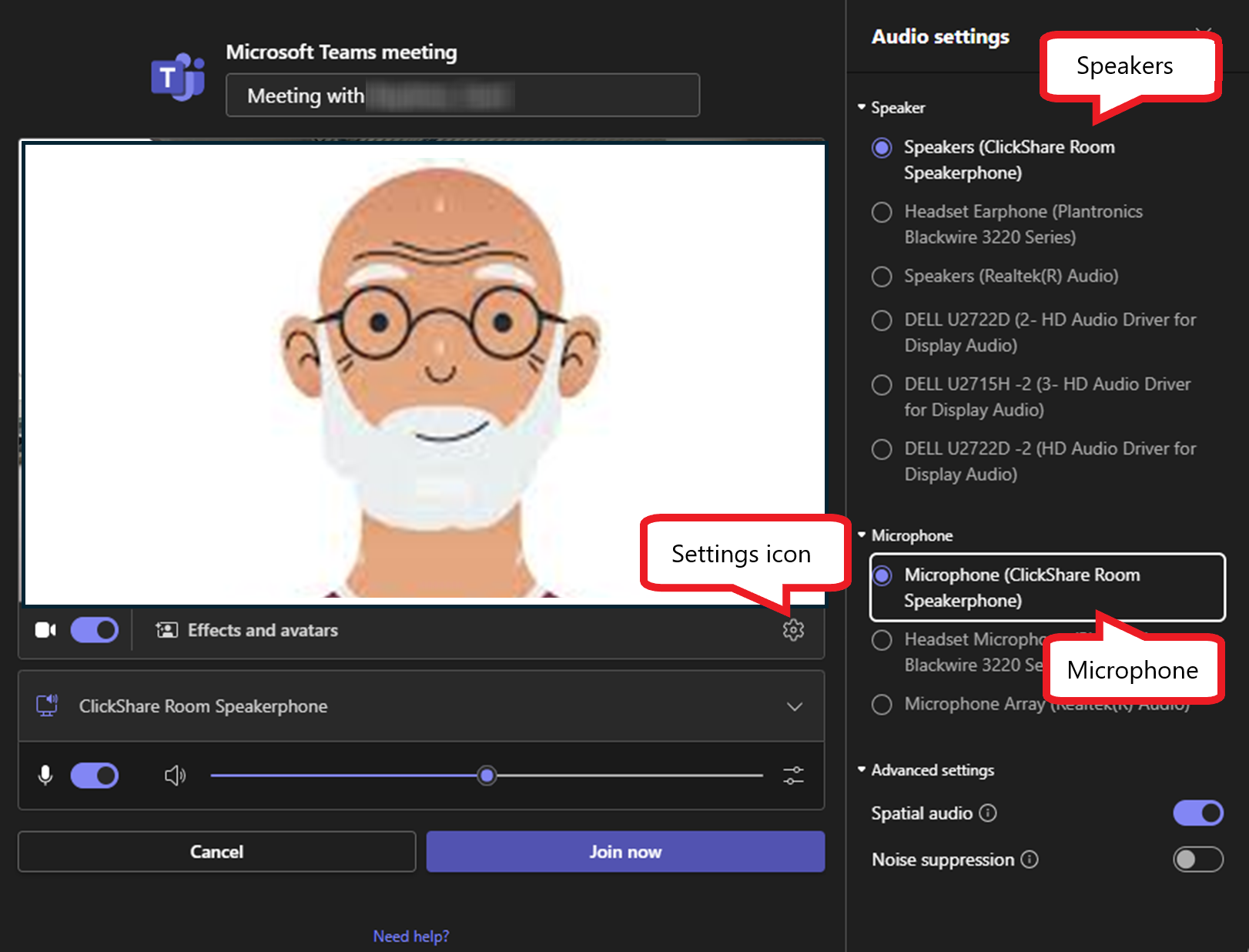
- Select the settings wheel⚙icon below the camera image, next to Effects and avatars.
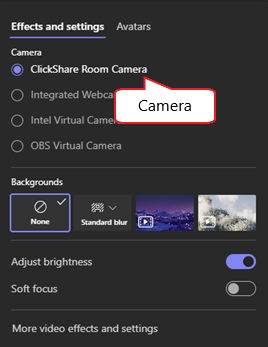
- Ensure the selected Camera is "ClickShare Room Camera".

Method 2: You already are in a Microsoft Teams conference meeting
This method allows to change the device settings after joining the Microsoft Teams call.
The peripheral devices used can be changed by selecting the Camera or Mic buttons on top of the Microsoft Teams window.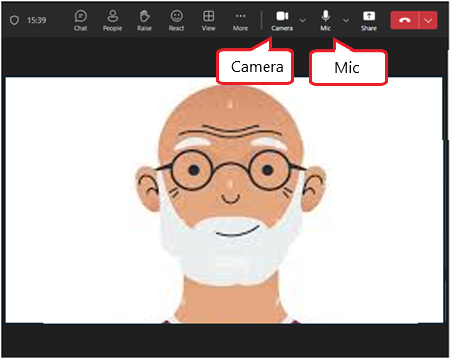
- Select the drop-down button next to the Camera button to get access to the Camera settings. Here, ensures the selected Camera is "ClickShare Room Camera".
- Select the drop-down next to the Mic button to get access to the audio peripherals and audio settings. Here, ensure the selected Speaker and Microphone are the "ClickShare Room Speakerphone".