
Issue
When you unplug the ClickShare 5th Gen Button or stop sharing during a PowerPoint presentation, Windows may automatically switch the display projection mode to PC screen only. This is expected Windows behavior.
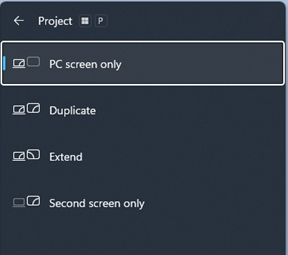
When the projection mode switches to PC screen only, sharing via the ClickShare 5th Gen Button may fail the next time you attempt to share content.
Solutions
You can resolve the issue using one of the following methods:
1. Use ClickShare App
The ClickShare App automatically detects and corrects the projection mode.
2. Follow the on-screen guidance
If the ClickShare App is not installed or being used, on-screen messages will guide the user restore the correct Windows projection mode and resume sharing.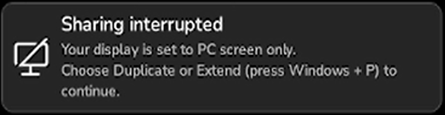
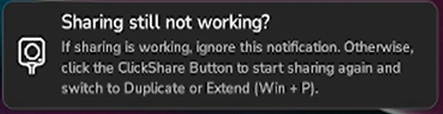
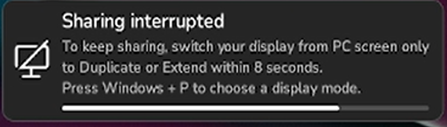
To manually correct the setting:
- Plug in the ClickShare Button
- Start sharing again using the ClickShare Button.
- Press Windows + P.
- Select Duplicate or Extend mode within 8 seconds.
Remark:
The time frame to correct is only 8 seconds.
Because the ClickShare Button waits for 8 seconds to see if some data comes in, so if in that time frame the user changes the Windows display to Duplicate or Extend, the Button is recovered.

